
| Article Update | What Changed? |
| 9/29/2026 | Added context on total allowance draws and amount remaining. These two data points represent a consolidated view of total draws (received and sent) and are available on the allowance log export. |
Table of contents
- Getting to the Allowance Log
- How the log is organized
- Filtering the log
- Column templates
- Summary cards and the fuel gauge
- Exporting the Allowance Log
- What's Next?
Getting to the Allowance Log
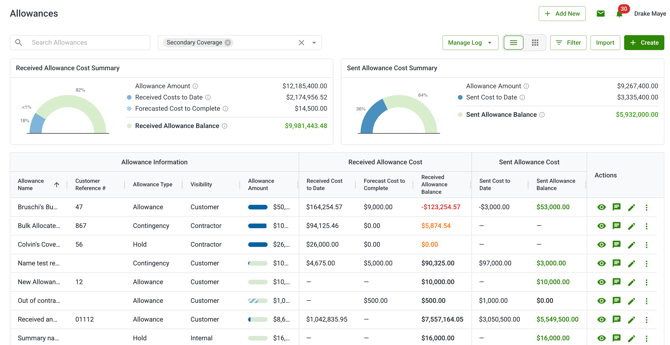
Click Allowance Log in the left-hand navigation bar from any project. When you open the log for the first time with no allowances created yet, you'll see an empty state that explains the feature and prompts you to create or import your first allowance. Your column template is set automatically once that first allowance exists.
Ready to create your first allowance? See How to Create, Import, Edit, and Delete Allowances
How the log is organized
The Allowance Log is a single unified table of all your allowances across all projects. Every allowance (Customer, Internal, and Contractor) lives in this one log. You use filters to focus on the allowances you need at any given time rather than switching between separate views.
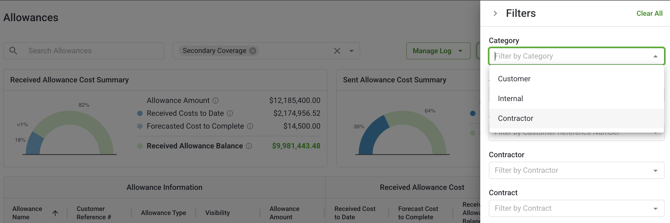
The log updates automatically after you create, edit, or allocate CORs to an allowance. You don't need to refresh the page.
Each row in the log represents one allowance. Clicking any row opens the Allowance Detail page for that allowance.
Available columns
Columns are grouped into three sections. Not every column is visible by default — see Column templates and Customizing your columns below to configure which ones you see.
| Column | Description |
|---|---|
| Allowance Information | |
| Allowance Name | The name given to the allowance at creation |
| Customer Reference # | Optional external reference number |
| Allowance Type | Allowance, Contingency, or Hold |
| Sharing | Customer, Internal, or Contractor |
| Contract Scope | In-Contract or Out-of-Contract |
| Job Number | Your internal project number |
| Project Name | The project the allowance belongs to |
| Created By | The user who created the allowance |
| Allowance Amount | Total allowance balance of allowance contingency or hold |
| Total Draws | Combined sent allowance draws plus received draws not yet linked to a sent COR. Available for Customer and Internal allowances only. |
| Combined Amount Remaining | Allowance Amount minus Total Draws. Useful for reconciling against prior allowance reporting. |
| Received Allowance Cost | |
| Received Cost to Date | Total draws applied from received CORs in active statuses |
| Amount Remaining | Original Amount minus cumulative draws and forecast on the received side. May be negative if overdrawn. |
| Forecast Cost to Complete |
The current estimate of remaining cost to be drawn, set on the Received tab. Note: Forecast cost to complete can be edited in edit allowance or directly in the allowance log. |
| Received Allowance Balance | Remaining balance on the received side after forecast and draws |
| Sent Allowance Cost | |
| Sent Cost to Date | Total draws applied from sent CORs (Customer allowances only) |
| Sent Allowance Balance | Remaining balance on the sent side after draws |
| Pending to Date | Received draws held as placeholders until linked to a sent COR |
Note: Sent-side columns only populate for Customer allowances. Internal and Contractor allowances show data in the Allowance Information and Received Allowance Cost columns only — their Sent columns will appear blank since those allowance types don't apply to sent CORs.
The Allowance Log is a single unified table of all your allowances across all projects. Every allowance (Customer, Internal, and Contractor) lives in this one log. You use filters to focus on the allowances you need at any given time rather than switching between separate views.
Filtering the log
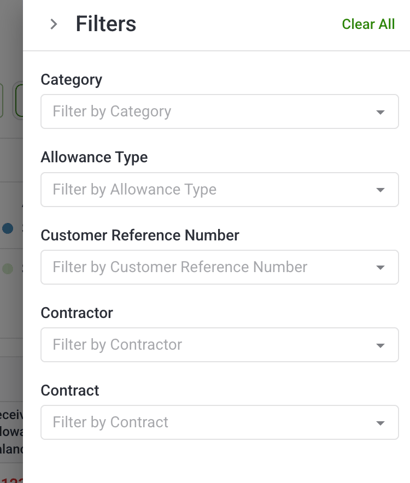
Filters sit in the toolbar above the log table. They control both the table rows and the summary card everything updates in real time as you adjust them.
| Filter | What it does |
|---|---|
| Project | Narrows the log to one or more specific projects. All accessible projects load by default. |
| Allowance Type | Filters to Allowance, Contingency, or Hold — or any combination |
| Category | Filters by Customer, Internal, or Contractor to focus on a specific allowance perspective |
| Contract Scope | Filters to In-Contract or Out-of-Contract allowances |
| Status | Filters by allowance status |
| Customer Reference # | Filters the log to allowances matching a specific customer ref number. Dropdown shows all existing ref numbers in the log. |
Filters stack — combining Project + Sharing + Allowance Type narrows the log to exactly that intersection. The summary card at the top always reflects your current filtered set, so the totals you see are always scoped to what's visible in the table.
Column templates
When you use the Allowance Log for the first time, Clearstory automatically applies a default column template based on the type of allowance you create or import first. This gives you a relevant starting configuration without any manual setup.
You can always update and save new templates to keep your log consistent:
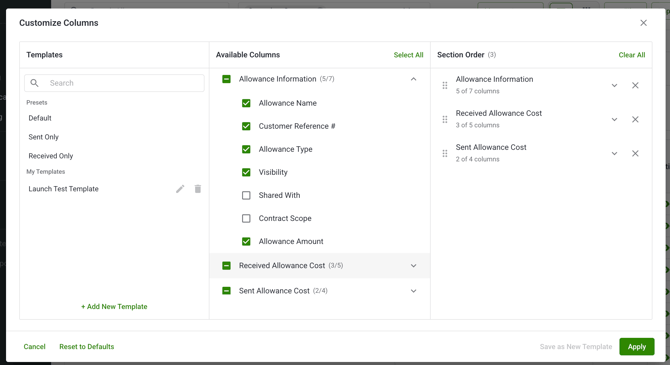
- Click Manage Log > Customize Columns
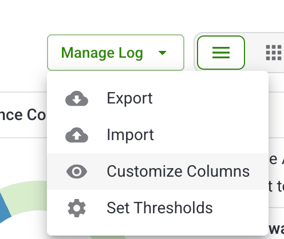
- Click the Columns button in the toolbar to open the column picker. From there:
- Toggle any column on or off
- Reorder columns by dragging within the picker
-
Note: Columns belong to one of three fixed sections. You can reorder within a section but not across them:
- Allowance Information — name, type, contract scope, reference number, project, created by
- Received Allowance Cost — received draws, received balance, forecast, received cost to date
- Sent Allowance Cost — sent draws, sent balance, pending to date
Initial Templates
If your first allowance is a Contractor allowance:
| Column |
|---|
| Allowance Name |
| Customer Reference # |
| Allowance Type |
| Contract Scope |
| Allowance Amount |
| Received Cost to Date |
| Amount Remaining |
| Forecast Cost to Complete |
| Received Allowance Balance |
If your first allowance is a Customer or Internal allowance (or a mix that includes Contractor):
| Column |
|---|
| Allowance Name |
| Customer Reference # |
| Allowance Type |
| Contract Scope |
| Allowance Amount |
| Received Cost to Date |
| Amount Remaining |
| Forecast Cost to Complete |
| Received Allowance Balance |
| Sent Cost to Date |
| Sent Allowance Balance |
| Pending to Date |
The template applies once — after that, your column configuration is your own to adjust. Clearstory saves your column settings per user across sessions.
If you already had allowances before this feature launched, Clearstory applies a simplified default:
- Contractor allowances only- Allowance Name, Customer Reference #, Allowance Type, Allowance Amount, Received Cost to Date, Received Allowance Balance
- Customer or Internal present- same as above, plus Sent Cost to Date and Sent Allowance Balance
Thresholds
Columns that show balance or utilization data support a configurable threshold — a visual "needs attention" marker for allowances approaching or exceeding a set percentage. To configure one:
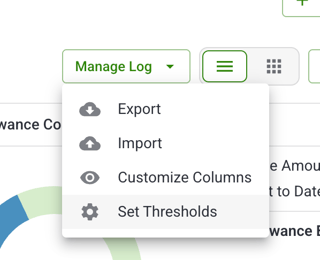
- Click the threshold icon on a supported column header.
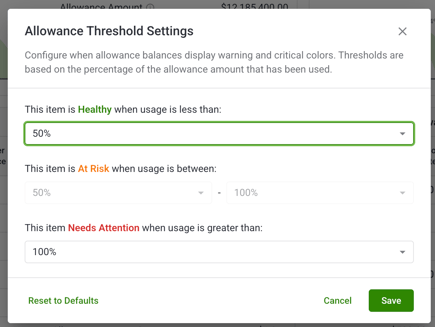
- The dropdown opens vertically below the header (it won't cover the column values).
- Set your threshold percentage and click Apply. To close without saving, click the Cancel text link or the X in the top-right corner of the modal.
Threshold markers carry through into PDF and Excel exports.
Summary cards and the fuel gauge

The summary card at the top of the log gives you a rolled-up view scoped to your current filters. It updates in real time as filters change.
What the card shows:
| Field | Definition |
|---|---|
| Original Amount | Sum of original amounts for all allowances matching your current filters |
| Total Draw | Sum of draws across CORs in active statuses: In Review, Placeholder, Approved to Proceed, Approved CO Issued |
| Amount Remaining | Original Amount minus Total Draw. Shown in red if negative. |
| Pie chart | Visualizes Total Draw vs. Original Amount. Fills completely when one or more allowances in the filtered set are overdrawn. |
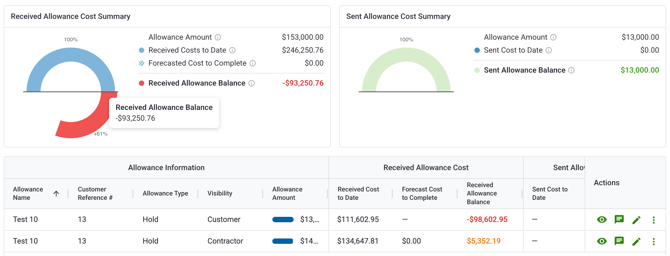
The fuel gauge inside the card shows utilization visually. Key display rules:
- Amount Remaining, Received Allowance Balance, and Sent Allowance Balance are shown in bold
- When the filtered set includes overdrawn allowances, Amount Remaining appears in red
- Pending Cost to Date is never shown as red or negative in the summary card
When allowances are overdrawn the gauge will reflect the overage up to 200% overdrawn:
How Amount Remaining is calculated depends on the allowances in view:
- For Contractor allowances: based on received CORs only
- For Customer and Internal allowances: considers both sent and received CORs — received draws are held as placeholders until linked to a sent COR
Summary view vs. By Type view
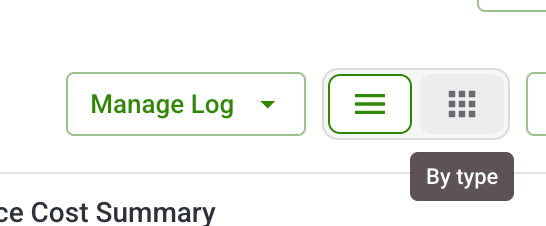
Use the toggle above the summary card to switch between two ways of reading your filtered log.
Summary view (default) shows a single aggregated card for all allowances currently in view — one pie chart, one set of totals covering Allowances, Contingencies, and Holds combined.
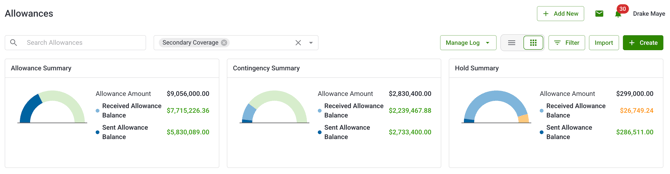
By Type view splits the summary into three independent cards — one each for Allowance, Contingency, and Hold. Each card has its own pie chart, totals, and fuel gauge so you can see exactly how your contingency budget is tracking separately from your allowance budget without changing your filters.
The view you're in also shapes your export — a By Type export produces separate sections per allowance type rather than one combined table.
Exporting the Allowance Log
The export captures exactly what you see: your active filters, visible columns, threshold settings, and current Summary or By Type view are all reflected in the output file.
- Set your filters, columns, and view toggle as needed.
- Click Manage Log> Export in the toolbar.
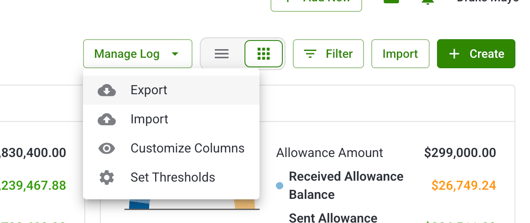
- Select PDF or Excel (.xlsx).
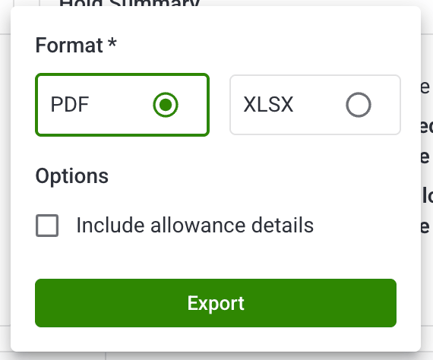
- Click Export to download.
What's guaranteed in the export:
- Only rows that match your current filters — no out-of-filter records included
- Only columns currently visible in your configuration
- Threshold markers as configured
- Summary or By Type structure matching your active toggle
- Negative remaining balances included exactly as shown — no rounding or clamping to zero
Exporting a single allowance's full detail? That's done from the Allowance Detail page, not the log. See Understanding the Allowance Detail Page.