
| Article Update | What Changed? |
| 8/27/2026 | Added context on out-of-contract icon on COR Edit/Detail Page. Added Internal Allowance and Internal Allowance draw hyperlinks in COR Log. |
| 7/30/2026 | Added context on the new edit and detail add allowance modals. |
| 6/30/2026 | Page renamed. Create, import, edit, and delete steps moved to How to Create, Import, Edit, and Delete Allowances. Simplified balance calculation. Added out-of-contract allowance handling. |
| 5/30/2026 | Added sections on new functionality for overdrawing allowances, applying an allowance credit, and moving balances from one allowance to another in a COR. |
Before applying allowances to CORs, you'll need at least one allowance set up on your project. See How to Create, Import, Edit, and Delete Allowances to get started.
Table of Contents
Applying an Allowance draw to a COR
You can apply an allowance to a COR when creating it, from the COR Log, or in bulk from the Allowance Log/Detail pages.
Applying an Allowance draw while creating a COR:
Note: If you do not see the option to add a customer allowance on a project it means that an allowance has not yet been created.
- Complete the COR as normal.
- When creating a COR you can add a Customer allowance draw to Create Detailed Change Order Request, Create Lump sum Change Order Request, or Upload Change Order Request:
- Detailed Change Order Request and Create Lump sum Change Order Request: Towards the bottom of the COR you will see "Customer Allowance" and a button "Select from List"
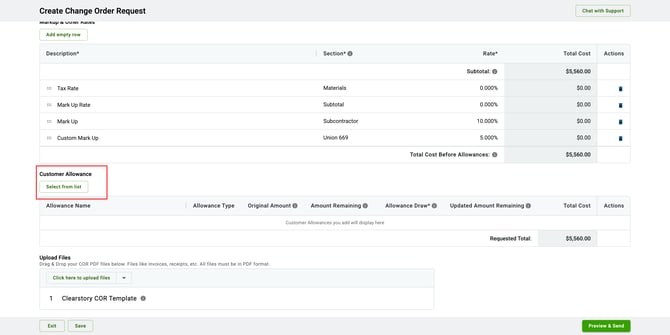
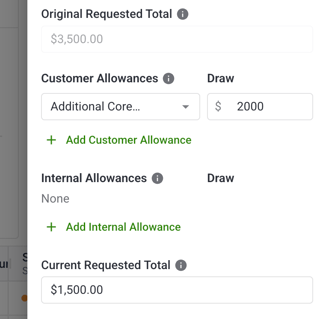
- Upload Change Order Request: Under requested total you will see "Customer Allowance". You can add an initial allowance by choosing from the drop down "Select Allowance"
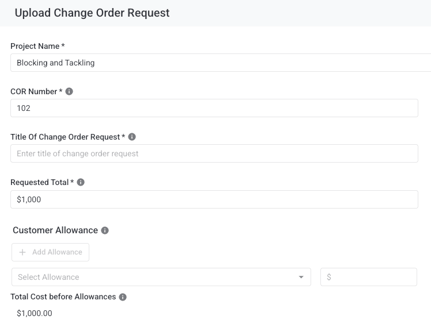
- Note: When you upload a Change Order Request the Requested Total is the amount AFTER allowance draw you are requesting. Thus, the calculated "Total Cost before Allowances" will grow based on the allowance draw you add.
- Detailed Change Order Request and Create Lump sum Change Order Request: Towards the bottom of the COR you will see "Customer Allowance" and a button "Select from List"
- Select the allowance you would like to apply the COR to.
- Note: Adding out-of-contract allowances such as Internal Allowances they will not decrease the amount requested. They will draw down the out-of-contract allowance balance but will not change the COR affect on contract value. To learn more about out-of-contract allowances see What’s the difference between Customer, Internal, and Contractor Allowances?.
- Click "Add"

It will automatically deduct the total requested amount from the allowance total.
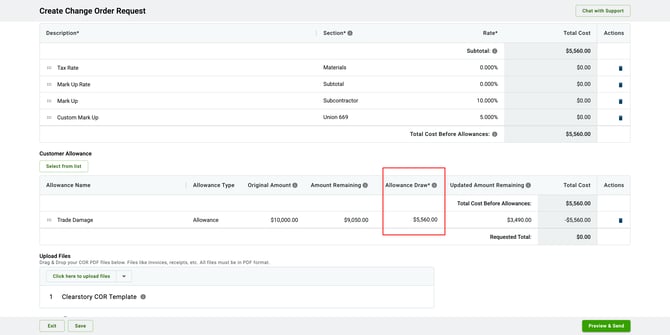
If the requested total is more than the remaining allowance amount, it will only deduct the remaining amount of the allowance. You can add more to the allowance draw if you would like to reduce the requested amount to negative and lower your contract value.
5. Select Preview and Send
Applying an allowance draw from the COR Log:
- In the COR Log (sent or received) select the edit pencil on the right of the COR you would like to add the allowance
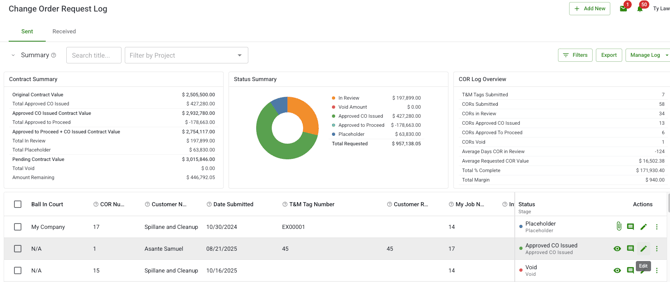
- Scroll down to Allowances you will see either Customer or Internal allowances> select the allowance that applies
-
 Out-of-contract allowance draws (such as Internal allowances) show an icon noting that the allowance will not reduce the requesting amount for the COR. This is shown next to the draw row on COR Edit, COR Detail, and the COR Log. Hover over the icon for a reminder that the draw doesn't affect the requested total.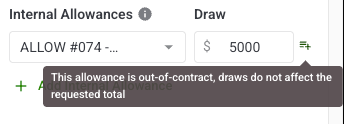
- Adding an allowance will open a modal up where you can add one or more allowances. You can filter by specific allowances and see dynamic balances for sent or received balances for allowances as well as the updated request total
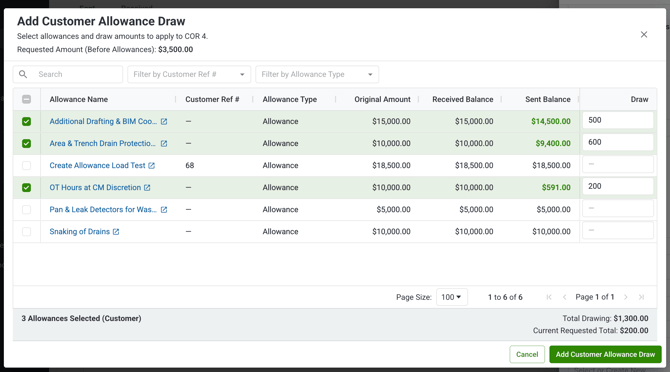
- Add the draws by choosing "Add XXX Allowance Draw"
- Adding a customer or internal allowance to a received COR will not reduce the requested total.
- Adding an allowance will open a modal up where you can add one or more allowances. You can filter by specific allowances and see dynamic balances for sent or received balances for allowances as well as the updated request total
3. Click Save
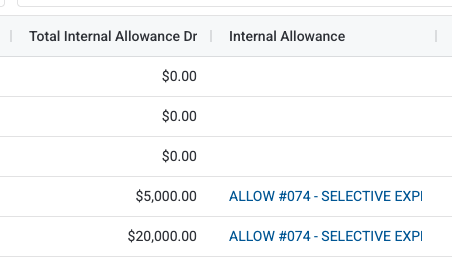
Allowance draws and associated allowances (Customer, Contractor, and Internal) can be viewed in the COR Log with hyperlinks to the relevant Allowance. Add these columns in the customize COR Log modal
Add Allowance Draws to Change Order Requests (CORs) in Bulk
If you already have multiple CORs created on a project, you can quickly apply them to an existing allowance in bulk instead of adding them one at a time. This is especially helpful when onboarding a project mid-stream or reconciling several CORs against the same allowance.
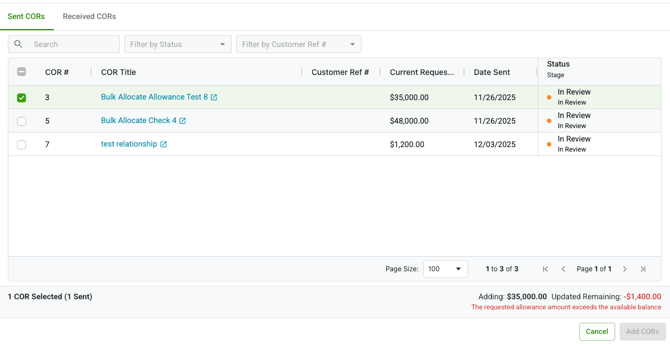
You can select multiple eligible CORs at once and assign them to a single allowance. Each selected COR will draw its full current requested amount from the allowance. As you select CORs, Clearstory shows the remaining allowance balance in real time so you can avoid overdrawing.
How to Bulk Add CORs to an Allowance
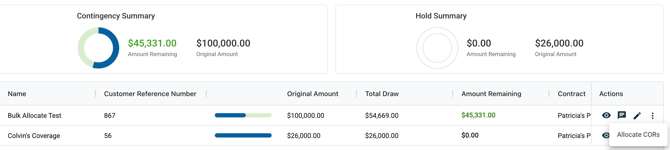
- Open the Allowance Log or an individual Allowance Details page.
- Click Allocate CORs (from the allowance row menu) or Add CORs at the top of the allowance.

- In the modal, review the list of eligible CORs:
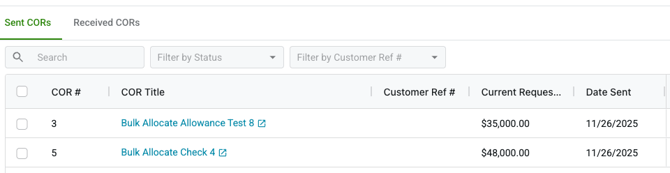
- Only CORs not already tied to an allowance and with a non-zero amount appear.
- Use search or filters to find the CORs you want.
- Select one or more CORs.
- Confirm to add them to the allowance.

Once confirmed:
- The allowance’s used and remaining amounts update automatically.
- Each COR shows the allowance draw applied.
- An activity log entry is created for each allocation.
Tip: If a selected COR would cause the allowance to go negative, Clearstory will warn you before you can proceed.
Overdrawing an Allowance
You can apply an allowance draw that takes the allowance's remaining balance below zero. This is useful when actual costs against an allowance exceed what was originally budgeted and you want to track how far over you are without editing the allowance total.
How overdraw works
- On a COR, enter an allowance draw greater than the allowance's remaining balance.
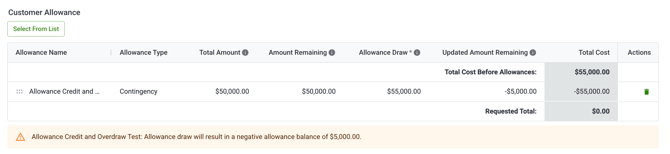
- A non-blocking informational warning will display in the allowance section.You can save the draw and proceed.
- Clearstory shows a warning that the allowance's remaining balance will go negative after you save.
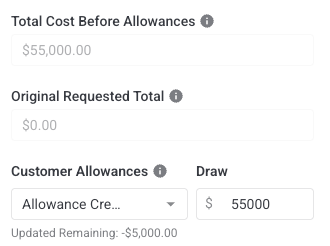
- Clearstory shows a warning that the allowance's remaining balance will go negative after you save.
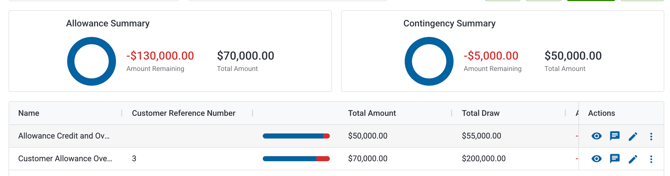
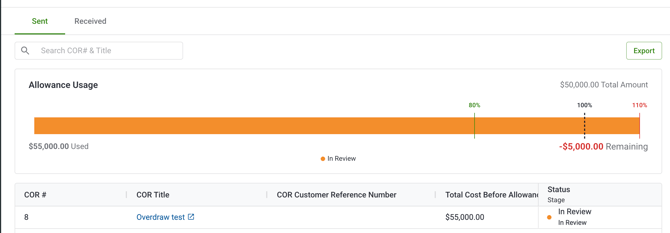
- After save, the Allowance Log, Allowance Details page, and summary cards show the remaining balance as a negative value in red so the overdrawn state is easy to spot.
Things to know
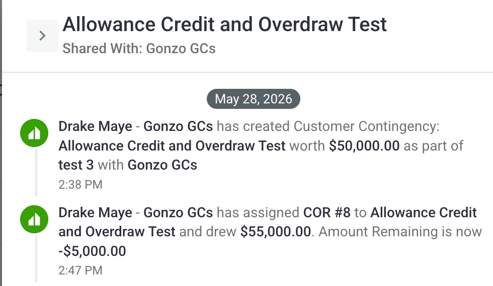
- Overdrawn allowances do not change the allowance's original or revised total. They only reduce the remaining balance below zero.
- The bar chart on the Allowance Log fills the full width when an allowance is overdrawn, and the chart color switches to red to match the negative remaining value.
- The summary card pie chart fills completely when one or more allowances are overdrawn, and the textual remaining amount alongside shows the negative dollar value in red.
- PDF and XLSX exports of the Allowance Log and Allowance Details include the negative remaining values.
How to Add an Allowance Credit
You can enter a Allowance Credit (negative allowance draw) on a deductive COR. This returns money to an allowance instead of drawing from it, which is useful when scope is removed, materials are not used, or buyout savings reduce the cost of the work the allowance was funding.
How allowance credits work
- Create or edit a COR where the total requested amount is negative, positive, or zero.

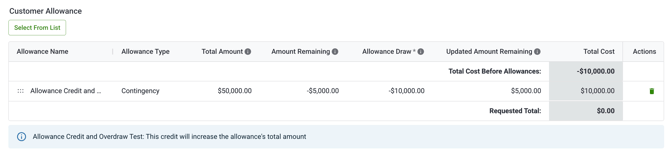
- In the Customer Allowances section, enter a negative dollar amount in the Allowance Draw field for the allowance you want to credit.
- Note: An allowance credit increases the amount requested in a COR.
- Note: An allowance credit increases the amount requested in a COR.
- Save the COR. If you add an allowance credit greater than the negative requested amount on the COR then the COR will show a positive requested total which will increase to the contract value.
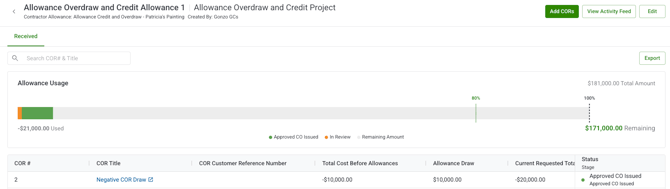
- Once the COR is submitted, Clearstory automatically increases the allowance's total amount by the absolute value of the credit. The remaining balance increases by the same amount.
Things to know
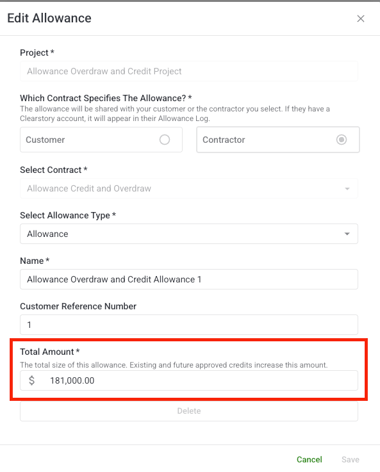
- Creating Allowance Credits will automatically update the amount remaining. If you update the total amount of the allowance in edit allowance then the amount remaining will be automatically calculated by the total amount plus the allowance credits already created.
- Negative draws appear as negative dollar amounts in green text on the COR Log, COR Detail, and Allowance Details page, so they are easy to tell apart from regular draws.
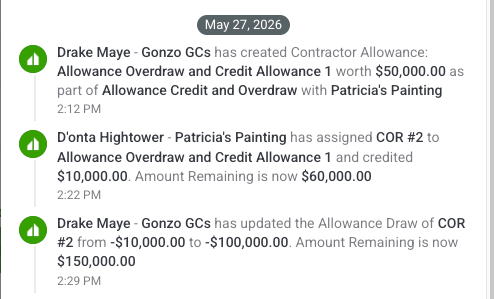
- An entry is added to the Allowance Activity Feed referencing the COR that created the credit, the actor, the timestamp, and the credit amount.
- You can include multiple negative draws on a single deductive COR across different allowances. You can also mix positive and negative draws on the same COR (one allowance debit, one allowance credit) as long as the COR's total requested amount remains negative.
Moving Balances From One Allowance To Another
Allowance credit functionality allows you to move allowance balances from one balance to another through a single COR.
How to move balance across Allowances
- Create an allowance with either negative, zero, or positive request amount.
- Apply a normal allowance draw for the allowance you would like to draw from and an allowance credit (negative allowance draw) for the allowance you would like to increase.

- Submitting the COR will show as an allowance draw in one allowance as a COR line item and an allowance credit as a COR line item in the other allowance.