
This page covers the core allowance management actions that apply to both General Contractors and Specialty Contractors. For applying allowances to CORs, see Using Allowances as a GC or Using Allowances as a SC.
Table of contents
Create an allowance
You can repeat these steps to set up multiple allowances on one project or contract.
- Navigate to the Allowance Log in the left-hand toolbar.
- In the top-right corner, select + Create.

- Choose a Project
- Enter an Allowance Name. Names must be unique within the project.
- Choose the allowance visibility:
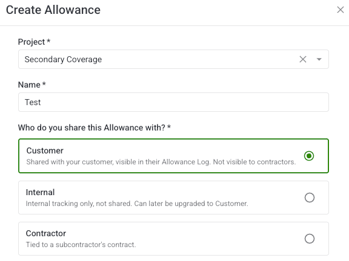
- Contractor — tied to a subcontractor contract, visible to you and that subcontractor. If you choose this you will then select the contract it applies to.
- Customer — visible to you and your customer
- Internal — creates an Internal Allowance, visible to your company only
- Not sure which to pick? See What’s the difference between Customer, Internal, and Contractor Allowances?
-
Select the Allowance Type using the radio button: Allowance, Contingency, or Hold.
- Not sure which to pick? See What are Allowances, Contingencies, and Holds?
- Under Contract Scope, select how this allowance relates to the contract:
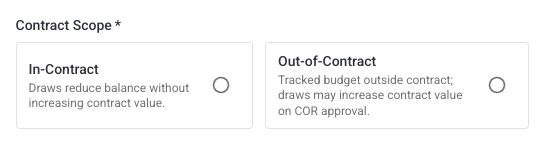
- In-Contract — draws reduce the allowance balance without increasing contract value.
- Out-of-Contract — tracked budget outside the contract; draws may increase contract value on COR approval.
- Not sure which applies? See Contract scope: in-contract vs. out-of-contract
- Optionally add a Customer Reference #.
- Enter the total dollar amount.
- Enter a Forecast Cost to Complete — your best current estimate of how much of the allowance balance you expect to use by the end of the project. This can be updated at any time from the Allowance Detail or Edit Allowance page.
- Click Add.
Import allowances in bulk
Import lets you create multiple allowances at once from a CSV file useful when setting up a new project or onboarding a project mid-stream.
- In the Allowance Log, choose a project then select Manage Log and Import in the top-right toolbar.

- In the Import modal, you can upload an existing CSV file or Download Allowance Import Template.
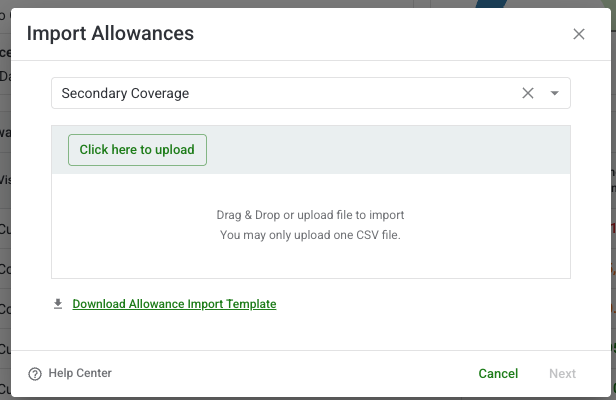
- The file you upload must comply with the below information with one row per allowance:
- Foo contract scope details on imported allowances Contract scope: in-contract vs. out-of-contract
- Choose File or drag the CSV into the upload area.
- Click Validate. Clearstory checks every row before writing anything.
| Column | Required | Notes |
|---|---|---|
| Allowance Name | Yes | Must be unique within the project |
| Allowance Type | Yes | Allowance, Contingency, or Hold |
| Contract Type | Yes | Customer or Contractor |
| Shared with Customer | Yes (if Customer) | Yes = Customer Allowance, No = Internal Allowance |
| Contract | Yes | Must match a contract name in your Clearstory project exactly |
| Amount | Yes | Positive number, no currency symbol |
| Customer Reference # | No | Optional |
Reviewing Import Errors
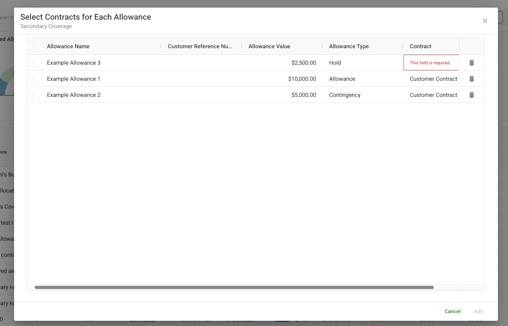
If any rows fail, Clearstory shows an error table with each issue. Common errors:
- Duplicate allowance name in the project
- Contract name doesn't match exactly
- Missing required field
- Non-numeric or negative Amount value
- Unrecognized Allowance Type or Contract Type value
Fix the errors in your CSV and re-upload. Nothing is imported until all rows pass.
Note: You can bulk update or delete allowances by checking off multiple allowances
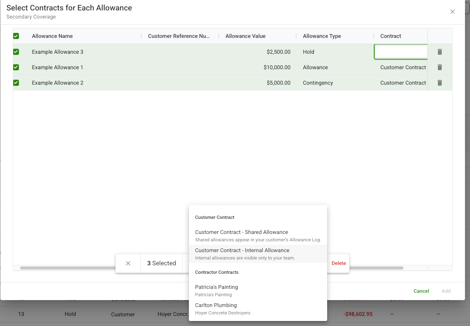
Once validation passes, review the summary of records to be created:
- Click Import.
- You will see a full page tracker of the imports
- All allowances are created, the Allowance Log updates, and a bulk creation event is recorded in the Activity Feed.
Editing an allowance
Once an allowance has been created aspects of the allowance can still be edited if an error has been made or aspects of the allowance have changed
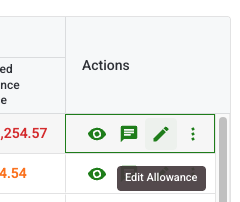
- In the Allowance Log, locate the allowance you want to update (pencil icon in allowance log) OR open the Allowance Detail page and select Edit Allowance

- In Edit Allowance you can update the below fields
| Field | Editable | Notes |
|---|---|---|
| Allowance Name | Yes | Must remain unique within the project |
| Allowance Type | Conditional | Locked if any draws exist. Hover the field for an explanation. |
| Shared with Customer | Conditional |
Internal- Customer edit only. Cannot be reversed. Customer and Contractor Allowances cannotbe edited |
| Amount | Yes | Each change is recorded in the Activity Feed |
| Customer Reference # | Yes | |
| Forecasted Cost to Complete | Yes | |
| Project | No | Set at creation |
| Contract | No | Set at creation |
3. Save
-
- The Allowance Log and Allowance Detail update immediately.
- Amount changes are recorded in the Activity Feed with a before/after value.
- If you promoted an Internal Allowance to Customer, the allowance is now visible to your customer.
To discard changes, click Cancel or the X in the top-right corner of the modal.
Delete an allowance
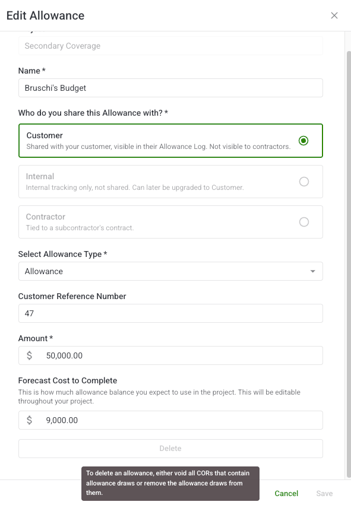
Allowances can only be deleted when no active COR draws exist. The Delete button is always visible — but grayed out when deletion isn't available, so you always know why.
-
Check if deletion is available. In the Allowance Log or Allowance Detail, open the ⋮ (more options) menu and look at the Delete Allowance option:
- Enabled: No active draws exist. You can delete.
- Grayed out: One or more active (non-void) COR draws are attached. Hover for an explanation. Remove or void those draws first.
- Void CORs do not block deletion — only active, non-void draws do.
- In the confirmation dialog, click Delete to confirm. This cannot be undone.
What happens after deletion?
- The allowance is removed from the Allowance Log immediately.
- The deletion is recorded in the Activity Feed.
- The log refreshes automatically — no page reload needed.
- Void CORs that previously referenced the allowance retain their historical draw records for audit purposes.
What's Next?
- Using Allowances as a General Contractor
- Using Allowances as a Specialty Contractor
- Navigating the Allowance Log
- Customer, Internal, and Contractor Allowances