
Table of contents
- Getting to the Allowance Detail page
- Performance view
- Timeline view
- Forecast Cost to Complete
- COR line items table
- How balances are calculated
- Exporting the Allowance Detail
- What's next?
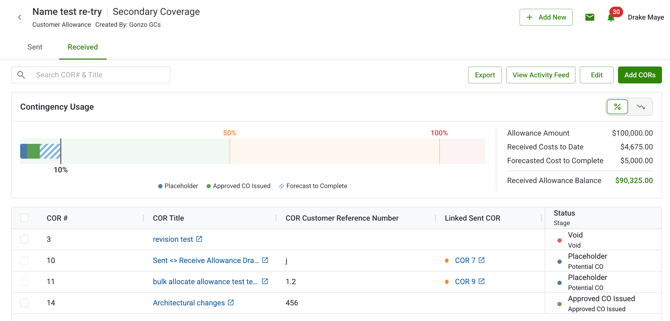
Getting to the Allowance Detail page
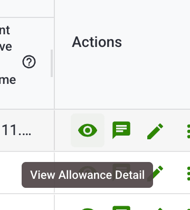
Click the eye icon on allowance row in the Allowance Log to open its Allowance Detail page. This is where you get the full picture of a single allowance usage over time, COR-level detail, and a forecast of what's left to spend.
Sent and Received tabs
Which tabs you see depends on the allowance's sharing type:
| Allowance type | Tabs available |
|---|---|
| Customer | Sent and Received, each with independent Balances, Performance, and Timeline views |
| Internal | Sent and Received, each with independent Balances, Performance, and Timeline views. |
| Contractor | Received only |
Contractor allowances don't apply to sent CORs, so there's nothing to show on a Sent tab for those types. Customer and Internal allowances track both sides independently — a draw on the Sent tab doesn't affect the Received tab's numbers, and vice versa.
Performance view
Performance is the default view inside the Allowance Usage card. It's a horizontal stacked bar chart showing draw activity by COR status against threshold zones — an 80% warning line and the 100% budget line.
Note: The threshold in the allowance detail page is dynamically updated by the threshold in the allowance log.
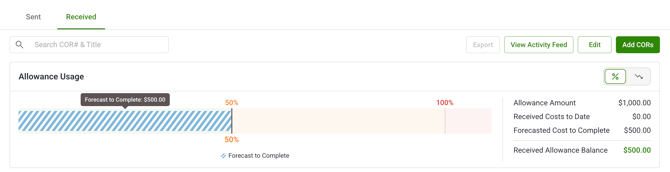
What the bar represents depends on which tab and allowance type you're viewing:
| Tab | Used (bar fill) reflects |
|---|---|
| Contractor — Received |
Sum of draws across CORs in active statuses: In Review, Placeholder, Approved to Proceed, Approved CO Issued. Performance Bar also includes Forecasted Cost to Complete. |
| Customer/Internal — Received | Total received-side draws; across CORs in active statuses: In Review, Placeholder, Approved to Proceed, Approved CO Issued. Performance Bar also includes Forecasted Cost to Complete. |
| Customer/Internal — Sent | Total received-side draws; across CORs in active statuses: In Review, Placeholder, Approved to Proceed, Approved CO Issued. Performance Bar also includes Forecasted Cost to Complete. |
When overdrawn: the bar fills to the edge of the chart and turns red up to 200%. The textual Amount Remaining below the chart goes negative and displays in red.

Timeline view
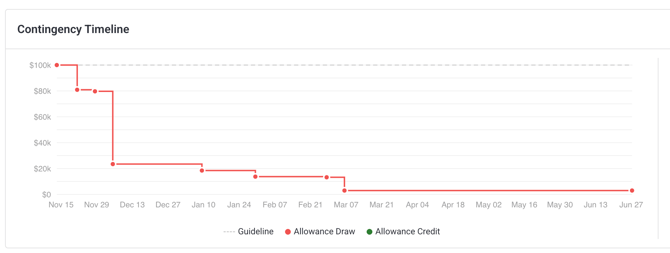
Switch to Timeline using the segmented control at the top of the Allowance Usage card. This plots remaining balance over time as a step chart — each point marks a draw, credit, or forecast update.
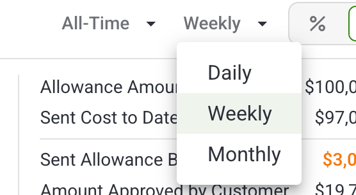
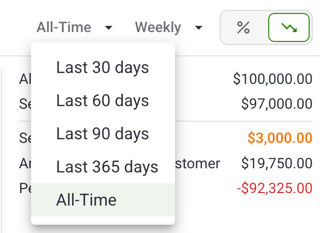
The timeline view can be edited to see variable time ranges and denominations of time
Reading the chart:
- Red points = positive draws (balance decreased)
- Green points = credits, i.e. negative draws (balance increased)
- Purple points = Forecast Cost to Complete updates (Received tab only)
- A dashed horizontal line marks the original allowance amount — your budget ceiling
- If the balance goes negative, a dashed red line appears at zero as a break-even marker
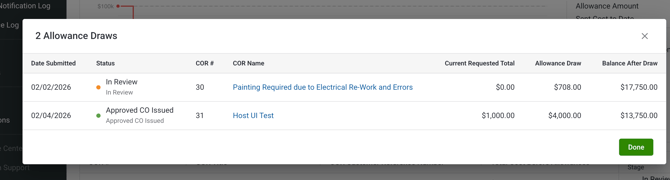
- CORs submitted on the same date are grouped into a single point showing the cumulative balance
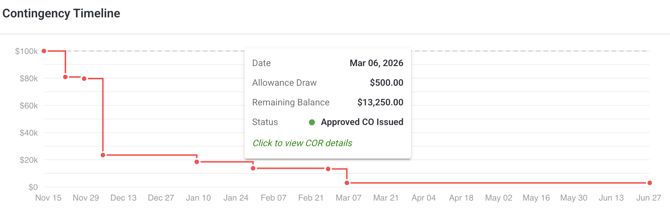
Clicking a point opens a detail dialog with:
- Date submitted
- Status
- COR number and name
- Current requested total
- Allowance draw amount (credits shown in green)
- Balance after the draw (shown in red if negative)
Forecast Cost to Complete

On the Received tab, you can set a Forecast Cost to Complete — your current best estimate of what you expect the allowance to ultimately cost. This can be set when you create the allowance, or updated at any time from the Allowance Detail page.
To update it, click Edit Forecast in the Allowance Detail header and enter the new amount. Each update creates a timestamped forecast event, visible as a purple dot on the Timeline.
A few things to know:
- The forecast can exceed the original allowance amount — this will push the running balance negative
- The forecast does not apply to the Sent tab
- Updating the forecast immediately recalculates Amount Remaining and Received Allowance Balance in the header and Performance view
COR line items table
Below the chart, a table lists every COR allocated to this allowance, scoped to your current tab (Received or Sent). Columns include:
- COR number and name
- Date submitted and date approved
- Total Cost Before Allowances
- Current Requested Total
- Allowance Draw (credits shown in green text with a leading minus sign)
- Unfunded Amount (when the draw is less than the COR total)
- Linked Sent COR (Received tab, Customer allowances only)
- Forecasted (if a forecast has been applied)
How balances are calculated
Three numbers drive everything you see on this page: Amount Remaining, Received Allowance Balance, and Sent Allowance Balance. Here's exactly how each is calculated.
Amount Remaining
Amount Remaining reflects how much of the allowance is left, factoring in every draw and credit applied so far.
Amount Remaining = Original Amount + Credits − Draws
In practice: every approved credit increases the allowance's revised total, and every positive draw reduces what's left. A draw that exceeds Amount Remaining pushes it negative — this is allowed and is what triggers the overdrawn (red) state.
Received Allowance Balance
The Received Allowance Balance also accounts for your Forecast Cost to Complete, since the Received tab is where forecasting applies.
Received Allowance Balance = Original Amount − Forecast − Cumulative Draws (Received side)
This means the Received balance can move even without a new draw — updating your forecast alone will change this number. A forecast that exceeds the original allowance amount will push the Received Allowance Balance negative, the same as an overdraw from actual draws.
Sent Allowance Balance
The Sent Allowance Balance only applies to Customer allowances, since Internal and Contractor allowances don't have a Sent side. It does not factor in forecast, since forecasting only applies to the Received tab.
Sent Allowance Balance = Original Amount − Cumulative Draws (Sent side)
Received-side draws that haven't yet been linked to a sent COR are tracked separately as placeholders and don't reduce the Sent Allowance Balance until they're linked.
Why Sent and Received track independently
For Customer allowances, the Sent and Received sides are tracked against the same Original Amount but accumulate their own draws and (on the Received side only) their own forecast. This is intentional — it lets you see, for example, how much your subcontractors have drawn against an allowance on the received side versus how much has actually been billed to your customer on the sent side, without one number masking the other.
Exporting the Allowance Detail
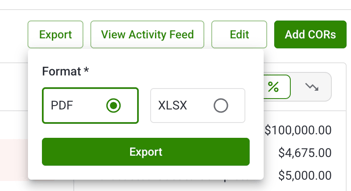
Exports from this page reflect exactly what's on screen — your active tab and view are both captured in the output.
- Make sure you're on the correct tab (Received or Sent) and view (Performance or Timeline).
- Click Export.
- Select PDF or Excel (.xlsx).
- Click Export to download.
Negative balances and green credit amounts are included exactly as shown — no rounding or clamping to zero.
You can export from an allowance that has no draws yet. If the export isn't available for an empty allowance, the export button is disabled — hover over it to see the reason.