
Copying a COR lets you reuse the contents of an existing COR—including line items, pricing, description, and attachments—as the starting point for a new COR in the same project. Nothing is saved until you review and submit, so you can adjust anything before it goes out.
Table of Contents
Why it matters
When you're pricing similar scopes on the same project—repeat work, phased releases, or near-duplicate change orders—rebuilding each COR by hand is slow and error-prone. Copy COR uses an existing COR as a template, keeps the reusable pieces, and lets you tweak the parts that change.
How it works
Copy COR opens the standard Create COR form, pre-filled from the source COR. The source COR is never modified—copying reads from it, and only the new COR you submit is saved.
What carries over
-
Project and contract: Copy COR is available only within the same project.
-
Line items and pricing: Labor, materials, equipment, other, markups, and allowances.
-
Title: The title includes “(Copy)” so it's easy to spot on the log.
-
Description and contractor notes
-
Attachments: Attachments are duplicated as their own files. Deleting the original later won't affect the copy.
-
Email recipients, message text, and share-link preference
What starts fresh
-
A new COR number, assigned when you submit
-
Status and stage reset—the copy starts as a new draft
-
Submission and lifecycle dates cleared
-
All notes are not carried over
-
Integration links—including Procore, Sage, and other syncs—never copied
-
No link to the original COR or its revision history; the copy stands alone
Step-by-step instructions
Copy a COR from the COR Log
-
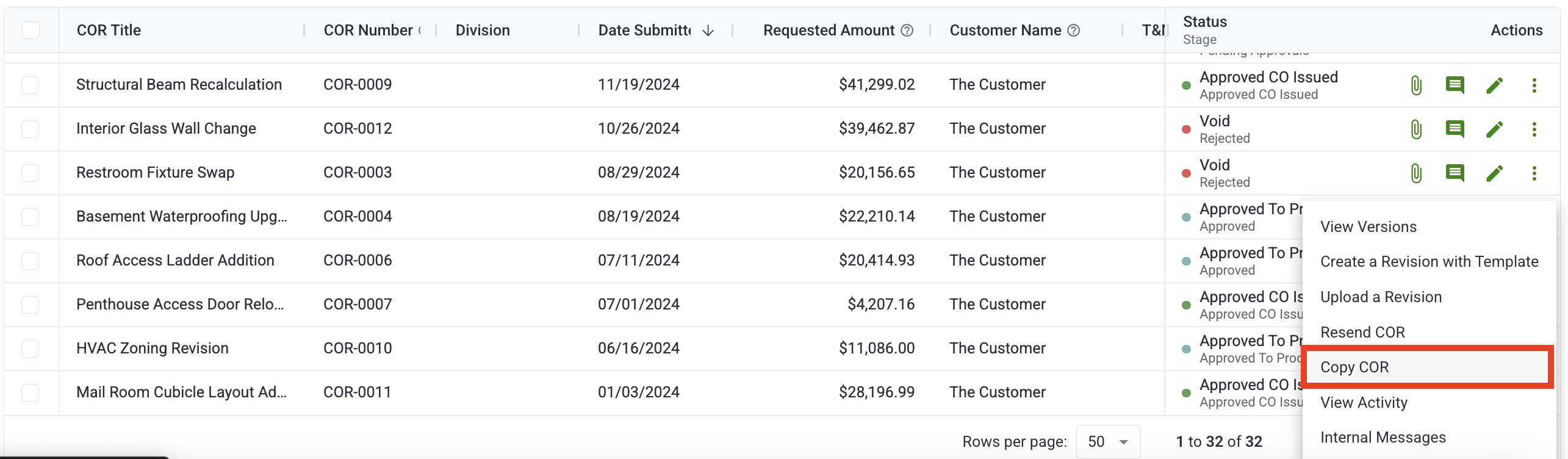
In your Sent COR Log, find the COR you want to copy.
-
In the Action column, click More.
-
Select Copy COR.
-
The Create COR form opens, pre-filled with the source COR's contents.
-
Review and edit anything you want to change, including line items, description, attachments, and recipients.
-
Click Preview & Send when you're ready, then click Submit.
If Copy COR is disabled
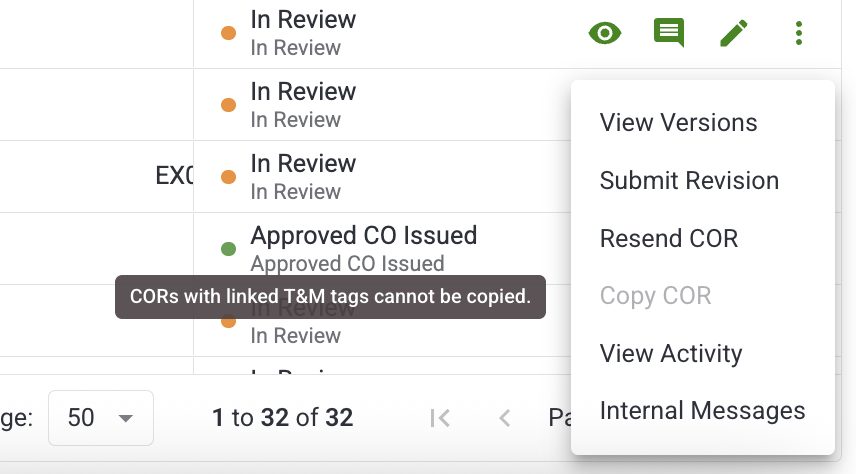
Copy COR is disabled on any COR that has linked T&M tags. Copying a COR with linked tags isn't supported today.
If you need a copy of a COR that has linked tags, first remove the tag link or start from a blank Create COR form.
Tips and best practices
-
Update the title: The “(Copy)” suffix keeps the copy identifiable on the log. Replace it with a real title before you send.
-
Check the attachments: The copy gets its own duplicate files, so removing an attachment from the copy won't affect the original COR.
-
Review line-item pricing: Line-item pricing carries over unchanged. If rates or scope have shifted since the source COR, review the totals before submitting.
-
Use the Activity Feed for reference: The new COR records which COR it was copied from, which is useful for audit trails and troubleshooting.
FAQs
Can I copy a COR to a different project?
No. Copy COR only works within the same project.
Does copying change the original COR?
No. The source COR isn't modified. Only the new COR you submit is saved.
Why is Copy COR greyed out on some rows?
The COR has one or more linked T&M tags. T&M tag links aren't carried over in a copy, so the action is disabled to avoid silently dropping pricing tied to those tags.
Can I copy an Uploaded COR?
Yes, you can copy an uploaded COR.
What happens to Procore or Sage integration links?
Integration links are never copied. The new COR starts unlinked from any external system, and syncing behaves the same way as it does for any newly created COR.