
| Article Update | What Changed? |
| 9/29/2026 | Added information on WIP Reporting at the Contractor Insights and Company Level for WIP Reporting on received CORs as well as sent CORs across the portfolio. |
Table of Contents
Overview
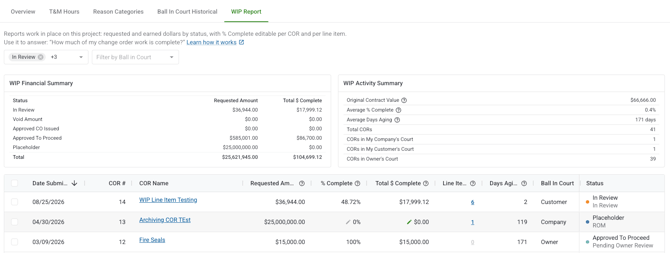
The WIP Report shows you how much of your open change order value has actually been earned in the field not just requested. It's available at the project level under Customer Insights and at the company level under Company Analytics. Account Owners, Admins, and Project Managers can view and edit progress.
Why it matters
Most teams track change orders by status approved, in review, pending but status alone doesn't tell you how much of that dollar value has actually been completed in the field. The WIP Report fills that gap. It gives project managers a real-time view of earned value across all open CORs, so you can answer "how much have we actually earned?" without exporting to a spreadsheet. At the company level, it lets executives see portfolio-wide WIP exposure across every project at once.
How it works
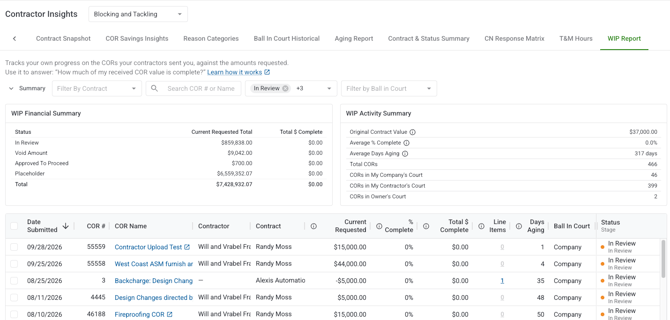
The WIP Report is built around two views: a summary section at the top and a detailed COR table below. Both update in real time whenever % Complete is edited — whether from the report itself, the COR Log, or a COR's detail page.
-
Company Level Analytics: every COR across all of your projects in one report. General contractors see their sent CORs; subcontractors see their received CORs.
-
Customer Insights (project level): the CORs you've sent on a single project. This is the general contractor's view of earned value on outgoing change orders.
-
Contractor Insights (project level): the CORs you've received on a single project. This is the subcontractor's view of earned value on the work they're executing. Progress you enter here is completely separate from the sending party's numbers.
Summary cards

Two summary card groups appear at the top of the report:
WIP Financial Summary breaks down your open CORs by status — In Review, Placeholder, Approved to Proceed, and Approved CO Issued — showing the total Requested Amount and earned dollar value for each group.
WIP Activity Summary shows totals across all CORs: Total Base Contracts, Total Requested, Average % Complete (dollar-weighted by Total $ Complete), Dollar Value Earned, and Average Days Aging.
Note: On Contractor Insights and Company Level received analytics Original Contract value is the sum of all filtered contracts on the report.
COR table
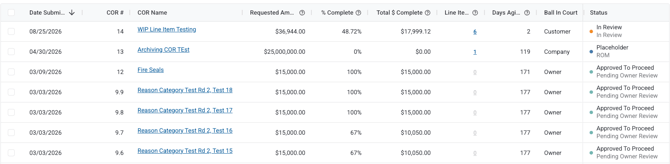
The table lists every sent COR in the project (or across all projects, in the company report). Key columns include:
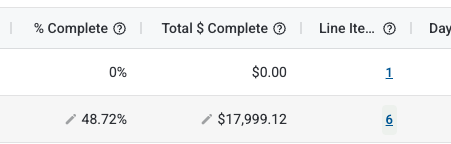
- % Complete: editable inline; click to update
- Total $ Complete: the dollar equivalent of % Complete; also editable inline
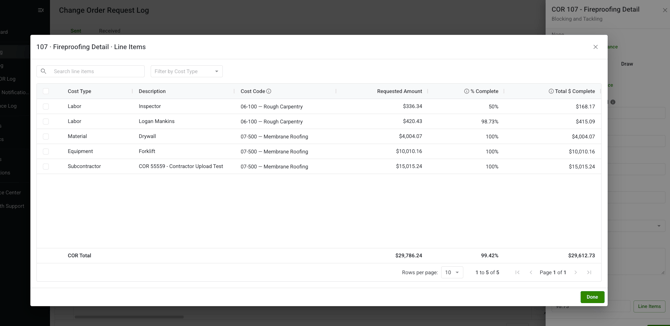
- Line Items: a count chip showing how many line items the COR has; click it to open a detail modal
- Days Aging: color-coded based on how long the COR has been open
- Ball In Court: the court owner for that specific COR.
- File View: the number of times the customer has viewed that COR.
How to update % Complete
Update a single COR


- Open the WIP Report for your project (Customer Insights tab) or navigate to Company Analytics for the company-level report.
- Find the COR you want to update in the table.
- Click the % Complete field in that row. An input field opens inline.
- Type a percentage (0–100) or click the Total % Complete (dollar) field and enter a dollar amount instead. Either field updates the other automatically.
- Press Enter or click outside the field to save.
Entering a dollar amount? Clearstory stores the exact dollar value you enter. The percentage shown may display up to two decimal places (e.g., 66.67%) to reflect the precise earned amount — this is expected.
If the COR has line items, a confirmation dialog will appear before your change is applied:
"This COR has line items with their own % complete values. Updating the COR-level % complete will update the underlying line items to match the new overall progress."
Click Update COR to confirm, or Cancel to leave line item values unchanged.
Update multiple CORs at once
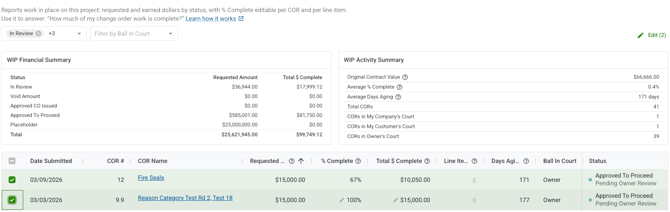
- Select the checkboxes next to the CORs you want to update. You can select rows across the full table.
- A bulk edit drawer opens on the right side of the screen.
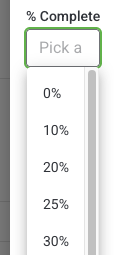
- Choose a preset — 0%, 25%, 50%, 75%, or 100% — or type a custom value.
- Click Apply. Each COR updates individually; if any row fails, the error is shown per row without affecting the others.
Update at the line item level
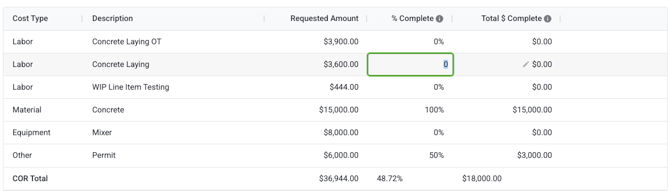
Click the line item count chip on any COR to open the line item detail modal. This shows every line item on the COR, including:
- Description and COR/CO number
- Original contracted value and approved CO value
- % Complete (editable if you have edit permissions)
- Earned value, billed to date, and over/under billing position
- A link to the source COR or T&M ticket
To update a line item's progress, click its % Complete field in the modal and enter a new value. The COR's overall % Complete recalculates automatically using a dollar-weighted rollup — larger line items carry more weight.
Track WIP on CORs you've received 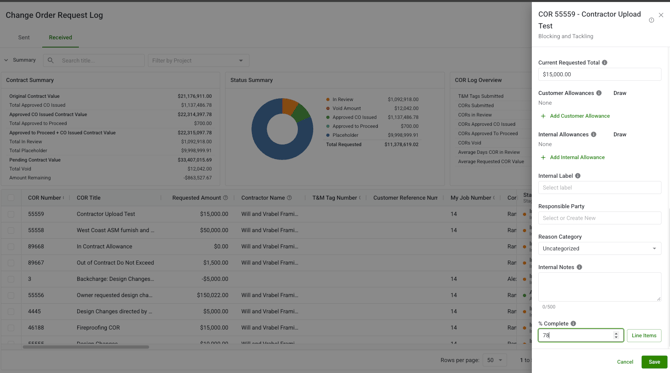
WIP progress can be tracked on the received COR Log as well:
- Open the COR Log and go to the CORs you've received.
- On the edit COR update the % Complete field on any received COR. Or update the individual line items for each COR.
- The Total $ Complete column shows the dollar equivalent, and the COR Log Overview rolls up a Total $ Complete across all received CORs.
- Note: This will update all associated WIP reports.
- Your changes stay on your side only updating a received COR never changes the sending party's numbers.
View the company-level report
- Open Company Analytics from the top-level Analytics navigation.
- Use the Project, Office, and Customer/Contractor filters in the toolbar to narrow the report; use the side filter drawer for Status, and Ball In Court filters.
- Sort by Project Name or Office Name to group CORs by where they live.
Export the report
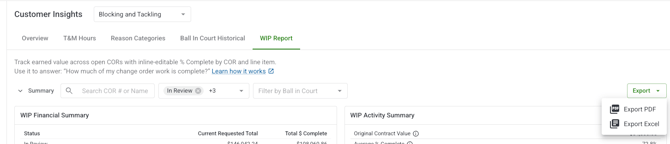
1. Click the Export dropdown in the toolbar.
2. Choose PDF or Excel. The export reflects your active filters and current view at the time you click.3. Your file downloads automatically. Company-level exports include the Project Name and Office Name columns.
Note: Exports show both the COR and line item specific WIP views.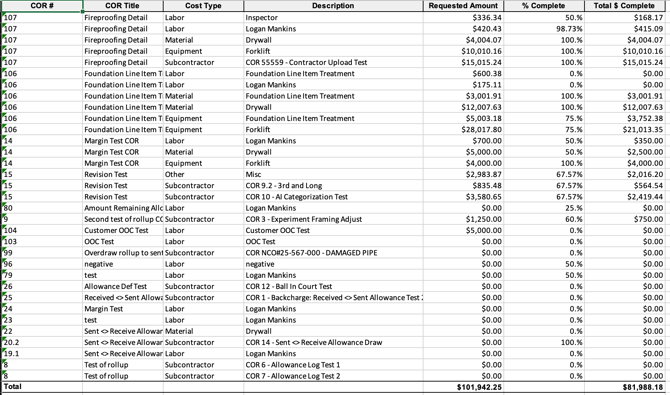
What each role can see
| Action | Account Owner | Admin | Project Manager | Field User |
|---|---|---|---|---|
| View WIP Report (project-level) | ✅ | ✅ | ✅ | ✅ (read-only) |
| Edit % Complete (single COR) | ✅ | ✅ | ✅ | ❌ |
| Edit % Complete (line item) | ✅ | ✅ | ✅ | ❌ |
| Bulk edit % Complete | ✅ | ✅ | ✅ | ❌ |
| Export to CSV | ✅ | ✅ | ✅ | ❌ |
| Export to PDF | ✅ | ✅ | ✅ | ❌ |
| View line item detail modal | ✅ | ✅ | ✅ | ✅ (read-only) |
Tips and best practices
- Enter dollar amounts when precision matters. If you know the exact dollar value earned (e.g., from a pay application), enter it in the Total % Complete field rather than estimating a percentage. Clearstory preserves the exact amount you enter.
- Use bulk edit for progress meetings. If you're updating progress for a whole project at the end of a reporting period, select all rows and use the bulk edit presets to move quickly. You can then fine-tune individual CORs afterward.
FAQs
What's the difference between % Complete and Earned Value?
They're two ways to express the same number. % Complete is a percentage (e.g., 50%); Earned Value is the equivalent dollar amount (e.g., $5,000 on a $10,000 COR). Editing either field updates the other automatically.
Why does my % Complete show a decimal like 66.67%?
This happens when you enter a dollar amount that doesn't divide evenly into a whole percentage — for example, $6,000 earned on a $9,000 COR. Clearstory displays the percentage to two decimal places to reflect your exact dollar entry. The underlying dollar amount is always preserved accurately.
What does the At Risk flag mean?
It means a COR is 50% or more complete but hasn't been approved yet. This is a signal that you may have financial exposure — you've reported significant earned value on work that isn't contractually locked in. Review these CORs and push for approval before your next billing cycle.
Does updating % Complete in the WIP Report affect other places in Clearstory?
Yes. % Complete is shared across the COR Log, COR Edit, COR Detail, and both WIP Reports. An update in any one of these places is reflected everywhere immediately.
Can I update % Complete on a COR that's already been approved?
Yes. Approved CORs can still have their % Complete updated to reflect ongoing field progress. The At Risk flag will not appear on approved CORs.
What happens to line item % Complete when I update at the COR level?
A confirmation dialog appears before the update is applied. If you confirm, Clearstory recalculates each line item so the dollar-weighted rollup matches your new COR-level value. If you cancel, all line item values stay unchanged.
Who needs a license to use the WIP Report?
The project-level WIP Report requires a Standard or Professional project license. The company-level report requires a Standard or Professional office or company license. If you don't see the WIP Report, contact your account administrator to confirm your license.