
When Clearstory adds new capabilities to the Procore integration, the Clearstory app in Procore sometimes needs a newer version and additional permissions to support them. This article walks you through updating the app in Procore, setting its permissions to the minimum each feature needs, and turning the new features on in Clearstory.
Before you Begin
To update the app, you'll need a Procore user with Admin permission on the company-level Directory tool.
Updating the app is required for Status Sync, which shows live Procore statuses in your Clearstory COR (Change Order Request) Log:
- Procore Change Event (CE) status
- Prime Potential Change Order (PCO) number and status
- Commitment Change Order (CO) number and status
Install or Update the Clearstory App in Procore
Note: Status Sync requires version 19.36.0 or later of the Clearstory app. New installations get the latest version automatically.Start in the Procore App Marketplace to check whether Clearstory is already installed for your company.
- Log in to Procore.
- Open the Select an App dropdown and select Marketplace.
- Search for Clearstory.
- Open the Clearstory app listing.
- Check the button at the top of the listing:
- Install: Clearstory isn't installed yet.
- Click Install.
- Review the permissions Procore asks you to grant.
- Accept the permissions and confirm the installation.
- Install: Clearstory isn't installed yet.
-
- Installed: Clearstory is already installed and up to date. No further action is needed.
- Update Available: Clearstory is installed, but needs to be updated.
- Click to update the app.
- Review the changes in the Review Update window.
- Click Update.
- Approve the permissions Procore asks you to grant.
- Note: Updating keeps your existing company configuration, project settings, and project mappings in place. Your connected projects won't disconnect.
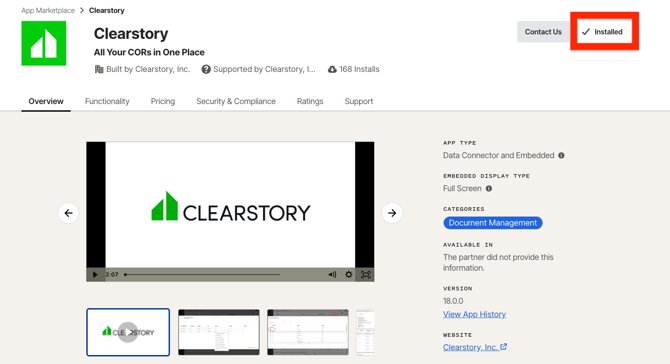
Where the red square is below, there will be a button to either install or update the Clearstory app. If it says "Installed" like below, then you are already on the most up-to-date version of the app.
Set the Clearstory App Permissions in Procore
| Procore tool | Permission |
|---|---|
| Change Events | Read-Only |
| Commitments | Read-Only |
| Directory | Read-Only |
| Home | Read-Only |
| Prime Contract | Read-Only |
| Webhooks API | Standard |
Change Events, Prime Contract, and Commitments let Clearstory read Change Event, Prime PCO, and Commitment CO statuses. Webhooks API lets Clearstory set up the connection that sends status updates from Procore when they change.
- In Procore, open the company-level Admin tool.
- In the right sidebar under Company Settings, select App Management.
- Click View next to Clearstory.
- Select the Permissions tab.
- Select Project.
- Set each tool to the permission level in the table above.
- Add the projects you'll use with Clearstory.
- To add projects one at a time, select each project.
- To include future projects automatically, select Apply to all new projects.
- Save your changes.
Note: If your company applies a Procore Permission Template to apps, the template takes priority over the app's own permissions. Update the template instead.
Clearstory can only sync statuses on projects the app has permission to access in Procore.
Give Clearstory access to private contracts
Note: If a Prime Contract or Commitment is marked Private in Procore, Clearstory can't read its change orders, even with the permissions above. The Prime PCO or Commitment CO column in Clearstory stays empty for that contract, and no error appears.
For each private Prime Contract or Commitment you want to sync:
- Open the contract in Procore.
- Click Edit.
- Find the Contract Privacy section.
- Choose one option:
- Uncheck Private to make the contract visible to non-admin users.
- Keep the contract private, and add the Clearstory service account under Access for Non-Admin Users.
- Save your changes.
Adding the Clearstory service account keeps the contract hidden from your trade partners and other non-admin users while letting Clearstory read its status.