
Beta feature: Procore Status Sync is in Beta. It's available to companies enrolled in the Beta program, and some functionality is still being built (see Beta limitations below). To join the Beta, contact your Clearstory Customer Success representative.
When you push a Change Order Request (COR) from Clearstory into a Procore Change Event (CE), Procore Status Sync keeps your COR Log current as that change moves through Procore. You'll see the Change Event status, plus the Prime Potential Change Order (Prime PCO) and Commitment Change Order (Commitment CO) number and status once Procore creates them. Account Owners and Admins turn on Status Sync for an office, and users who can map projects connect each project.
Why it matters
Once a COR is pushed into Procore, your team usually has to leave Clearstory to find out what happened to it. Was it turned into a PCO for the owner? Was a change order issued to the subcontractor? Status Sync brings that answer back into your COR Log. You can see where each change stands on the owner side and the subcontract side without reconciling two systems.
How it works
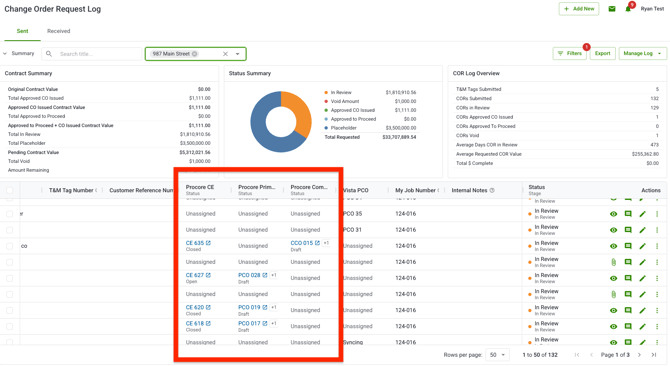
Status Sync adds Procore information to up to three COR Log columns. Procore notifies Clearstory each time one of these items changes, so the columns update automatically.
-
Procore CE column - The top line shows the Change Event number, which links to the Change Event in Procore. The bottom line shows the Change Event's current status in Procore. If the Change Event is deleted in Procore, the status shows Deleted.
-
Procore Prime PCO column - When a PPCO is created in Procore from Change Event line items, the column shows the Prime PCO number, which links to Procore, with its current status beneath it. If a PPCO hasn't been created, the column stays empty.
- Procore Commitment CO column - A Commitment CO is created in Procore from a Change Event line item against a commitment, such as a subcontract or purchase order. The column shows the Commitment CO number and its current status.
When one COR has several PCOs or Commitment COs
If you push a COR as a Subtotal or Line Item breakdown, it creates multiple Change Event line items. Each line item can become its own Prime PCO or Commitment CO. The column shows the lowest-numbered one with a +# badge, and you can hover over the badge to see the rest.
What Status Sync does and doesn't do
Status Sync is display only. It doesn't change anything in Procore, and it doesn't change your COR's status in Clearstory. It only picks up changes that happen after sync is active on a project. If a Prime PCO or Commitment CO is removed or unlinked in Procore, it disappears from the column.
Before you begin
Confirm each of these before you turn on Status Sync:
- Beta access is on for your company. Your Customer Success representative turns this on.
- Your Procore integration is set up and your projects are mapped. See Procore Integration Overview.
- The Clearstory app in Procore is on version 19.36.0 or later, and the Clearstory service user's permissions are set. See Update your Clearstory App in Procore.
Turn on Status Sync for your office
- Go to Integrations and open your Procore configuration.
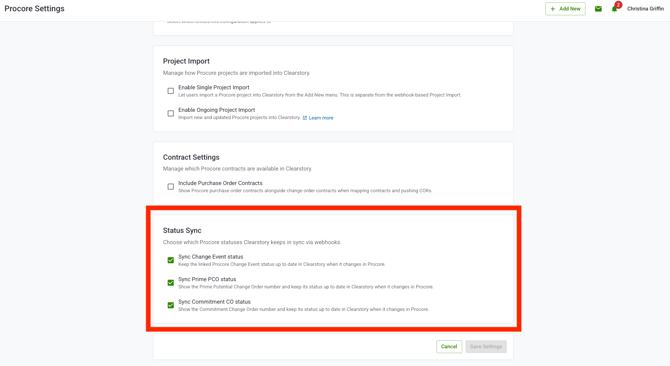
- Find the Status Sync section.
- Check the syncs you want to turn on. You can turn on any combination:
- Sync Change Event status: Keeps the linked Procore Change Event status up to date in Clearstory when it changes in Procore.
- Sync Prime PCO status: Keeps the linked Procore Prime PCO number and status up to date in Clearstory when they change in Procore.
- Sync Commitment CO status: Keeps the linked Procore Commitment CO number and status up to date in Clearstory when they change in Procore.
- Save your changes.
Once a sync is turned on, you are able to add the column to your COR Log.
Connect or reconnect each project
Status Sync turns on for a project when the project is mapped to Procore. If a project was mapped before you turned on Status Sync, remove the mapping and add it back.
- Open the project's Settings, then click Procore
- Click Edit.
- Clear the Procore project mapping and click Save.
- Click Edit again.
- Choose the matching Procore project and click Save.
- Confirm you see the message "Change Event status sync connected."
- If you see "Project mapped, but Change Event status sync couldn't be enabled yet. It'll retry automatically," wait a few minutes. If the indicators below don't appear, save the mapping again.
Note: If you have many existing projects, contact Clearstory Support and we can reconnect them for you.
Confirm sync is active
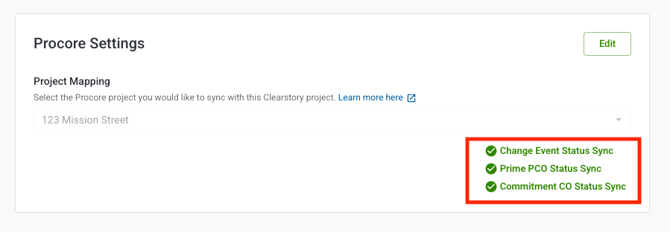
In the project's Procore Settings page, each sync you turned on shows its own green check: Change Event Status Sync, Prime PCO Status Sync, and Commitment CO Status Sync. If a check is missing, that sync isn't set up yet for the project. Review the app update article, then reconnect the project.
View Procore statuses in the COR Log
- Open your Sent or Received COR Log.
- Find the Procore CE, Procore Prime PCO, and Procore Commitment CO columns.
- If a column is hidden, add it from the column settings.
Beta limitations
These items are planned before Status Sync becomes generally available:
- No history yet. Only Change Events, Prime PCOs, and Commitment COs that change after sync is active on a project will show. Older items show only the CE number, or nothing, until they next change. Reconnecting a project doesn't pull in history.
- Items created in a different order may not show. For example, if a Prime PCO was linked before you connected the project and a Commitment CO was added later, the Commitment CO may not appear until history is available.
- No sorting, filtering, or export on the new columns. Sorting, filtering, and exporting the Prime PCO and Commitment CO columns aren't available yet. Filtering by Procore CE (Assigned, Unassigned, Update Required) works as before.
What each role can see
| Action | Account Owner | Admin | Project Manager | Field User |
|---|---|---|---|---|
| Turn on Status Sync for an office | ✅ | Office only | ❌ | ❌ |
| Connect or reconnect a project | ✅ | Office only | Assigned projects only* | ❌ |
| View Procore columns in the COR Log | ✅ | Office only | Assigned projects only | ❌ |
*Project Managers can map projects when your company's Role Permissions allow it.
Tips and best practices
- Ask your Procore admin to confirm the Clearstory service user has Admin on Prime Contracts and Commitments before you roll Status Sync out to your team.
- Reconnect your most active projects first. Projects that are closing out won't see many new changes.
- Test on one project first. Push a COR, create a PCO and a Commitment CO in Procore, then confirm both show in your COR Log.
- After any update to the Clearstory app in Procore, confirm the service user's permissions and projects are still in place.
- Let your team know Status Sync is in Beta, so missing history isn't mistaken for missing data.
FAQs
Why are my Prime PCO and Commitment CO columns empty or showing Unassigned? The most common cause is the Clearstory service user's permissions in Procore. It needs Admin on Prime Contracts and Commitments to read private contracts. If permissions are correct, reconnect the project, then make a change in Procore to confirm new items come through.
Why don't older CORs show a Procore status? During the Beta, Status Sync only picks up changes made after sync was turned on for a project. Older items update the next time they change in Procore.
Does unlinking and relinking a project pull in past changes? No. Reconnecting turns on sync going forward only. Pulling in history is planned before general availability.
Can one COR have more than one Prime PCO or Commitment CO? Yes. A COR pushed as a Subtotal or Line Item breakdown creates several Change Event line items, and each can become its own PCO or Commitment CO. The column shows the lowest-numbered one with a +N badge listing the rest.
Will approving a Commitment CO in Procore update the COR status in Clearstory? Not yet. Status Sync currently shows Procore statuses only.
Why did my COR Log columns change? Adding the new Procore columns reset saved COR Log layouts to the default. Re-apply your preferred layout once.
What happens if I remove a project's Procore mapping? All Status Sync for that project stops until you map it again.