
Project-level Contract Settings let you control what specialty contractors (SCs) can do on a specific project. You can restrict COR editing, limit when revisions can be submitted, and prevent contractors from adding users to the project. These settings can be adjusted at any time and take effect immediately across the project.
Note: A Professional license is required to enable or disable project-level Contract Settings.
Table of Contents
- How project-level settings relate to company-level settings
- How to access project-level contract settings
- Available settings
- License-based restrictions
- What each role can see
- Tips and best practices
- FAQs
How project-level settings relate to company-level settings
When a project is created, it inherits the default restriction settings configured at the company level by your Account Owner. You can override those defaults on any project without affecting other projects or the company-level defaults.
Changes made at the project level apply immediately to all specialty contractors on that project. Any new contracts created under the project will also inherit the current project-level settings at the time they're created.
To configure the defaults that new projects start with, see How to Configure Company-Level Contract Settings.
How to access project-level contract settings
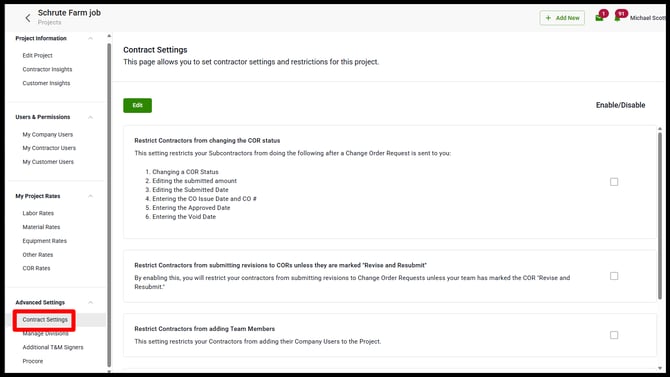
- Open the project you want to configure.
- Navigate to Advanced Settings.
- Select Contract Settings.
Available settings
You have five settings available at the project level. Enable any combination that fits your project's needs.
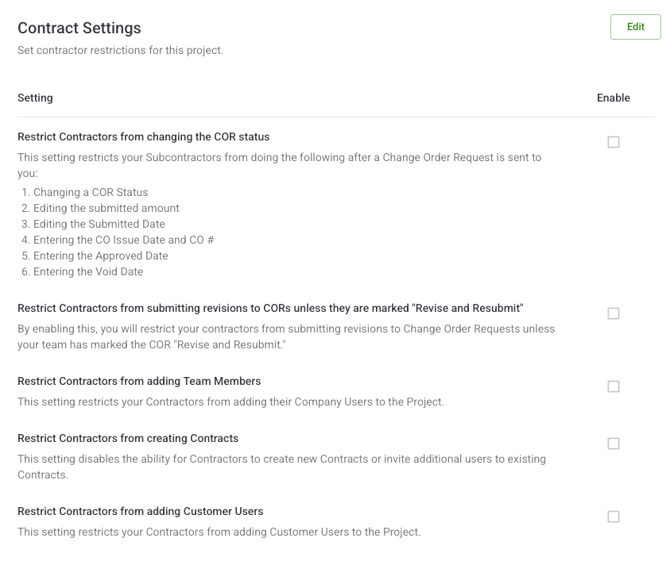
Restrict Contractors from changing the COR status
Prevents specialty contractors from modifying a Change Order Request (COR) after it has been submitted. This covers the COR status, submitted amount, submitted date, CO issue date, CO number, approved date, and void date. When this restriction is active, those fields are grayed out for the contractor, with a tooltip explaining that their customer has restricted changes.
Restrict Contractors from submitting revisions to CORs unless they are marked "Revise and Resubmit"
Ensures contractors can only submit a revision after your team has set the COR status to Revise and Resubmit. The revision button is hidden for the contractor until that status is applied.
Restrict Contractors from adding Team Members
Prevents specialty contractors from adding their own company users to the project.
Restrict Contractors from creating Contracts
Disables the ability for specialty contractors to create new contracts or invite additional users to existing contracts. This applies to downstream contracts only — it does not affect the existing upstream contract.
Restrict Contractors from adding Customer User
Prevents specialty contractors from adding customer users to the project.
To save your changes, click Save after enabling or disabling any settings.
License-based restrictions
The COR status and COR revision restrictions only take effect for specialty contractors on Basic or Plus project licenses. Specialty contractors on Standard or Professional project licenses can always edit COR details and submit revisions, regardless of how these settings are configured.
The three user-addition restrictions (add team members, create contracts, add customer users) apply to all specialty contractor license tiers, including Standard and Professional.
| Restriction | Basic SC | Plus SC | Standard SC | Professional SC |
|---|---|---|---|---|
| Restrict COR status changes | ✅ Applies | ✅ Applies | ❌ Does not apply | ❌ Does not apply |
| Restrict COR revisions | ✅ Applies | ✅ Applies | ❌ Does not apply | ❌ Does not apply |
| Restrict adding team members | ✅ Applies | ✅ Applies | ✅ Applies | ✅ Applies |
| Restrict creating contracts | ✅ Applies | ✅ Applies | ✅ Applies | ✅ Applies |
| Restrict adding customer users | ✅ Applies | ✅ Applies | ✅ Applies | ✅ Applies |
What each role can see
| Action | Account Owner | Admin | Project Manager | Field User |
|---|---|---|---|---|
| View project-level Contract Settings | ✅ | ✅ | ✅ | ❌ |
| Enable or disable project-level settings | ✅ | ✅ | ✅ | ❌ |
A Professional license is required to enable or disable settings. If your license is downgraded, existing restrictions remain in place but the toggles become read-only until the license is restored.
Tips and best practices
- Enable COR restrictions at the company level first so every new project starts with your preferred defaults, then adjust per project as needed.
- If a specialty contractor reports they can't edit a COR, check both the project-level settings and their license tier — Standard and Professional SCs are not subject to COR restrictions.
- The "Restrict from creating contracts" setting is commonly used on projects where you want to control the subcontracting chain. Remember it only affects downstream contracts.
- Review your project settings before inviting a new specialty contractor so restrictions are in place from day one.
FAQs
I enabled a restriction but my contractor can still edit the COR. Why?
Specialty contractors on Standard or Professional project licenses are not subject to COR status or revision restrictions. Check the contractor's license tier. If they're on Basic or Plus and still able to make changes, contact support at support@clearstory.build.
Does enabling a restriction affect contractors who are already on the project?
Yes. Restrictions take effect immediately for all specialty contractors currently on the project, not just new ones added after the setting is enabled.
Can I restrict one contractor but not another on the same project?
Not through the project settings UI. Restrictions apply to all specialty contractors on the project, though Standard and Professional licensed contractors are automatically exempt from the COR restrictions.
What does a contractor see when they're restricted?
For COR fields: the fields are grayed out with a tooltip explaining that their customer has restricted changes. For revisions: the revision button is hidden until the COR is set to Revise and Resubmit. For user additions: the relevant invite and add buttons are disabled.
Will changing the project settings update existing contracts under this project?
Yes. When you enable or disable a setting at the project level, all existing downstream contracts on that project are updated immediately to reflect the change.