
Company-level Contract Settings let you define default restrictions that apply to every new project created under your company account. Once set, these defaults are automatically inherited by new projects so you don't need to configure each one individually.
Note: Only Account Owners can access and edit company-level Contract Settings. A Professional license is required to enable or disable these settings.
Table of Contents
- What company-level contract settings do
- How to access company-level settings
- Available settings
- How settings apply to new projects
- License-based restrictions
- What each role can see
- FAQs
- What's next
What company-level contract settings do
Contract Settings give you control over what your specialty contractors (SCs) can do when managing Change Order Requests (CORs) and accessing your projects. Settings configured at the company level become the default for every new project — your Admins and Project Managers can then adjust those defaults at the project level if needed.
How to access company-level settings
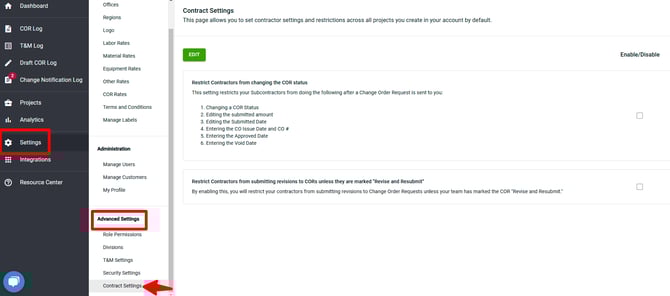
- Navigate to Settings in the left-hand navigation.
- Select Advanced Settings.
- Click Contract Settings.
Available settings
You can enable either one or both of the following restrictions at the company level:
Restrict Contractors from changing the COR status
Prevents specialty contractors from modifying a Change Order Request (COR) after it has been submitted. This includes the COR status, submitted amount, submitted date, CO issue date, CO number, approved date, and void date.
Restrict Contractors from submitting revisions to CORs unless they are marked "Revise and Resubmit"
Ensures that specialty contractors can only submit revisions to a COR after your team has marked it as Revise and Resubmit. Revision buttons are hidden for the contractor until that status is set.
Note: The three user-addition restrictions (restricting contractors from adding team members, creating contracts, or adding customer users) are only available at the project level. See How to Configure Project-Level Contract Settings to manage those.
How settings apply to new projects
When a new project is created under your company account, it inherits your current company-level settings as its defaults. Changes you make to company-level settings after a project has been created do not retroactively update existing projects — they only affect projects created going forward.
Your Admins and Project Managers can override these defaults on individual projects at any time. See How to Configure Project-Level Contract Settings.
License-based restrictions
These settings only take effect for specialty contractors on Basic or Plus project licenses. Specialty contractors on Standard or Professional project licenses are not subject to the COR status or COR revision restrictions, regardless of your company-level settings.
The user-addition restrictions (add team members, create contracts, add customer users) apply to all specialty contractor license tiers.
| Restriction | Basic SC | Plus SC | Standard SC | Professional SC |
|---|---|---|---|---|
| Restrict COR status changes | ✅ Applies | ✅ Applies | ❌ Does not apply | ❌ Does not apply |
| Restrict COR revisions | ✅ Applies | ✅ Applies | ❌ Does not apply | ❌ Does not apply |
What each role can see
| Action | Account Owner | Admin | Project Manager | Field User |
|---|---|---|---|---|
| View company-level Contract Settings | ✅ | ❌ | ❌ | ❌ |
| Enable or disable company-level settings | ✅ | ❌ | ❌ | ❌ |
Admins and Project Managers can manage settings at the project level. See How to Configure Project-Level Contract Settings.
FAQs
Do company-level settings automatically update existing projects?
No. Company-level settings only apply to projects created after the setting is enabled. Existing projects keep whatever settings were in place when they were created. To update an existing project, adjust its settings directly — see How to Configure Project-Level Contract Settings.
What happens if I disable a company-level setting after it was enabled?
New projects will no longer inherit that restriction. Existing projects that already have the restriction enabled are not affected — you'll need to update each project individually.
My specialty contractor is on a Standard license. Will these settings restrict them?
No. Specialty contractors on Standard or Professional project licenses are exempt from the COR status and COR revision restrictions. These restrictions only apply to Basic and Plus licensed specialty contractors.
Who can change company-level Contract Settings?
Only Account Owners can access and edit company-level settings. A Professional GC license is required.