
| Article Update | What Changed? |
| 9/29/2026 |
Added filtering functionality for Division filters and ability to see archived projects in project filters. Added reference to Waived stage within Void status. |
Table of Contents
Overview
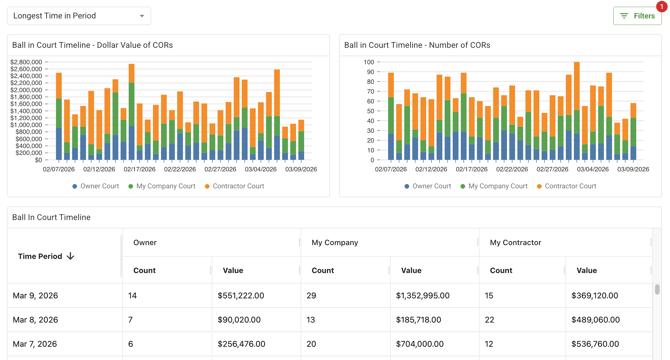
Historical Ball-in-Court Reporting helps you see which party was responsible for taking action on a Change Order Request (COR) over time. Instead of only showing the current Ball-in-Court, this view helps you understand where a COR stalled, how long it stayed with each party, and how much value was tied up during the review process.
Why it matters
When you are managing a high volume of CORs, it is hard to tell where delays are happening. Historical Ball-in-Court Reporting gives you a clearer view of accountability across the COR lifecycle so you can spot bottlenecks, follow up with the right party, and better understand financial exposure tied to pending review.
How it works
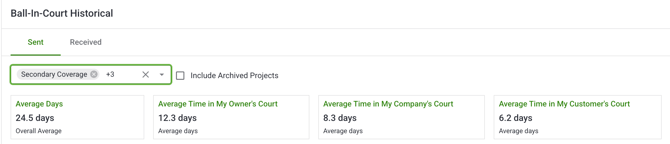
Clearstory uses COR status and stage changes to reconstruct a historical timeline of Ball-in-Court ownership. Each time a COR moves through the workflow, the reporting captures a new interval showing who was responsible during that period. This allows the system to report on ownership history instead of only the current state.
Historical Ball-in-Court Reporting helps you analyze:
-
Which party owned the COR at different points in time
-
Whether a COR was in your court or waiting on another party
-
The count and dollar value of CORs by court
-
How long CORs remained with each party
-
Trends across one project or multiple projects
The reporting supports these Ball-in-Court categories:
-
My Company
-
My Contractor
-
My Customer
-
Owner
Reporting is available in analytics under:
- Company-level
- Contractor Insights
- Customer Insights
Note: You can also switch between Sent and Received views to understand the difference between CORs your team sent out for review and CORs your team received and need to act on.
How Ball-In-Court Is Determined
Ball-In-Court is uniquely mapped based off of the status and stage for sent and received CORs. Please note the below mapping for backend Ball-In-Court logic:
Sent CORs:
| Status | Stage | Ball in Court |
| Void | Void | N/A |
| Void | Revise & Resubmit | N/A |
| Void | Claim | N/A |
| Void | Rejected | N/A |
| Void | Waived | N/A |
| In Review | In Review | My Customer |
| In Review | Revise & Resubmit | My Company |
| In Review | Acknowledged | My Customer |
| In Review | On Hold | My Customer |
| In Review | ROM | My Customer |
| In Review | Potential CO | My Customer |
| In Review | Estimate | My Customer |
| In Review | Claim | My Customer |
| In Review | Pending-Pending | My Customer |
| In Review | Pending-Pricing | My Customer |
| In Review | Pending- Owner Review | Owner |
| In Review | Pending - Internal Approvals | My Customer |
| Approved to Proceed | Approved to Proceed | My Customer |
| Approved to Proceed | Approved | My Customer |
| Approved to Proceed | On Hold | My Customer |
| Approved to Proceed | Pending-Pending | My Customer |
| Approved to Proceed | Pending-Pricing | My Customer |
| Approved to Proceed | Pending- Owner Review | Owner |
| Approved to Proceed | Pending - Internal Approvals | My Customer |
| Approved CO Issued | Approved CO Issued | N/A |
| Placeholder | Placeholder | My Company |
| Placeholder | ROM | My Company |
| Placeholder | On Hold | My Company |
| Placeholder | Estimate | My Company |
| Placeholder | Potential CO | My Company |
Received CORs:
| Status | Stage | Ball in Court |
| Void | Void | N/A |
| Void | Revise & Resubmit | N/A |
| Void | Claim | N/A |
| Void | Rejected | N/A |
| Void | Waived | N/A |
| In Review | In Review | My Company |
| In Review | Revise & Resubmit | My Contractor |
| In Review | On Hold | My Company |
| In Review | ROM | My Company |
| In Review | Potential CO | My Company |
| In Review | Estimate | My Company |
| In Review | Claim | My Company |
| In Review | Pending-Pending | My Company |
| In Review | Pending-Pricing | My Company |
| In Review | Pending- Owner Review | Owner |
| In Review | Pending - Internal Approvals | My Company |
| Approved to Proceed | Approved to Proceed | My Company |
| Approved to Proceed | Approved | My Company |
| Approved to Proceed | On Hold | My Company |
| Approved to Proceed | Pending | My Company |
| Approved to Proceed | Pending Pricing | My Company |
| Approved to Proceed | Pending Owner Review | Owner |
| Approved to Proceed | Pending Approvals | My Company |
| Approved CO Issued | Approved CO Issued | N/A |
| Placeholder | Placeholder | My Contractor |
| Placeholder | ROM | My Contractor |
| Placeholder | On Hold | My Contractor |
| Placeholder | Estimate | My Contractor |
| Placeholder | Potential CO | My Contractor |
Step-by-step instructions
Navigating to Ball-in-Court
-
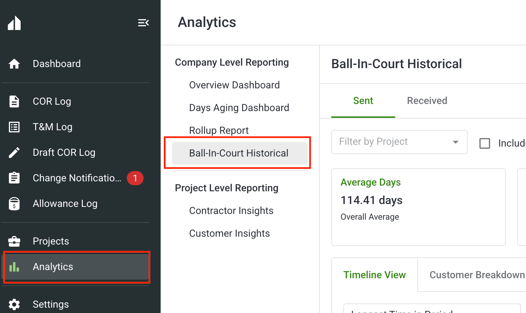
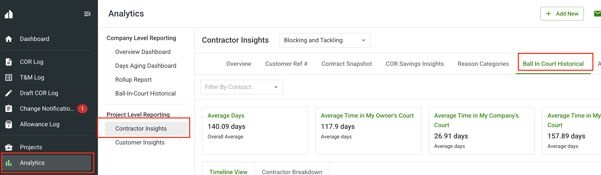
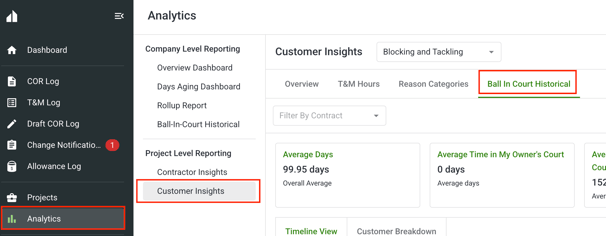 Go to Analytics.
 -
Open Ball-in-Court Historical in Company Level Reporting or under Contractor/Customer Insights.
-
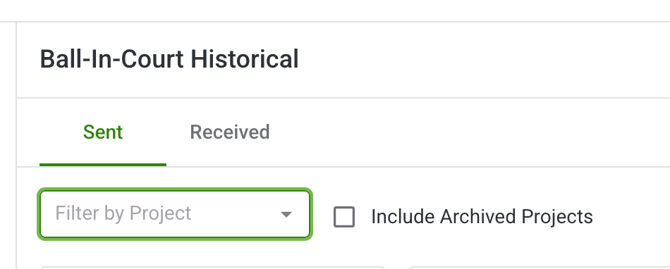
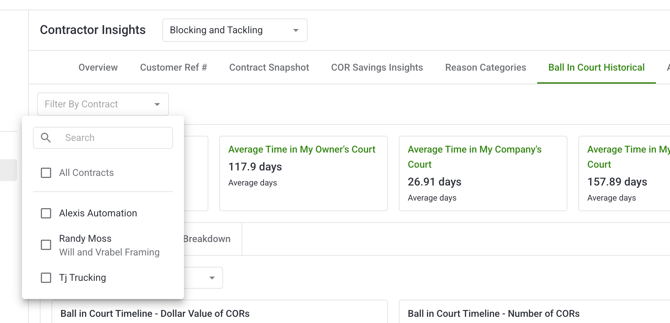
Select the project you want to review, or choose multiple projects if you want a broader view.
-
In Company Level choose whether you want to see Sent or Received CORs.
Filtering your report
-
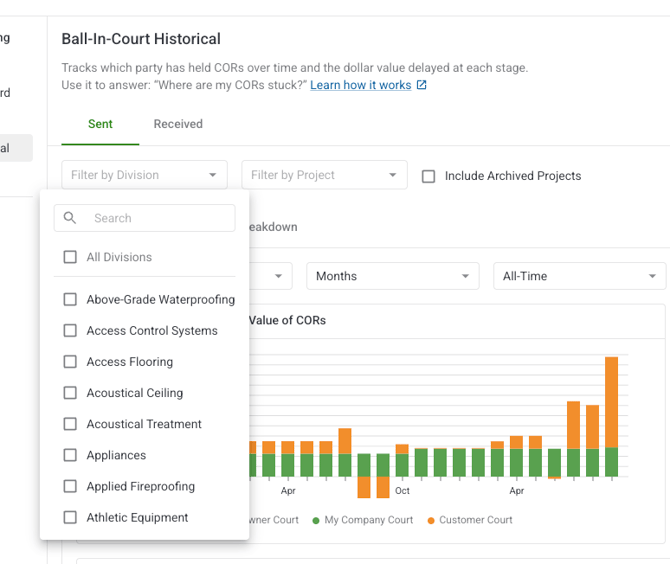
Select a project or division
-
- Note: Include Archived Projects shows a list of archived projects and let's you filter by specific archived projects.
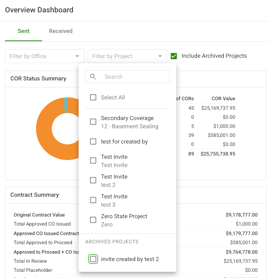
- Note: Include Archived Projects shows a list of archived projects and let's you filter by specific archived projects.
- Toggle between "Longest time in period" or "Total at end of Period" to see either:
- Whose court a COR was in for the majority of a time period OR
- Whose court a COR was in at the end of a given time period
-
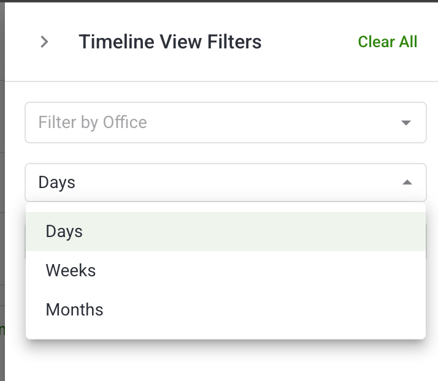
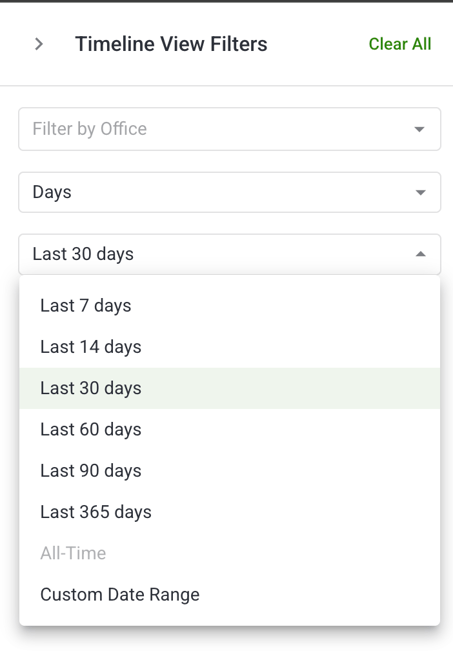
Choose filter and select time range or time dimension
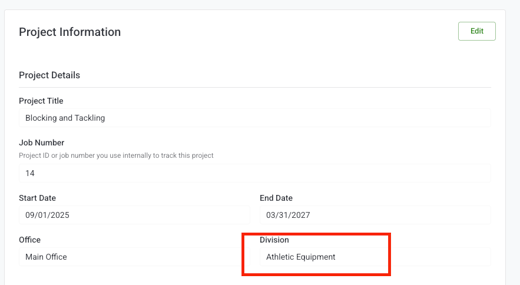
Note: Divisions must be enabled and added at the company level and then included at the project's Division section of project information to be filterable. You can learn more about your division configuration at: https://knowledge.clearstory.build/how-to-create-divisions
Drill down into COR
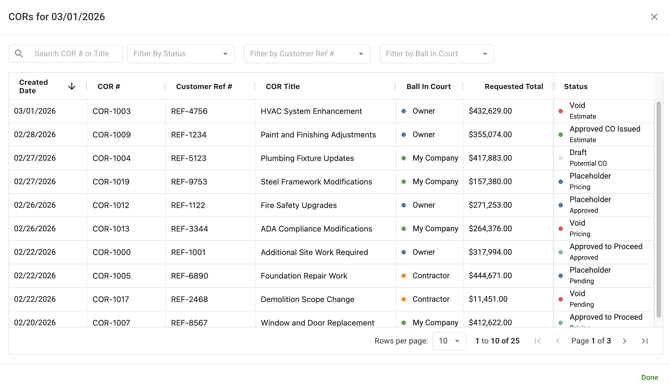
Review the dashboard results and select one of the following links to see underlying metrics:
-
Time charts
-
Hyperlinks in table
-
Contractor or Customer names
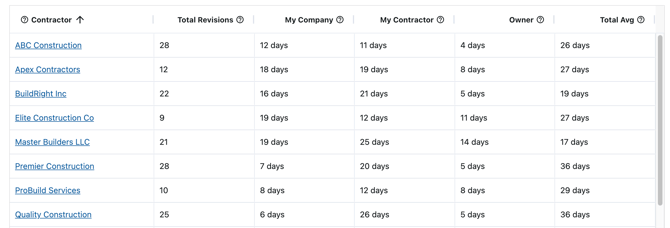
Tips and best practices
-
Review both count and dollar value metrics. A party may not be holding many CORs, but they may still be holding the highest-value requests.
-
Use time-based metrics such as time since submission, time spent in current court, and average time per court to identify recurring review slowdowns.
-
If you manage multiple jobs, use the multi-project view to compare patterns across projects and identify broader process issues.
-
Keep in mind that imported CORs are only tracked from the time they were imported, and deleted CORs are excluded from reports by default. Historical data may also be incomplete for some time ranges.
FAQs
What does Ball-in-Court mean?
Ball-in-Court means the party currently responsible for taking action on a COR based on its status and stage. Historical Ball-in-Court Reporting extends that concept by showing who owned responsibility over time.
What can I filter in the report?
You can filter by project, Sent vs Received, and time range. Your filters also persist between sessions.
What metrics can I review?
You can review COR count, total dollar value, time since submission, time spent in the current court, and average time per court.
Can I use this across multiple projects?
Yes. Historical Ball-in-Court Reporting supports portfolio-style analysis across multiple projects.
Why might I see incomplete data?
You may see a warning if historical data is incomplete for the selected time range. In some cases, Ball-in-Court reporting may be unavailable if there is not enough historical data.
Who can access this report?
Account Owners, Admins, and Project Managers can view and filter Ball-in-Court analytics and can export the data. Field Users have limited view and filter access and cannot export.