
Table of Contents
Overview
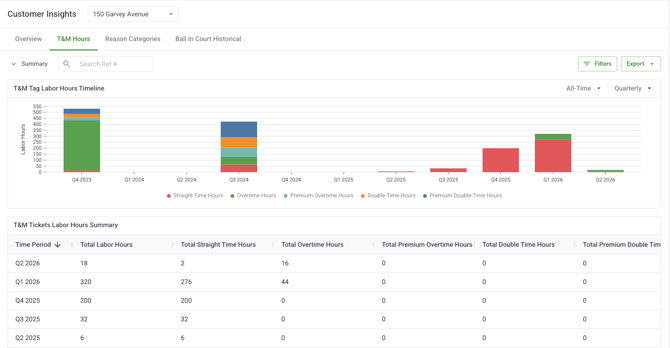
The T&M Hours tab is within Contractor Insights and gives you a summarized view of all T&M labor hours on a project in one place. It combines two components: a bar chart showing labor hours over time and a data table listing the individual T&M Tags and their hour breakdowns.
Instead of reviewing T&M Tags one by one in the T&M Log, this tab aggregates all labor hour data for the project and lets you filter, trend-spot, and export without leaving Analytics.
What you see depends on your role and your T&M Log permissions. Account Owners, Admins, and Project Managers with T&M Log access on the project can view the tab. Contractors and Field Users do not have access. The contract filter only shows contracts you have T&M Log access to.
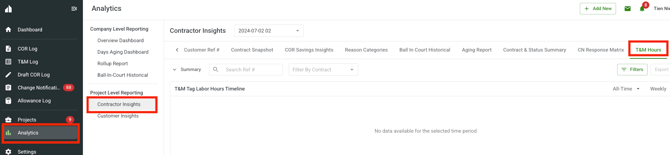
You can access the T&M Hours tab from Analytics II Contractor Insights II T&M Hours in the Clearstory side panel.
Why it matters
Labor hours are one of the most variable and difficult-to-track cost drivers on a project. T&M Tags capture the hours, but understanding volume trends, spotting overtime spikes, or comparing hours across contracts requires aggregation that doesn't exist in the T&M Log itself.
The T&M Hours tab does that aggregation automatically. Use it to answer questions like: are labor hours trending up over the last few weeks? Which contracts are generating the most overtime? How many total hours have been logged this month?
How it works
The tab has two main components that always show the same filtered dataset.
T&M Labor Hours Timeline chart
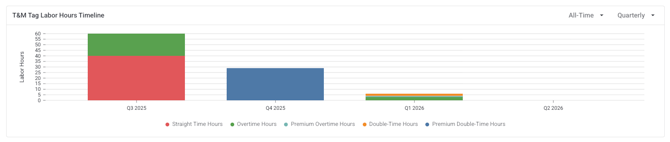
The chart shows labor hours over time, with each bar representing a time period (day, week, or month depending on your frequency selection). Each bar is segmented by hour type.
|
Element |
What it shows |
|---|---|
|
X-Axis |
Time periods based on your selected timeframe and frequency. |
|
Y-Axis |
Total labor hours for each time period. |
|
Bar segments |
Hours broken down by type: Straight Time, Overtime, Double Time, Premium Overtime, Premium Double Time. Each type is color-coded. |
|
Timeframe selector |
The date window shown: Last 7 Days, Last 30 Days, Last 90 Days, or a custom date range. |
|
Frequency selector |
How X-axis bars are grouped: Daily, Weekly, or Monthly. |
T&M Tickets Labor Hour Summary table
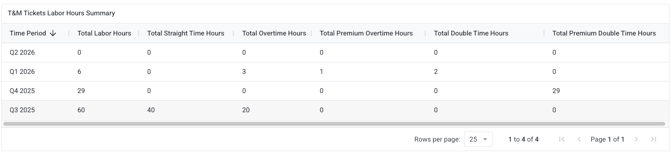
The table lists individual T&M Tags with a row for each tag (or line item where dates differ). Hours are placed on the chart based on the Date of Work Performed. If a T&M Tag has multiple line items with different dates, each line item's hours are placed on its own date. If a tag has no date on a line item, the tag-level Date of Work Performed is used as the fallback. Here is what each column shows:
|
Column |
What it shows |
|---|---|
|
Contract / T&M Tag |
The contract name and T&M Tag reference. |
|
T&M Tag Status |
The current status: Signed, Awaiting Signature, Rejected, Revise and Resubmit, Open, Signed Not Sent. |
|
Date of Work Performed |
The date the work was performed, from the T&M Tag or its individual line items. This is the date used to place hours on the chart. |
|
Straight Time Hours |
Straight time (ST) hours on this tag. |
|
Overtime Hours |
Overtime (OT) hours on this tag. |
|
Double Time Hours |
Double time (DT) hours on this tag. |
|
Premium Overtime Hours |
Premium overtime hours on this tag. |
|
Premium Double Time Hours |
Premium double time hours on this tag. |
|
Total Hours |
Sum of all hour types for this tag. |
Step-by-step instructions
Navigate to the T&M Hours tab
-
Open Clearstory and go to the Analytics section in the side panel.
-
Select Contractor Insights from the Analytics navigation.
-
Click the T&M Hours tab.
-
The chart and table load automatically with the default view: Last 30 Days, Weekly frequency, all contracts.
Adjust the chart timeframe and frequency
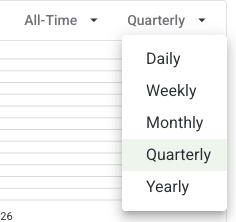
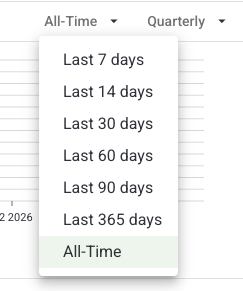
-
Use the Timeframe selector above the chart to change the date window: Last 7 Days, Last 30 Days, Last 90 Days, or a custom date range.
-
Use the Frequency selector to change how bars are grouped: Daily, Weekly, or Monthly.
-
The chart updates immediately. The table data is unchanged by chart controls.
Apply filters
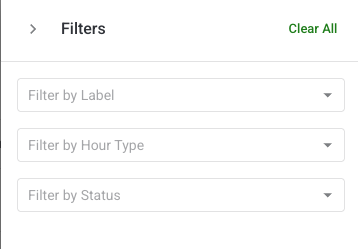
Use the filter bar to narrow both the chart and table to specific subsets of T&M data.
-
Use Filter by Contract to select one or more specific contracts.
-
Use Filter by Label to filter to T&M Tags with specific labels.
-
Use Filter by Hour Type to show only tags with specific hour types (e.g., Overtime only).
-
Use Filter by Status to show only tags in specific statuses (e.g., Signed only).
-
All active filters apply together as AND logic — only T&M Tags matching every selected filter are shown.
-
Filters can be cleared individually or all at once.
Note: Active filters carry through to exports.
Export the data
-
Apply any filters and chart controls you want reflected in the export.
-
Click the Export button.
-
Select Excel.
-
Clearstory processes the export in the background. You will receive a bell notification and email when your file is ready to download.
Note: If an export fails, Clearstory will notify you so you can retry.
What each role can do
License: The T&M Hours tab is available on Basic, Standard, and Professional plans — broader access than other Contractor Insights tabs.
|
Action |
Account Owner |
Admin |
Project Manager |
Contractor |
Field User |
|---|---|---|---|---|---|
|
View T&M Hours tab |
✅ |
✅ |
✅ |
❌ |
❌ |
|
View all contracts' T&M data |
✅ |
✅ |
✅ |
❌ |
❌ |
|
Apply filters |
✅ |
✅ |
✅ |
❌ |
❌ |
|
Adjust chart controls |
✅ |
✅ |
✅ |
❌ |
❌ |
|
Export to Excel |
✅ |
✅ |
✅ |
❌ |
❌ |
Tips and best practices
Use Monthly frequency to spot overall trends. Daily or Weekly views are useful for operational follow-up, but switching to Monthly gives you a cleaner picture of whether labor hour volume is growing, steady, or declining over the project lifecycle.
Filter by Hour Type to isolate overtime and double time. If you suspect labor cost overruns, filtering to Overtime or Double Time only shows you exactly where premium hours are concentrated — by contract and by time period.
Use the Status filter to focus on confirmed hours. Filtering to "Signed" shows only T&M Tags that have been approved by both parties — a more reliable basis for financial reporting than tags still in progress.
Use the Label filter for cost code or trade breakdowns. If your team uses labels to categorize T&M Tags by trade or cost code, the label filter lets you slice hour volume by those categories.
Export before a project cost meeting. A filtered, dated export gives you clean data to bring into a project cost review without needing to manually pull T&M Log data.
FAQs
Why are some hours placed on a different date than I expected?
Hours are placed on the chart based on the Date of Work Performed on each T&M Tag or line item. If a tag has multiple line items with different dates, each line item's hours appear on its own date. If no line item date exists, the tag-level Date of Work Performed is used. If neither is set, the tag creation date is used as a fallback.
What hour types are available in the report?
The report tracks five hour types: Straight Time (ST), Overtime (OT), Double Time (DT), Premium Overtime, and Premium Double Time. Each appears as a separate bar segment in the chart and a separate column in the table.
How is Total Hours calculated per row?
Total Hours = Straight Time + Overtime + Double Time + Premium Overtime + Premium Double Time for that T&M Tag or line item. It is always a sum of the individual hour type columns.
Do filters affect both the chart and the table?
Yes. All four filters (Contract, Label, Hour Type, Status) apply to both the chart and the table simultaneously. The chart controls (Timeframe and Frequency) only affect the chart.
Why does the contract filter not show all my contracts?
The contract filter only shows contracts you have T&M Log access to on this project. If a contract is missing, you may not have T&M Log permissions for it. Contact your admin if you believe this is incorrect.
Can contractors see this report?
No. Contractors do not have access to the T&M Hours tab. It is a GC-side reporting surface.
What does the chart show when I filter by Hour Type?
The chart shows only the selected hour type(s) in the bars. For example, filtering to Overtime only shows overtime hours per time period, making it easier to identify when overtime spiked.
What export format is available?
Excel. The export includes all table columns and reflects your active filter selections and chart timeframe setting.
How do I know my export is ready?
You will receive a bell notification in Clearstory and an email when your export file is ready to download.