
Jump to: Data Flow || Integrated Workflows || Setting Up the Integration
Overview
Sage Intacct is a cloud-based accounting and financial management system widely used across the construction industry. The platform enables project teams to manage financials, track project budgets, and handle change management through Change Requests (CRs).
With the Clearstory & Sage Intacct integration, project teams can:
-
Eliminate data entry: Because things are automatically logged in Clearstory when a trade partner submits, there is no CR line item data entry for GC project teams. With the integration, you can push something received in Clearstory directly into a Change Request in Sage Intacct, forever eliminating CR data entry.
-
Promote Financial Visibility: By making Clearstory a project requirement and telling your trade partners all CORs must be posted in Clearstory for them to be valid, you now have a shared source of truth and can confidently have a real-time view of your COR exposure. With this integration, you can instantly see which CORs you have received that are not yet tied to a CR in Sage Intacct. This allows you to quickly filter Clearstory to see if any CORs have not yet been put into your forecast.
Sage Intacct Integration for GCs
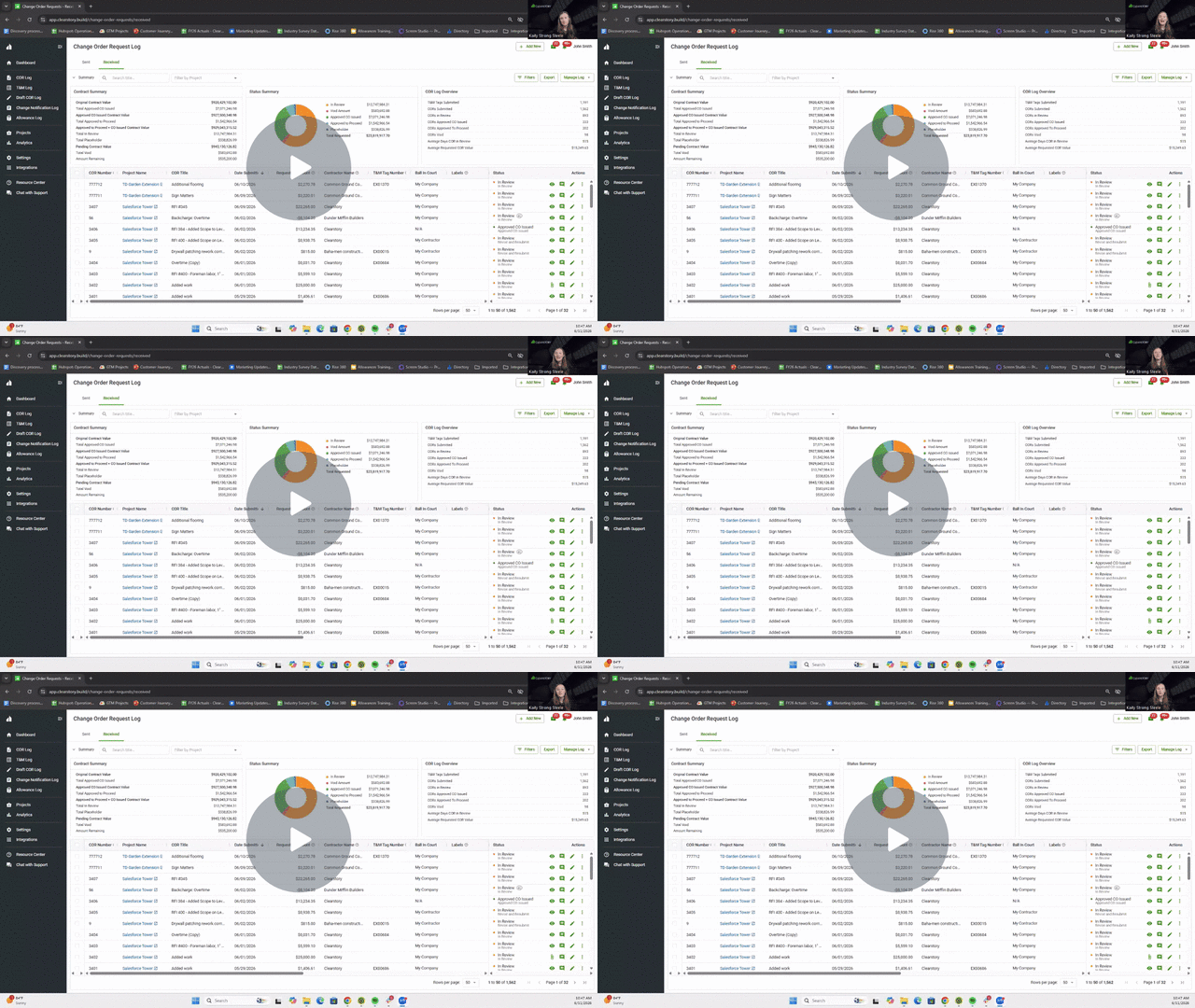
ClearStory to Sage Intacct Integration Overview - SC - Watch Video
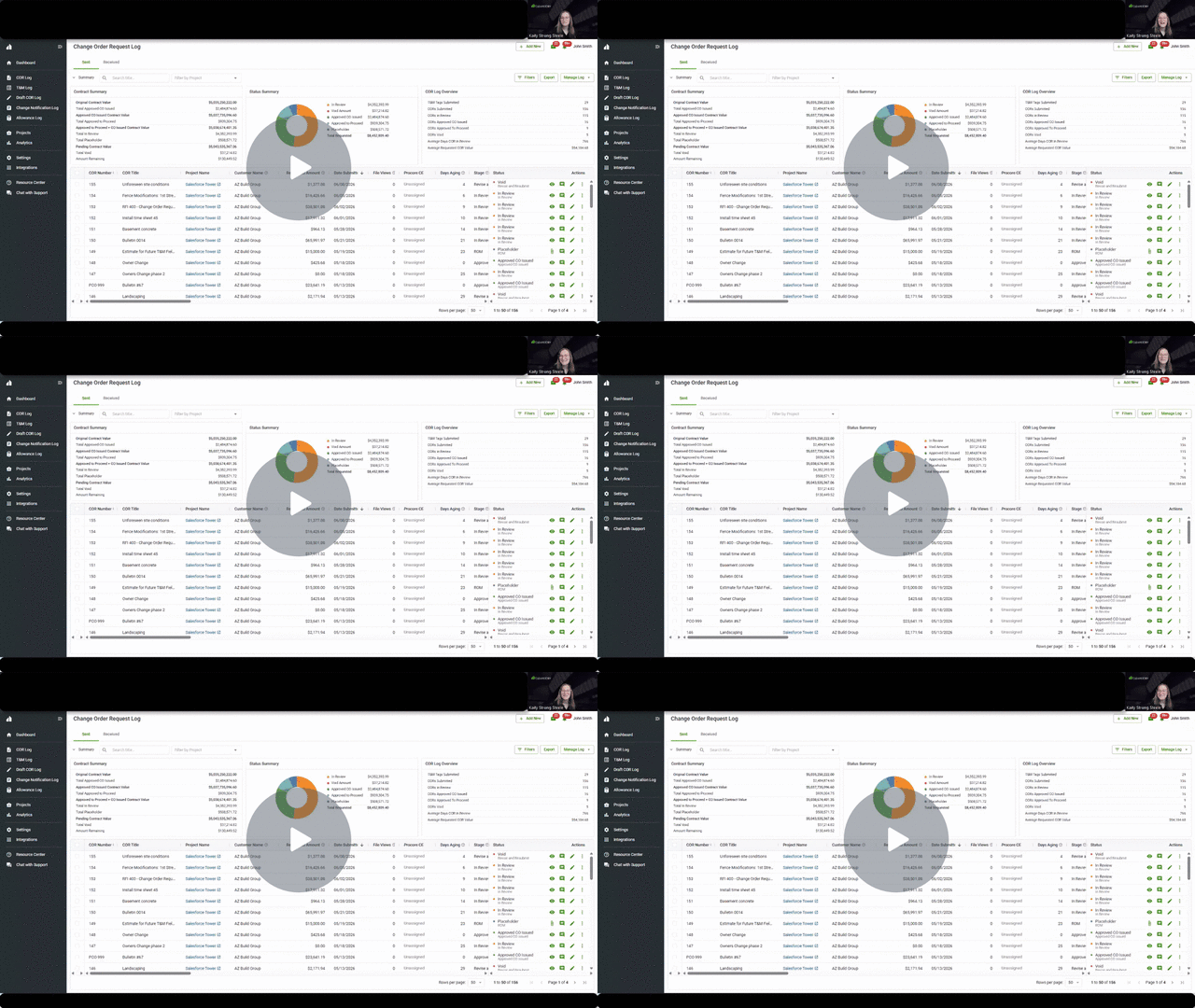
Data Flow
.png?width=670&height=377&name=Clearstory%20Intacct%20Integration%20Mapping%20(1).png)
Integrated Workflows
Linking Projects Between Sage Intacct & Clearstory
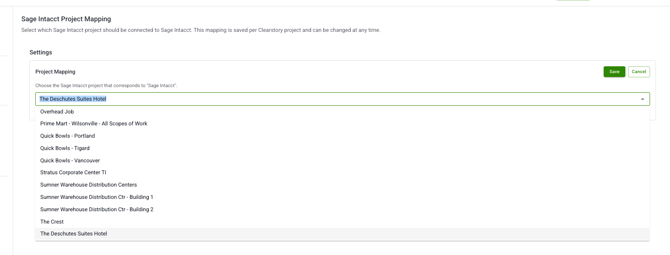
Before you can push CORs, your Clearstory project must be linked to its corresponding project in Sage Intacct. This only needs to be done once per project.
- Locate your Clearstory project and open it.
- Under Advanced Settings, click Sage Intacct, then click Edit.
- Search for and select the matching Sage Intacct project from the list, then click Save.
- The project is now linked. The Sage Intacct push functionality will be available on the COR log for this project.
Pushing CORs to a Change Request
Once a project is linked, you can push one or more CORs from the Clearstory COR log directly into a Sage Intacct Change Request.

- From the COR log, select the COR or CORs you want to push to Sage Intacct by checking the box next to each one.
- Click the Sage Intacct button that appears in the toolbar at the top of the log.
- The Select CR dialog opens showing the available Change Requests in Sage Intacct. You can either:
- Select an existing CR to add the COR line items to, then click Next, or
- Click Create CR to create a new Change Request directly from Clearstory.
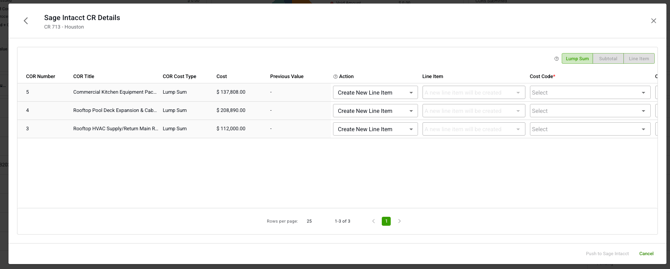
- The details panel opens. Choose how you want the COR data to be structured as line items in Sage Intacct using the toggle in the top right:
- Lump Sum — Each COR is pushed as a single line item using its total amount. This is the default and works for all COR types.
- Subtotal — Each COR is broken out by cost category (e.g., Labor, Material, Equipment) and pushed as separate line items, one per category subtotal. Available only for CORs that include a resource breakdown.
- Line Item — Each individual resource line item within the COR is pushed as its own separate line item in Sage Intacct. This is the most granular option and is also available only for CORs that include a resource breakdown.
- For each row being pushed, select the required Cost Code. Once a Cost Code is selected, the Cost Type dropdown will populate — select the appropriate Cost Type to complete the line item.
- Click Push to Sage Intacct to submit.
When the transaction is complete, the CR number is written back to the COR log for future reference, giving your team a clear record of where each COR was sent.
Note: If a COR is edited or revised after it has already been pushed to Sage Intacct and its total amount changes, a red indicator will appear on that row in the Sage Intacct CR column. This signals that the data in Sage Intacct is now out of sync with Clearstory and the COR should be re-pushed to keep your CR up to date.
Filtering the COR Log by Integration Status
After setting up the integration, a Sage Intacct CR column appears in your COR log. This column gives your team an instant view of which CORs have been pushed to Sage Intacct and which have not.
- CR number displayed (e.g., CR-00123): The COR has been pushed and is tied to that Change Request in Sage Intacct.
- Unassigned: The COR has not yet been pushed to Sage Intacct.
Use the filter options on the column to quickly segment your log:
- Assigned — Show only CORs that have been pushed to a Sage Intacct Change Request.
- Unassigned — Show only CORs that have not yet been pushed.
This makes it easy to audit your COR log and ensure nothing is missing from your Sage Intacct forecast without any additional manual tracking.
Setting up the Sage Intacct Integration
The Clearstory integration with Sage Intacct must be set up by a user with either an Account Owner or Admin role in Clearstory. Before enabling the integration in Clearstory, a system administrator will need to complete several configuration steps on the Sage Intacct side first.
Requirements: This integration requires an active subscription to Sage Intacct for Construction and a Web Services Subscription.
Configure Sage Intacct
Step 1 - Turn on Web Services
Turn on Web Services in Sage Intacct if it is not already active. Note: If you have already configured any other third-party services, you will may already have Web Services turned on.
-
Go to Company > Admin > Subscriptions.
-
Scroll down to Web Services and slide to On (green).
-
Click Done in the upper right corner.
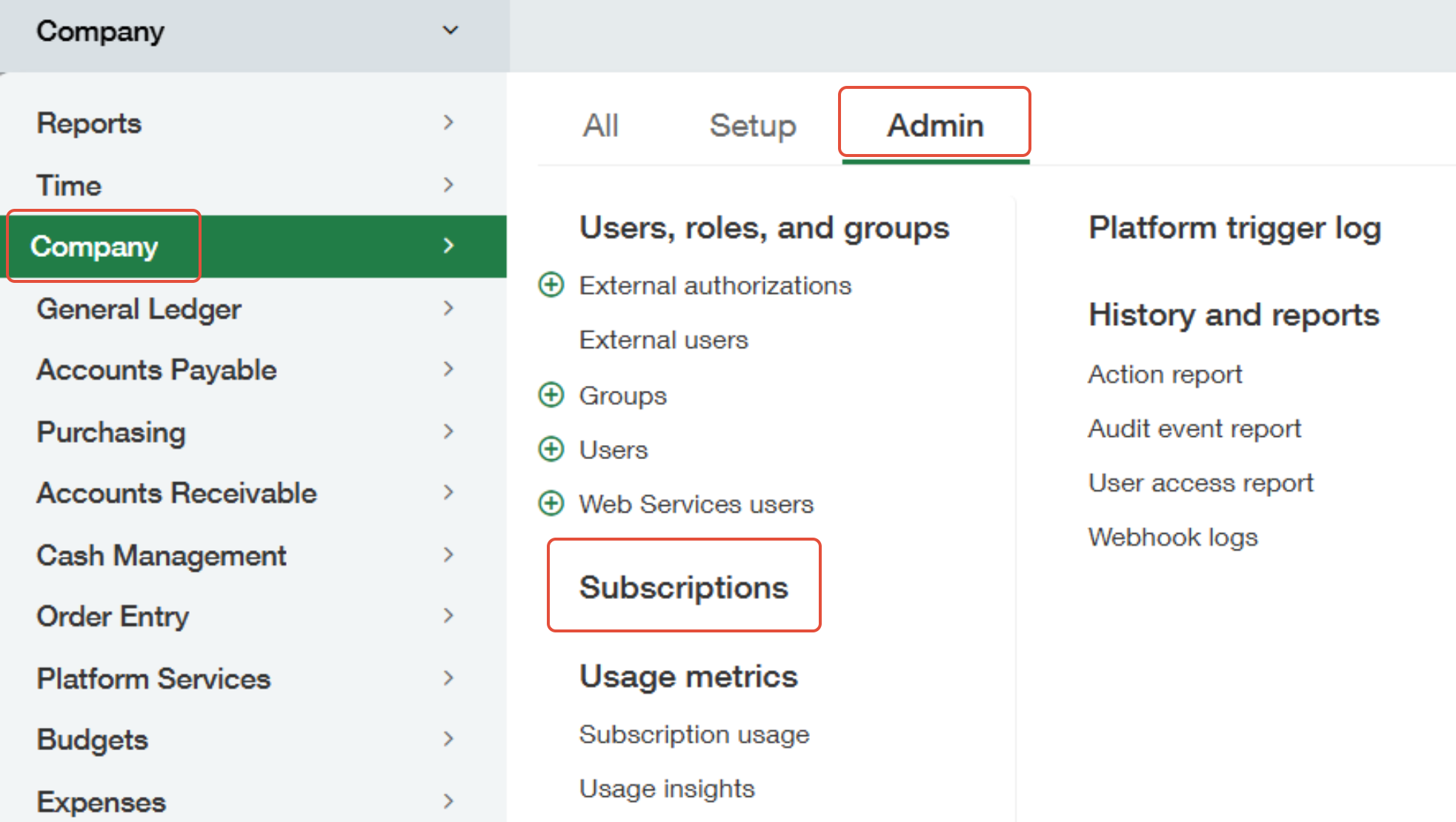

Create a Web Service User
Clearstory connects to Sage Intacct using a dedicated Web Service User. The steps below vary slightly depending on whether your company uses Role-Based or User-Based security.
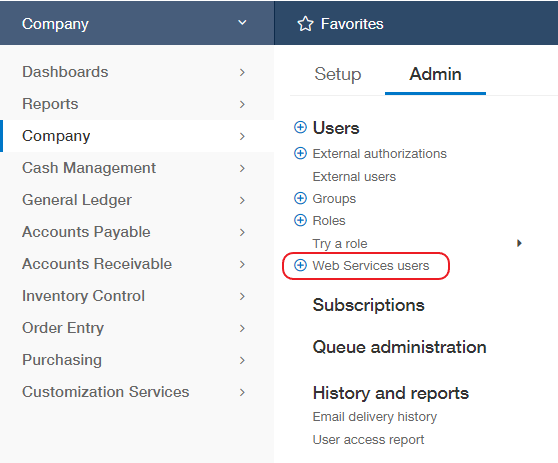
Role-Based Security:
-
Go to Company → Roles and click Add.
-
Enter a name for the role (e.g., "Clearstory Integration") and click Save.
-
Assign the following permissions, then click Save:
Module Area Permissions Company Entities List, View Projects Projects List, View Projects Change requests List, View, Add, Edit Projects Change request types List, View Projects Change request status List, View Projects Cost Codes List, View Projects Cost types List, View Accounts Payable Vendors List, View -
Go to Company → Web Service User and click New.
-
Fill in the required fields: User ID, Last Name, First Name, and Email Address. Set User Type to Business User.
-
Click the Roles Information tab and assign the role created above.
-
Click Save. You can ignore any warning about additional charges.
User-Based Security:
- Go to Company → Web Service User and click New.
- Fill in the required fields: User ID, Last Name, First Name, and Email Address. Set User Type to Business User.
- Click Save.
- From the Web Service Users list, find the new user and click Subscriptions.
- Assign the permissions listed in the table above and click Save.
Authorize Clearstory as a Web Services Sender
- Go to Company → Company Info and click Edit.
- Click the Security tab.
- Under Web Services Authorizations, add Clearstory's Sender ID:
clearstoryMPP.
Authorize Clearstory's Client Application
- Still on the Security tab, go to the Authorized Client Applications section and click Add.
- Enter Clearstory's Client ID (provided by your Clearstory team).
- Enter the Web Services User ID that will be used for this integration (this field is case-sensitive — enter it exactly as it was created).
Add Clearstory's IP Address
- Still on the Security tab, locate the Enforce IP address filters field and click the Edit icon.
- Add Clearstory's IP address to the allowed list (provided by your Clearstory account team).
Step 2: Enable the Integration in Clearstory
Once your Sage Intacct environment is configured, a Clearstory Account Owner or Admin can activate the integration.
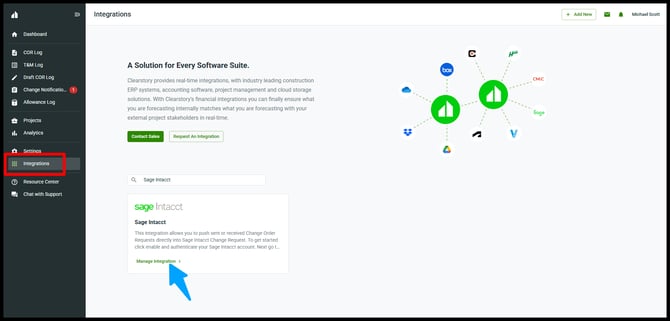
-
- Search for Sage Intacct.
- On the Sage Intacct integration card, click Manage Integration.
- If the integration has not yet been enabled, click Enable.
- When prompted, enter the following credentials for the Web Services User created in Step 1:
- Client ID — your application's Client ID
- Client Secret — your application's Client Secret
- User Name — the Web Services User ID in
userId@companyIdformat (for example,clearstory_user@YourCompanyID)
- Map your Clearstory office to the corresponding Sage Intacct Entity. This ensures the correct projects and Change Requests are available when pushing CORs.
- Click Save to activate the integration.