Getting Started:
- How to enable the integration and authenticate your Procore account
- How to map your Procore project to a project in Clearstory
- Linking your Procore Contract to a Contract in Clearstory
- How to push a COR from the Clearstory COR log into a Procore Change Event
- Editing a COR and updating Procore Change Event
- Filtering COR Log by Procore Change Events
- Clearstory Change Notification push to Procore
How to Enable the Integration and Authenticate your Procore Account
You will need to be logged in as an Account Owner or Admin role in Clearstory to make these changes.
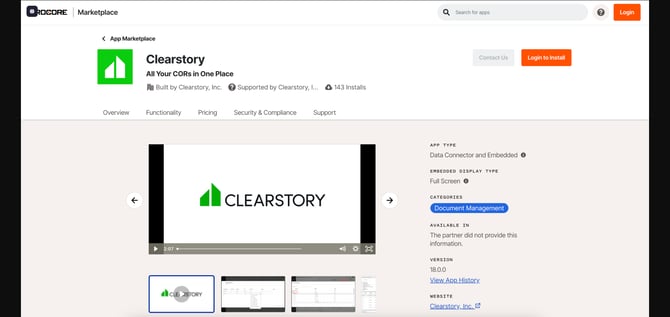
- Log in to your Procore account, navigate to the Procore Marketplace, and install the Clearstory app
-
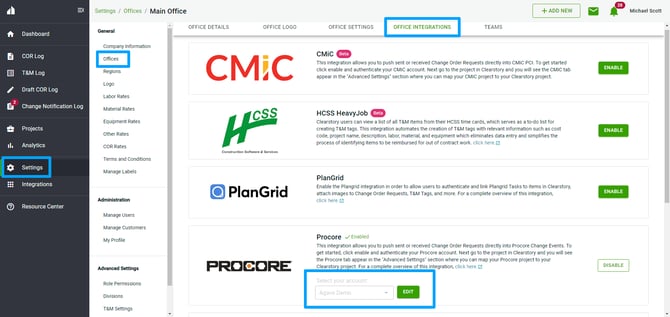
Once the installation is complete, return to Clearstory and select Settings from the left-hand navigation menu.
-
Select Offices, then select the office you would like to integrate with Procore
-
Towards the top of the pages, select Office Integrations
-
Enable the Procore Integration
-
Select the Procore Account you would like to connect to your Clearstory Office
How to Map your Procore Project to your Clearstory Project
1. Select the Clearstory Project you would like to connect to your Procore Project
2. Under Advanced Settings, select Procore
3. Select Edit. This will bring a pop up asking you to login with your Procore credentials.
4. Select your project from the drop down and Save
.png?width=670&name=Edit%20Project%20-%20Extracker%20(3).png)
Linking your Procore Contract to a Contract in Clearstory
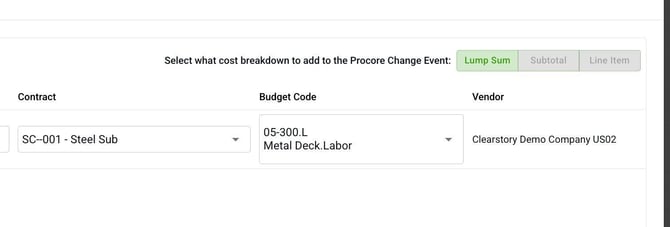
Once your Procore project is mapped to your Clearstory project, you can link individual Clearstory contracts to their corresponding Procore subcontracts. This contract mapping streamlines the COR-to-Change Event push workflow by automatically populating the Contract, Budget Code, and Vendor fields when pushing a COR to a Procore Change Event
- Navigate to the Projects section in the left-hand navigation, then select your project.
- Under the project menu, select My Contractor Users. You will see the contracts table, which includes a Procore Contract column showing the current mapping status of each contract.
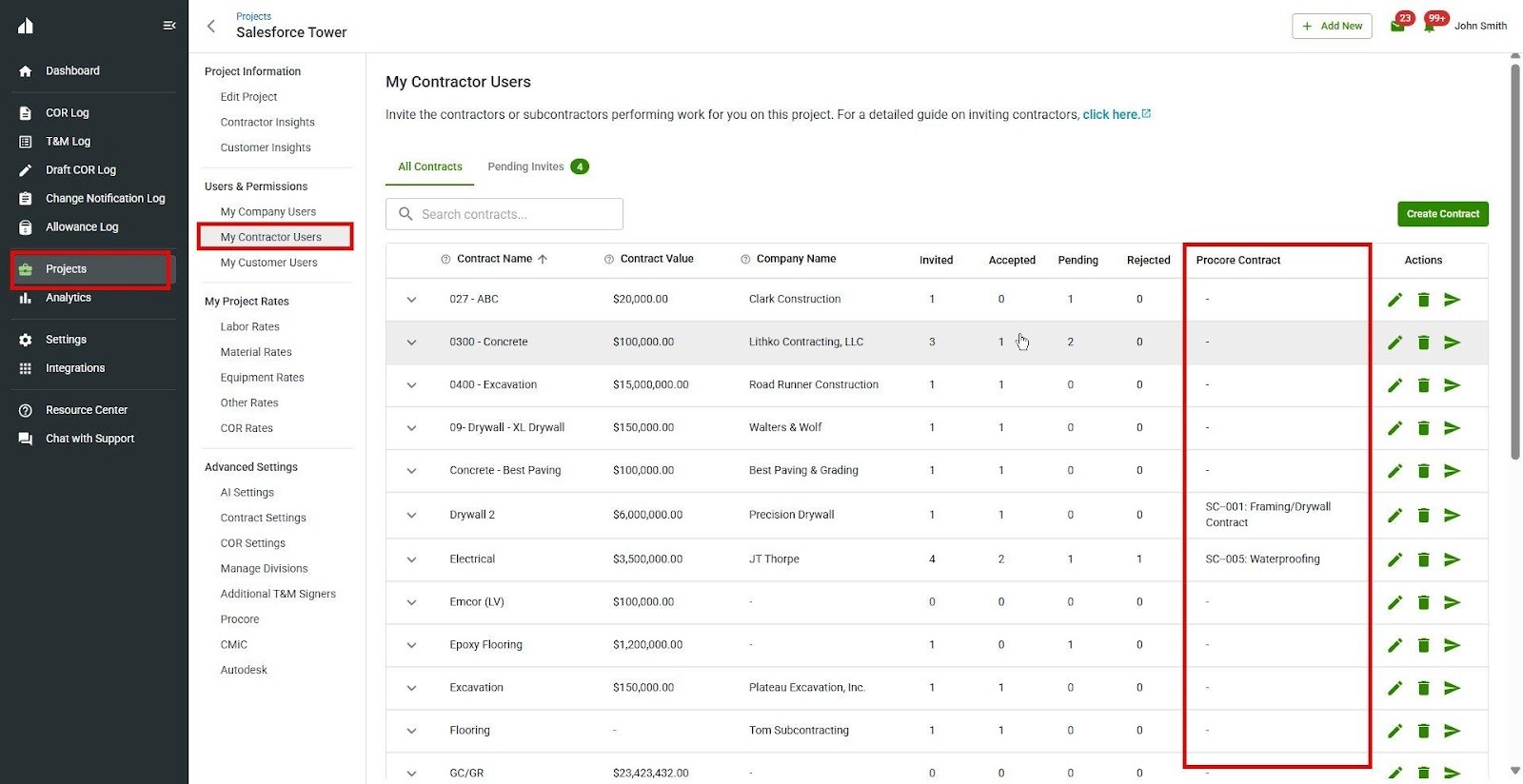
- Click the edit (pencil) icon in the Actions column for the contract you want to map. This opens the Edit Contract modal.
- In the Edit Contract modal, use the Procore Contract dropdown to select the corresponding Procore subcontract.
- Click Save. The Procore Contract column in the contracts table will now display the mapped Procore contract name.
When you push a COR to a Procore Change Event, the system uses your contract mappings to automatically fill in the Contract, Budget Code, and Vendor.
How to Push a COR from Clearstory to Procore
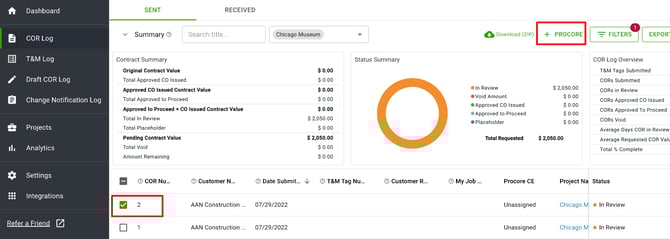
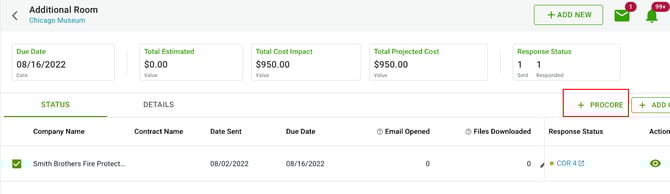
1. Select one or multiple CORs you would like to push to a Procore Change Event, then select +PROCORE
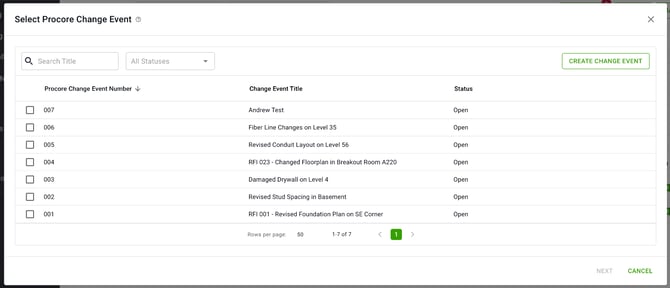
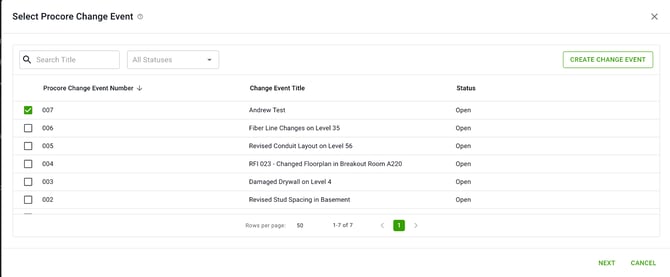
2. Select the Procore Change Event or Create a New Change Event, select Next
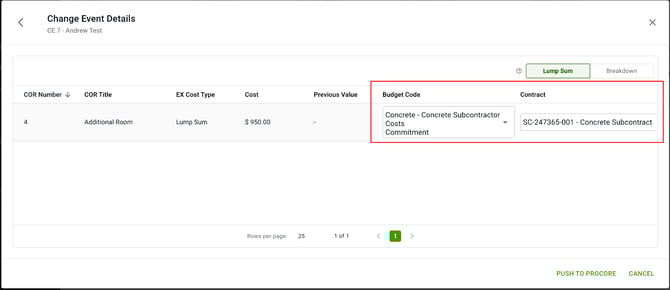
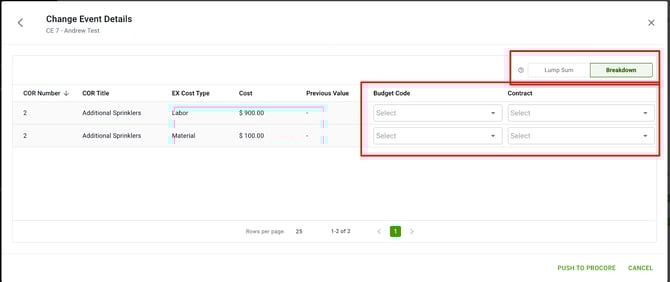
3. Chose if you'd like the line items broken down or a lump sum. Select your Budget Codes and Contract
When changes are made to the COR in Clearstory, an alert on the COR Log will appear, letting you know you should push the update to the Change Event in Procore
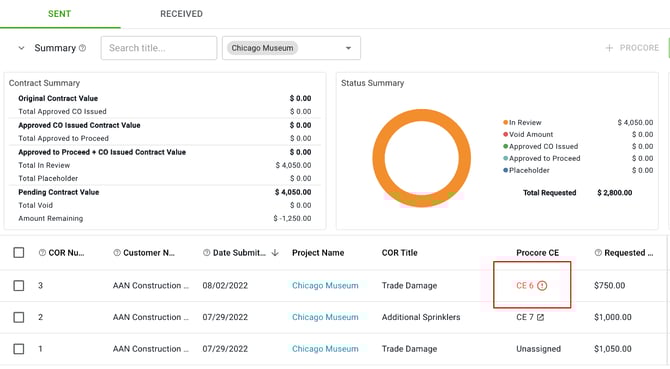
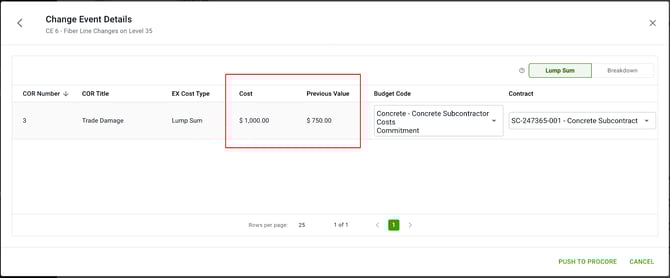
To update the Procore Change Event, Follow previous steps 1 - 3. This will show the previous and new totals.
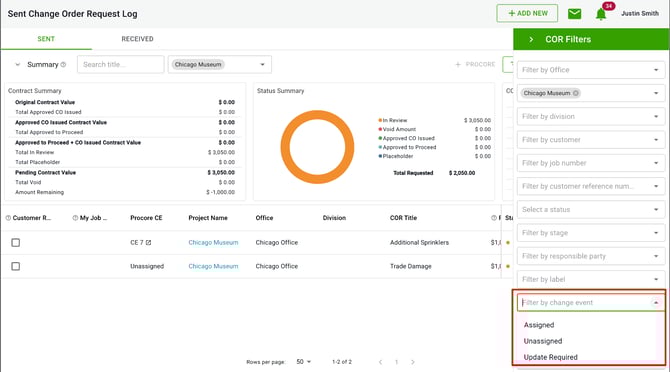
Filtering COR Log by Procore Change Events
When filtering the COR Log, you have the ability to filter by Procore Change Event statuses in the Change Event drop down.
Pushing Change Notifications to Procore as a Customer
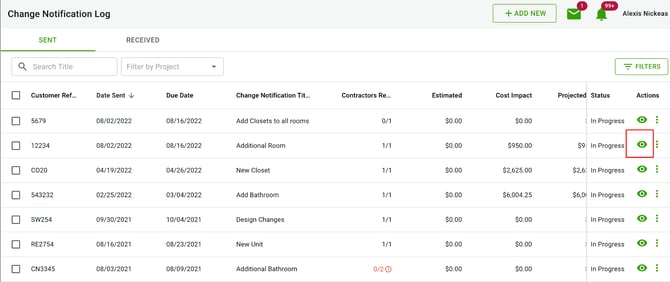
As a customer you can push the COR your contractor submitted in response to your Change Notification.
1. Select the eye to view the change notification response
2. Select the COR then +PROCORE
3. Select the Procore Change Event or create a new Change Event
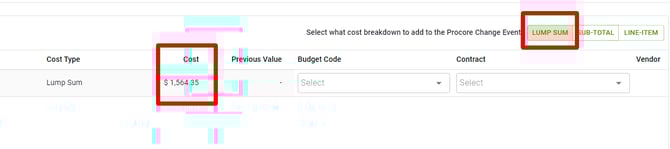
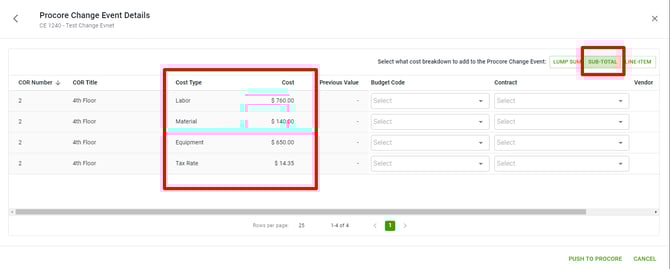
4. Determine your Cost Breakdown:
- Lump Sum = Cost displayed as a lump sum total
- Sub-Total = Cost broken down by each rate type
- Line-Item = Cost broken down by each line item
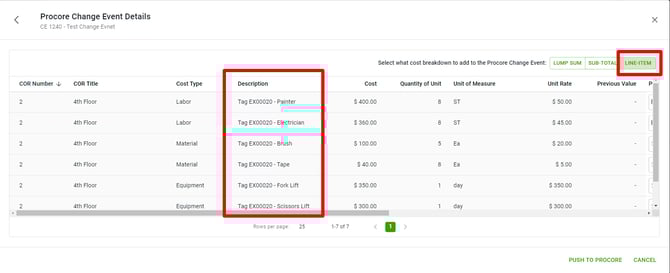
5. Select your Budget Code and Contract, then Push to Procore