
Table of Contents
How to Review and Sign T&M Tags
Sending Change Notifications to Contractors
1. How to Sign Up
There are two basic ways you can sign up for Clearstory.
Option A — You were invited by your Contractor (recommended)
-
Open the email invite from Clearstory.
-
Click the link to join the project.
-
Follow the prompts to create your account and set a password.
-
Once completed, you’ll see the project(s) you were invited to in your Projects list.
Option B — You missed the email invite
-
Go to Clearstory’s login page.
-
Enter your work email address.
-
Complete the account setup flow.
- Once your Contractor adds you to the project(s), they will appear in your Projects list.
For an in-depth overview of how to accept a project invite, check out this article: How to Accept a Project Invite.
2. How to Review a Change Order Request
Reviewing the COR
You can open a change order from:
-
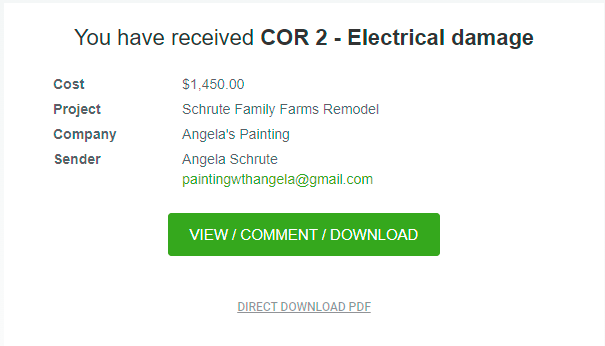
The email notification link, or
-
The “view” (eyeball) icon on the Change Order Log
What you’ll see on the review page
-
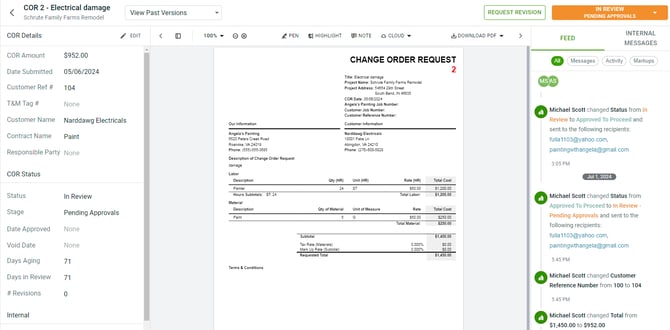
Left panel: key details (title, cost, reference numbers, etc.)
-
Center: the submitted PDF document
-
Right panel: Activity Feed (history + collaboration)
How to leave feedback
-
Review the PDF.
-
Add markups (callouts, text, highlight, pen).
-
Add messages in the Activity Feed if needed.
Best practice: Do your markups/messages first, then update the status at the end (dropdown in top right corner on review page).
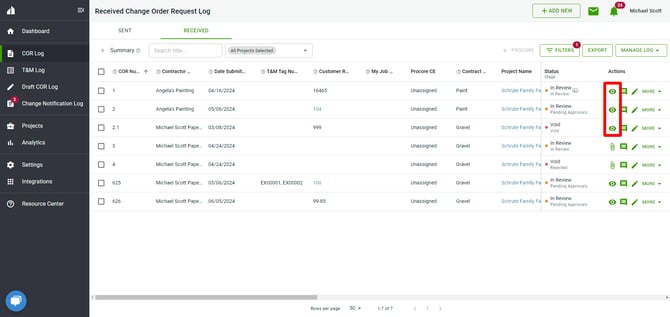
When you review the COR you are taken to our COR landing page, which has the document details, the PDF itself, and the activity and comments:
For an in-depth overview of how to review and update your COR’s, check out this article: How to Review, Add Comments, and Update COR’s
Use this workflow to keep review cycles clean and easy for everyone:
-
Open the change order.
-
Add markups on the PDF.
-
Add messages in the Activity Feed (optional).
-
If you need someone’s attention, use an @mention (this triggers an email notification).
-
Update Stage/Status last to clearly signal what happens next (example: “Revise & Resubmit”).
Why this works:
-
You avoid spamming notifications for every markup.
-
Your Contractor gets one clear “review complete” moment to respond to.
3. How to Review and Sign a T&M Tag You Received Via Email
- Once a user has sent you a request for signature you will receive an email that looks like this. To view the T&M Tag click on the button "Review & Sign".

- Once clicked, you will be taken to the T&M Tag Review page.
Click to Sign: If the Tag is approved you can sign it and add your comments. Simply sign your name and click Submit Signature. Any comments will also be added to the PDF in the "Customer Notes" section. Once signed, both you and the contractor will immediately receive an email copy of the T&M Tag.
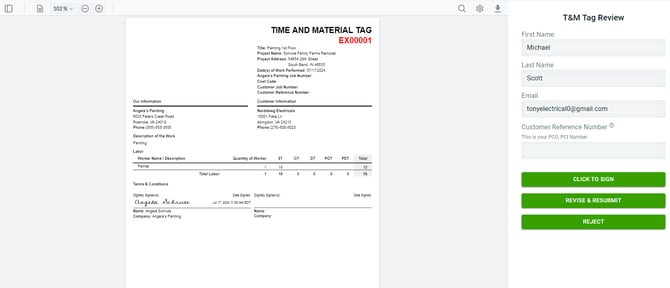
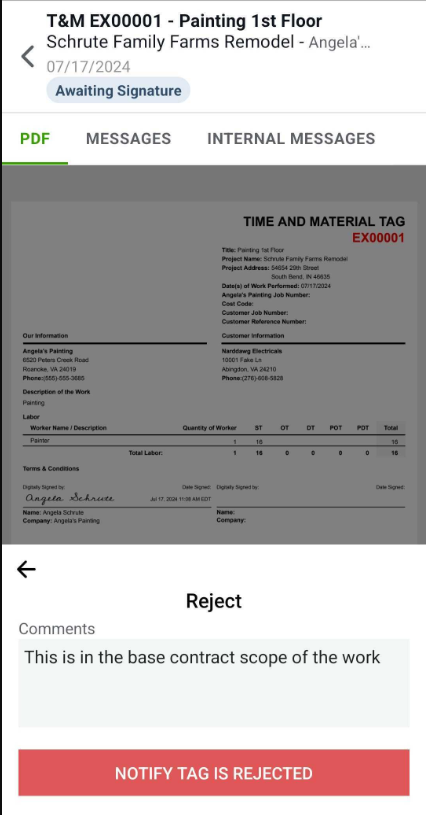
Revise and Resubmit: If something needs to be changed on the T&M Tag you can send a note back to the contractor telling them what needs to be changed. They can quickly make the edits on their end and resend the T&M Tag to you via email.

Once the T&M Tag is signed you will receive an email copy of the T&M Tag PDF with your signature and notes on it.
4. Sending Change Notifications to Contractors
Use a Change Notification when you want to capture pricing requests. The Change Notification is a request for a formal change order - examples:
-
Directives to proceed / pricing exercises for scope changes
-
Bulletins, addenda, ASIs, drawing clarifications
-
Urgent or expedited requests
How to Create a Change Notification - Send downstream to Contractor
-
Click Add New
-
Select Add a Change Notification
-
Select Distribute a Pricing Request
-
Complete the form:
-
Project
-
Reference number (if known; otherwise use “TBD” and update later)
-
Title + description
-
Due date
-
Attach directive/drawings (PDF)
-
-
Click Send
Track Responses and Link to Change Orders
After you send:
-
The item appears in your Change Notification Log
-
Your Contractor will respond with either "No Cost Impact" or will submit an associated Change Order Request
-
If the Contractor submits a related change order, you can associate it using reference fields (your team may standardize which field is used for which number)
Best Practices:
-
Keep items consistent (so they're easy to find later)
-
Attach the directive/drawings at the time of issuance to generate one source of truth
-
Decide internally who owns updating reference fields
Below are additional articles to get started as an Owner. Our Help Center offers step by step articles to best navigate Clearstory.