
Clearstory’s Allowances feature helps project teams track and manage allowance and contingency-related budget items earlier and more collaboratively before they’re finalized in your financial system.
It’s built for General Contractors, Specialty Contractors, and Owners who want greater visibility, less manual tracking, and tighter alignment around how budgeted scope is used throughout the life of a project.
Key Benefits
- Real-time visibility into remaining allowance balances
- Collaborative tracking between parties
- Fewer surprises and cleaner closeout documentation.
- Less time spent manually reconciling spreadsheets
What Is an Allowance?
An allowance is a placeholder in your budget for scope that is known, but not fully defined. Clearstory lets you manage three types of budget placeholders:
- Allowance — Known scope, unknown cost
- Contingency — Unknown scope, unknown cost
- Hold — Known scope, unknown cost, managed at your company's discretion
Each type works the same way in Clearstory: create a budget item, track costs against it, and monitor usage to avoid overruns. Everything is documented, visible, and collaborative. No surprises later in the project.
Want the full breakdown of each type? See What are Allowances, Contingencies, and Holds?
How Visibility Works
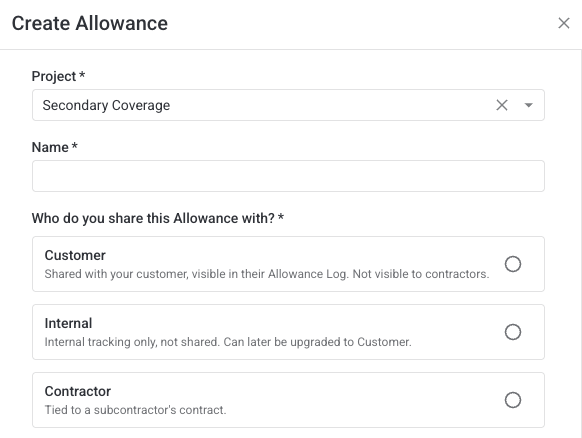
Clearstory allows each party to see allowances from their perspective. Every allowance in Clearstory belongs to one of three perspectives, each with different visibility rules:
- Customer Allowances are shared between you and your customer. You can allocate customer allowances to CORs on both the sent and received sides. Your contractors cannot see customer allowance draws.
- Contractor Allowances are written into your contract with your subcontractor. Both parties have real-time access to status, value, and remaining balance. Contractor allowances are created for a single contract. Your customer has no visibility into these.
- Internal Allowances are visible only to your company not to your customer or your contractors. Use them to track internal budget exposure, cost risk, or discretionary holds without disclosing that allocation externally. Internal allowances can be used for received and sent CORs and can function as a stand-in for Not-To-Exceeds (NTEs).
Want to understand the difference in depth? See Customer, Internal, and Contractor Allowances
What you can do with allowances
- Create budget buckets by type (Allowance, Contingency, Hold) for customer, internal, or contractor contracts. Learn more at Customer, Internal, and Contractor Allowances
- Import multiple allowances at once from a CSV file. Learn more at
- Apply draws to CORs positive amounts, $0 to track a relationship without spending budget, or negative credits on deductive CORs to return funds to an allowance
- Overdraw when actual costs exceed the budget, with a clear visual indicator so the overdrawn state is never missed
- Edit allowance names, amounts, and sharing settings at any time
- Delete allowances that are no longer needed (only when no active draws exist)
- Track remaining balance, forecast cost to complete, and total draw across your entire project portfolio
- Export the Allowance Log and Allowance Detail page as a PDF or Excel file — reflecting exactly your current filters, columns, and view
Exploring Allowances
| Article | What you'll find |
|---|---|
| What are Allowances, Contingencies, and Holds in Clearstory? | Definitions and examples for each budget bucket type |
| What’s the difference between Customer, Internal, and Contractor Allowances? | Visibility rules, COR allocation scope, and contract classification |
| Using Allowances in Clearstory as a General Contractor | Full GC workflow: create, import, draw, credit, overdraw, edit, delete, export |
| Using Allowances in Clearstory as a Specialty Contractor | SC workflow: create, draw, bulk allocate, export |
| How to Create, Import, Edit, and Delete Allowances | Bulk import via CSV, edit existing allowances, delete when ready |
| Navigating the Allowance Detail Page | Performance view, Timeline view, Forecast Cost to Complete, exports |