
| Article Update | What Changed? |
| 9/29/2026 | Added filtering functionality for Division filters and ability to see archived projects in project filters. |
Table of Contents
- Overview
- Why it matters
- How it works
- Step-by-step instructions
- What each role can see
- Tips and best practices
- FAQs
Overview
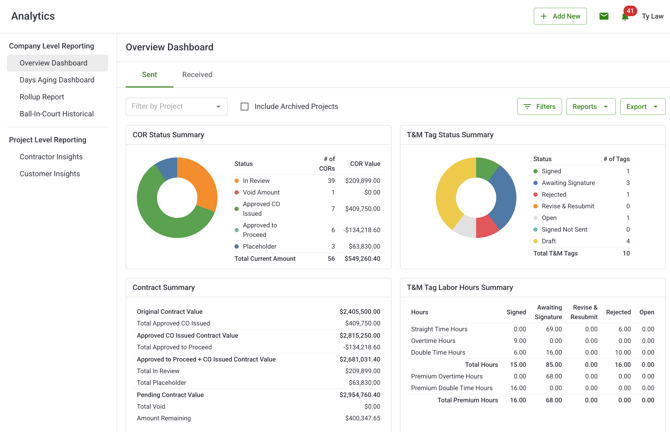
The Analytics Overview Dashboard gives you a consolidated view of your Change Order Request (COR) and Time & Materials (T&M) Tag data across all projects you have access to. Instead of navigating into individual projects, you can review COR status, contract health, aging exposure, and T&M labor hours from a single page.
What you see on the dashboard depends on your role. Account Owners see data across the entire company. Admins see data for projects in their office. Project Managers see data for their assigned projects. Field Users do not have access to the Overview Dashboard.
You can access the Overview Dashboard from the Analytics section of the Clearstory side panel.
Why it matters
The Overview Dashboard helps you stay on top of project health without having to dig into each project individually. You can spot trends in COR status, identify contracts with aging change orders, and understand how T&M Tags are tracking across your work — all from one view.
How it works
The dashboard is made up of five reporting sections. Each section pulls from your Sent COR and T&M Tag data and updates automatically when you apply filters.
COR Status Summary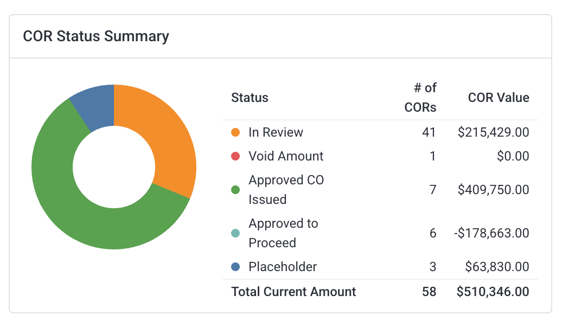
Shows the number and total dollar value of your Sent CORs grouped by status: In Review, Approved to Proceed, Approved CO Issued, Void / Rejected, and Placeholder. A grand total row appears at the bottom.
Contract Summary
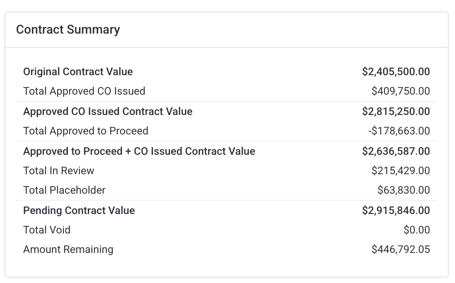
Shows financial information per contract, including the original contract value, total Approved COs Issued, total Approved to Proceed amount, pending contract value, and the updated contract total.
T&M Tag Status Summary
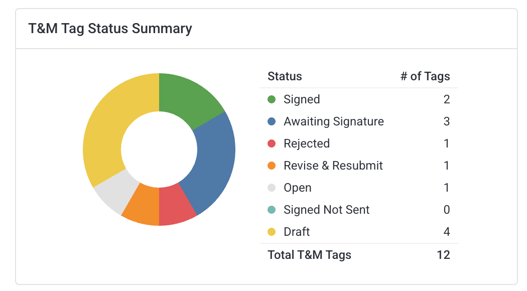
Shows the count of your Sent T&M Tags by status: Signed, Awaiting Signature, Revise & Resubmit, Rejected, and Open. A grand total row appears at the bottom.
T&M Tag Labor Hours Summary
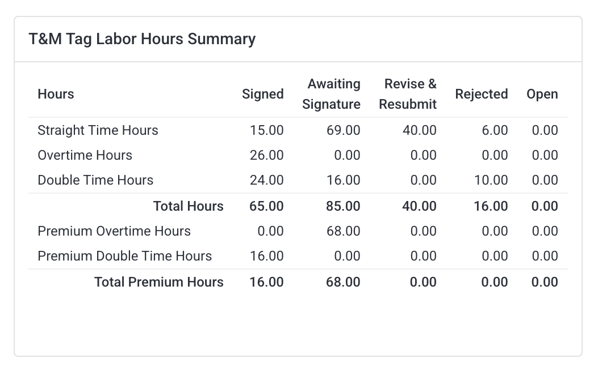
Shows total labor hours across your Sent T&M Tags, broken down by labor type — Straight Time, Overtime, and Double Time — for each T&M Tag status.
Step-by-step instructions
Navigate to the Overview Dashboard
-
Open Clearstory and go to the Analytics section in the side panel.
-
Select Overview from the Analytics navigation.
-
The dashboard loads automatically based on your role and access level.
Apply filters
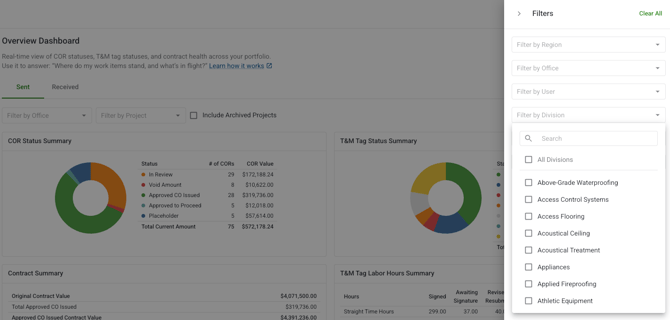
You can narrow the data shown across all dashboard sections using the filter bar at the top of the page. Filter options are scoped to your role. Admins can only filter within their office. Project Managers can only filter within their assigned projects.
-
Open the Analytics Overview Dashboard.
- Apply filter by office or by project
- Include Archived Projects shows a list of archived projects and let's you filter by specific archived projects.
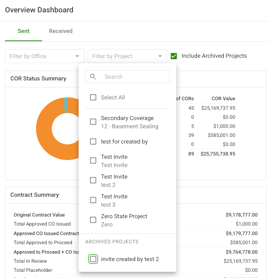
- Include Archived Projects shows a list of archived projects and let's you filter by specific archived projects.
-
Use the filter bar to select one or more of the following filters:
-
Region
-
Office
- User
- Region
-
Project
-
Customer (Sent side)
- Contractor (Received Side)
-
-
All dashboard sections update in real time as you apply filters.
-
To remove a filter, clear it individually or use the option to clear all active filters at once.
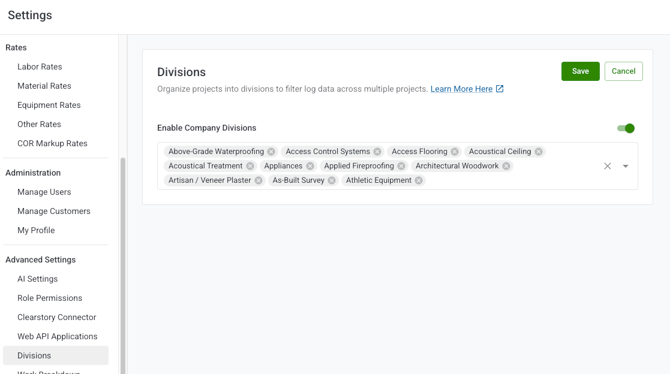
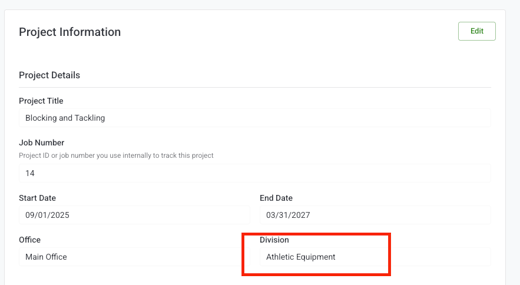
Note: Divisions must be enabled and added at the company level and then included at the project's Division section of project information to be filterable. You can learn more about your division configuration at: https://knowledge.clearstory.build/how-to-create-divisions
Export the dashboard
You can export the Overview Dashboard to PDF or CSV for use in external reports, presentations, or meetings.
-
Open the Analytics Overview Dashboard.
-
Apply any filters you want to include in your export.
-
Click the Export button.
-
Select PDF or CSV as your export format.
-
Clearstory processes the export in the background. You will receive a notification when your file is ready to download.
Note: If an export fails, Clearstory will notify you so you can try again.
What each role can see
Use filters before exporting. Exports reflect your active filters, so narrowing down to the right region, office, or project first will give you a more focused file to share.
Check the COR Days Aging Report regularly. CORs that have been open for 60 days or more are worth reviewing — the aging buckets make it easy to spot contracts that need follow-up.
The Contract Summary shows pending exposure. The pending contract value column reflects CORs that are still In Review or Approved to Proceed. This is a useful number to track when assessing risk across your portfolio.
FAQs
Who can access the Overview Dashboard?
Account Owners, Admins, and Project Managers can access the dashboard. Field Users do not have access.
Why do I see different data than a colleague?
What you see depends on your role. Account Owners see company-wide data. Admins see data for their office. Project Managers see data for their assigned projects only.
What does the COR Days Aging Report include?
The aging report only includes open Sent CORs — those that do not yet have an Approved CO Issued date or a Void date. CORs that have been resolved are excluded.
Do filters apply to all sections of the dashboard?
Yes. When you apply a filter, all five dashboard sections update at the same time to reflect your selection.
Can I export a filtered view?
Yes. Exports always reflect your active filter selections. Apply the filters you want before clicking Export.
What export formats are available?
You can export to PDF or CSV.