
Move COR lets you reassign an existing, submitted Change Order Request (COR) to a different project within your company without rebuilding it from scratch. The COR keeps its full history and revision chain and receives a new COR number from the destination project.
Move COR is available on Standard, Professional, and Plus plans and requires the same COR permissions used to manage CORs on the source project.
Table of contents
- Why it matters
- How it works
- Step-by-step instructions
- What each role can see
- Tips and best practices
- FAQs
- What’s next
Why it matters
A Change Order Request can end up on the wrong project if it was filed against the wrong job, work was reassigned, or the project was restructured. Before Move COR, fixing that meant rebuilding the COR by hand on the correct project, including re-entering line items, re-attaching files, and losing the approval history and revision trail. Move COR reassigns the existing COR to the right project in a few clicks so the history, attachments, and totals you’ve already built stay intact.
How it works
Moving a COR happens from the COR Log and walks you through a short confirmation flow before anything changes.
Finding the Move option
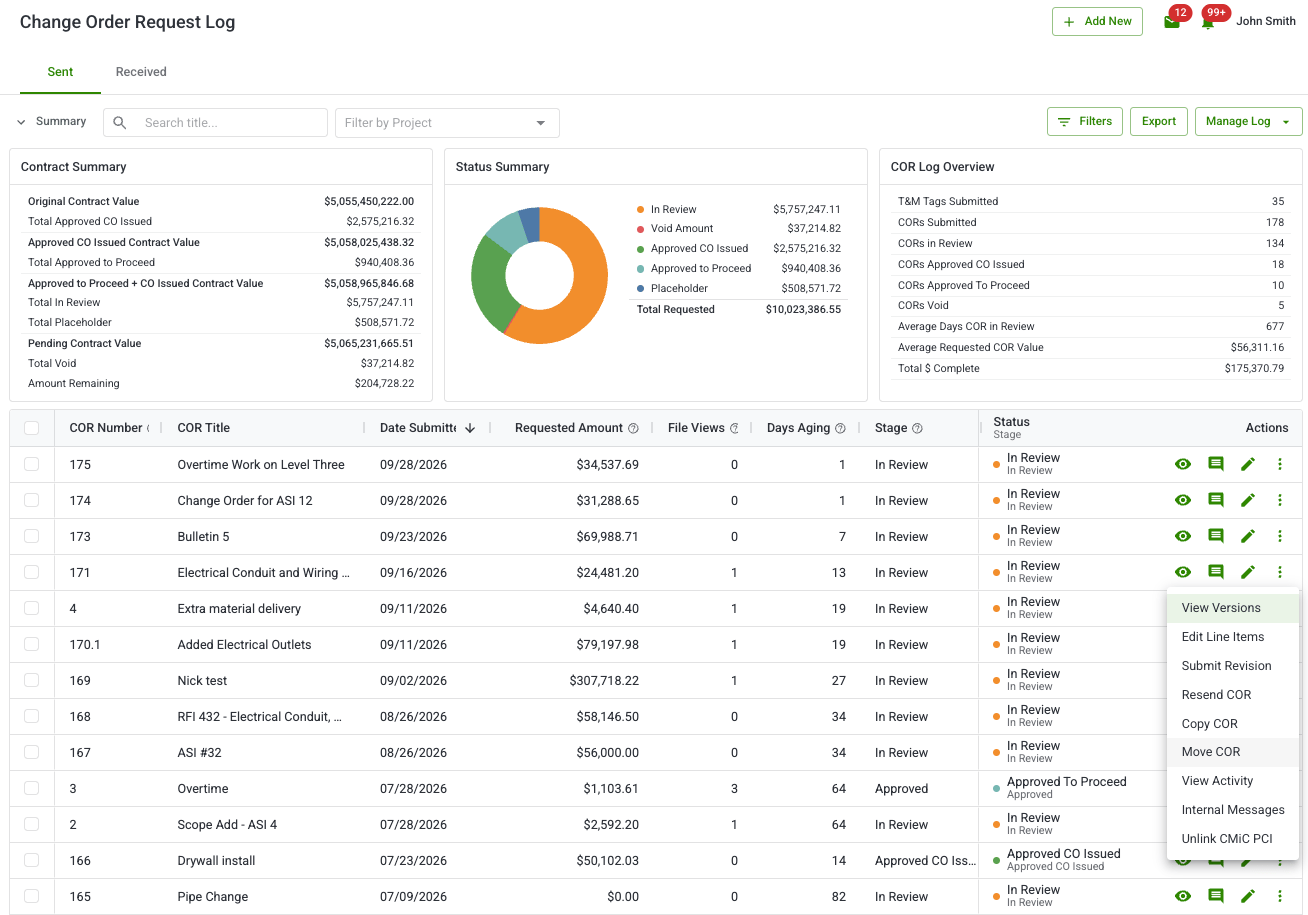
In your COR Log, find the submitted COR you want to move and open the row’s three-dot menu. Move COR appears below Copy COR in that menu.
This action is available only from the Sent log for CORs that have already been submitted. You can’t move a draft, and you can’t move a COR from the Received log.
When a COR can’t be moved
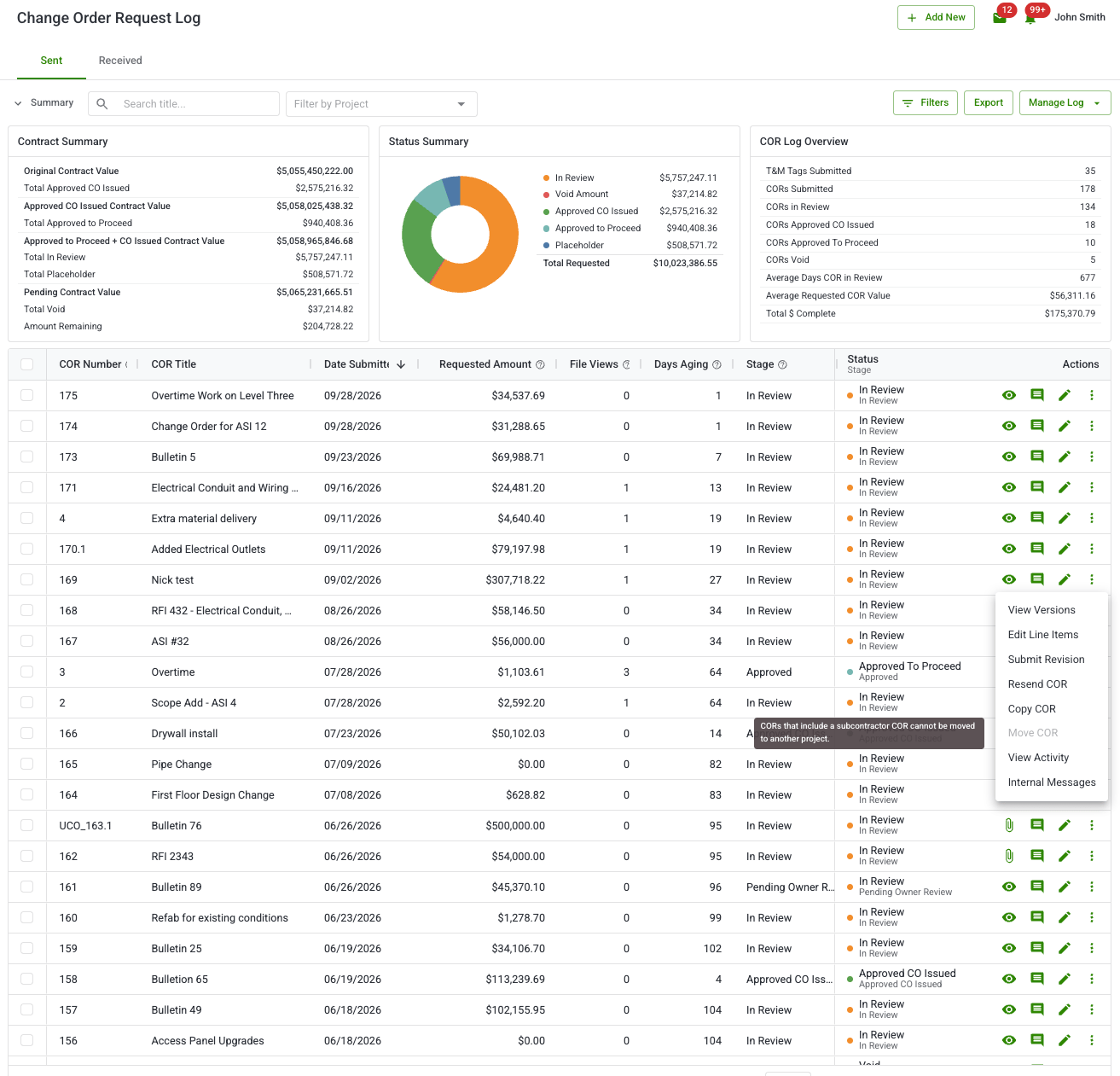
Move COR is disabled, with a tooltip explaining why, when any of the following is true:
- The COR is still a draft.
- The COR is on your Received log.
- The COR has T&M Tags linked to it.
- The COR has linked subcontractor line items.
- The COR is attached as a subcontractor COR under another COR’s current version.
The Reassign COR to Project window
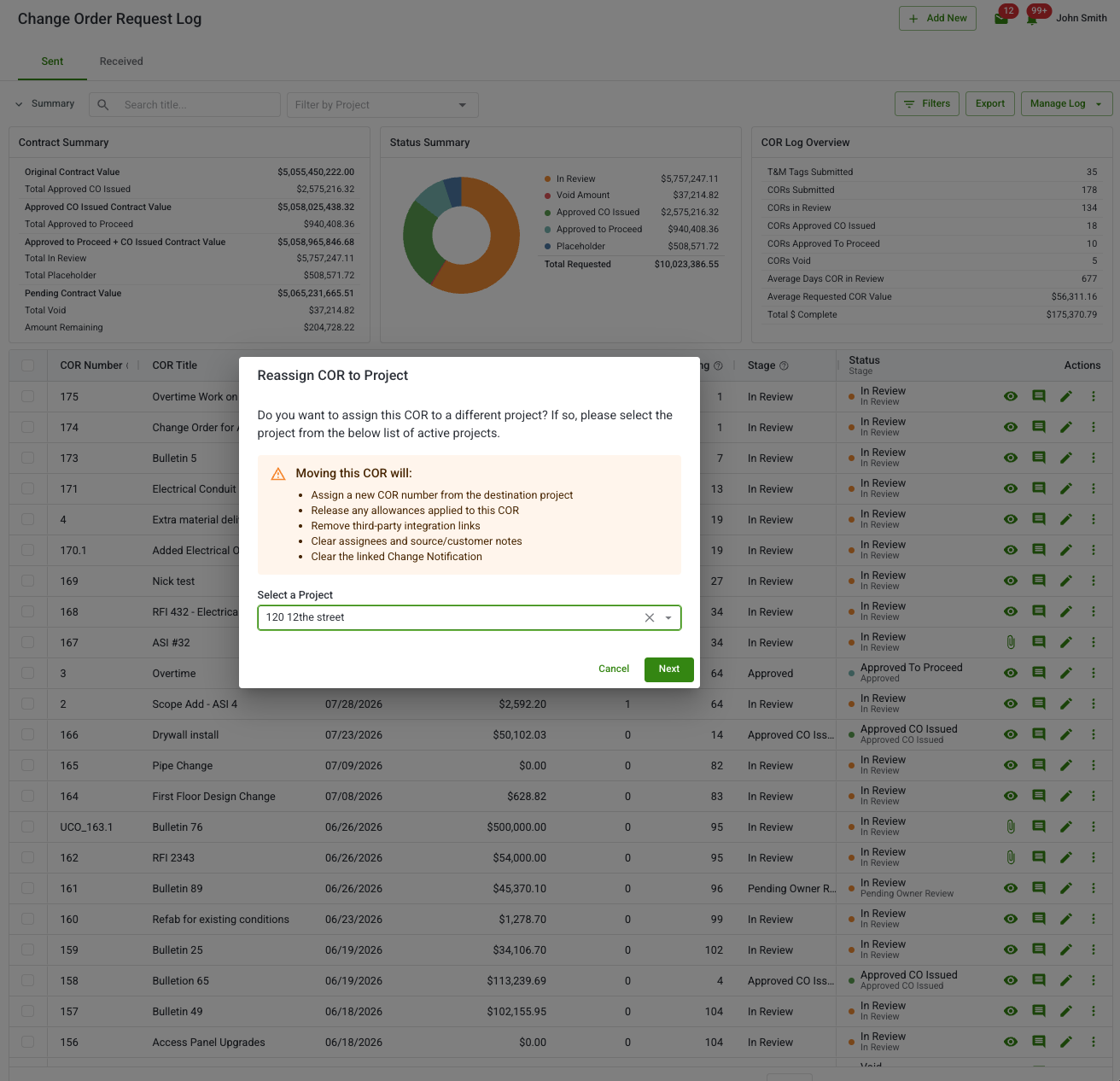
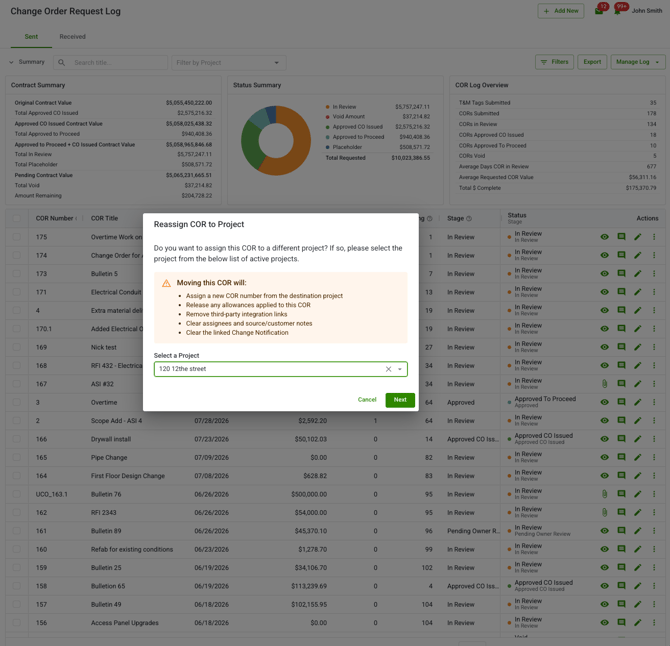
Choosing Move COR opens the Reassign COR to Project window. Above the project selector, the window explains what the move will change or clear so there are no surprises before you confirm.
From there, you can:
- Select the destination project and contract from the list of projects you can access.
- Choose whether to notify the destination recipients about the move.
What changes and what doesn’t
Most of a COR’s content moves with it unchanged. A few fields update to match the destination project, and some values are cleared because they were specific to the original project.
Project and identity
| Item | After the move |
|---|---|
| Project and contract | Updated to the destination project and its contract |
| COR number | Gets a new number from the destination contract’s sequence; revision numbers like .1 or .2 are kept |
| Customer CO Number | Kept as-is |
| Customer Reference Number | Kept, but no longer shown as a clickable link |
| Title and description | Kept as-is |
| Terms and conditions, time zone | Updated to match the destination project |
| Revision history |
The full version history moves together, in order. Previous versions attachments are not regenerated. The current version attachment is regenerated as long as the COR is in In Review. |
Money and line items
| Item | After the move |
|---|---|
| Line items (labor, material, equipment, other) | Amounts are kept; links to the source project’s rate tables are cleared |
| Markups | Amounts are kept; links to the source project’s rate tables are cleared |
| Allowances | Removed from the COR and released back to the source project |
| Percent complete | Reset to 0%; kept only if your project uses WIP tracking |
People and associations
| Item | After the move |
|---|---|
| Email To/CC recipients | Replaced with the destination project’s recipients |
| Responsible Party, Assignee | Cleared |
| Internal and customer notes | Cleared |
| Change Notification link | Removed on both sides |
| Connected integration record | Unlinked; the moved COR will no longer update the record in your connected system |
| Backcharge/backfill flags | Reset to off |
| Chat messages | Members are updated to match the destination project |
The PDF
| Item | After the move |
|---|---|
| Current version PDF | Regenerated to reflect the destination project |
| Manually uploaded COR PDF | Left as-is; not regenerated |
| Older revision PDFs | Unchanged |
After the move
The source project’s COR Log reflects that the COR was moved, and an internal activity entry records who moved it and when.
Step-by-step instructions
- Open the project and go to COR Log > Sent.
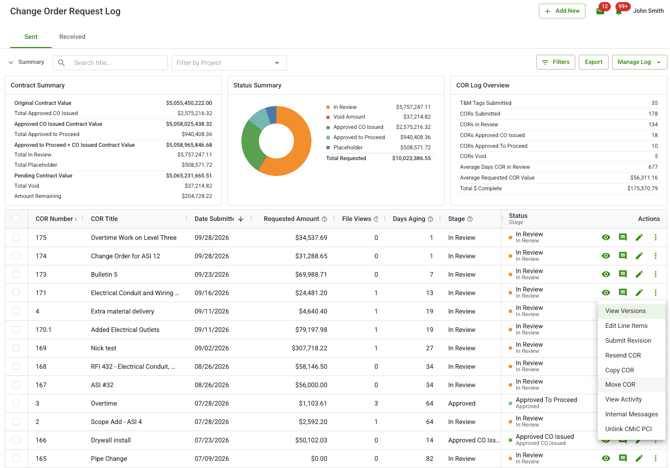
- Find the COR you want to move and click the three-dot menu on its row.
- Click Move COR.
- If the option is unavailable, see When a COR can’t be moved.
- In the Reassign COR to Project window, review what the move will change or clear.
- Select the destination project and contract.
- Choose whether to notify the destination recipients about the move.
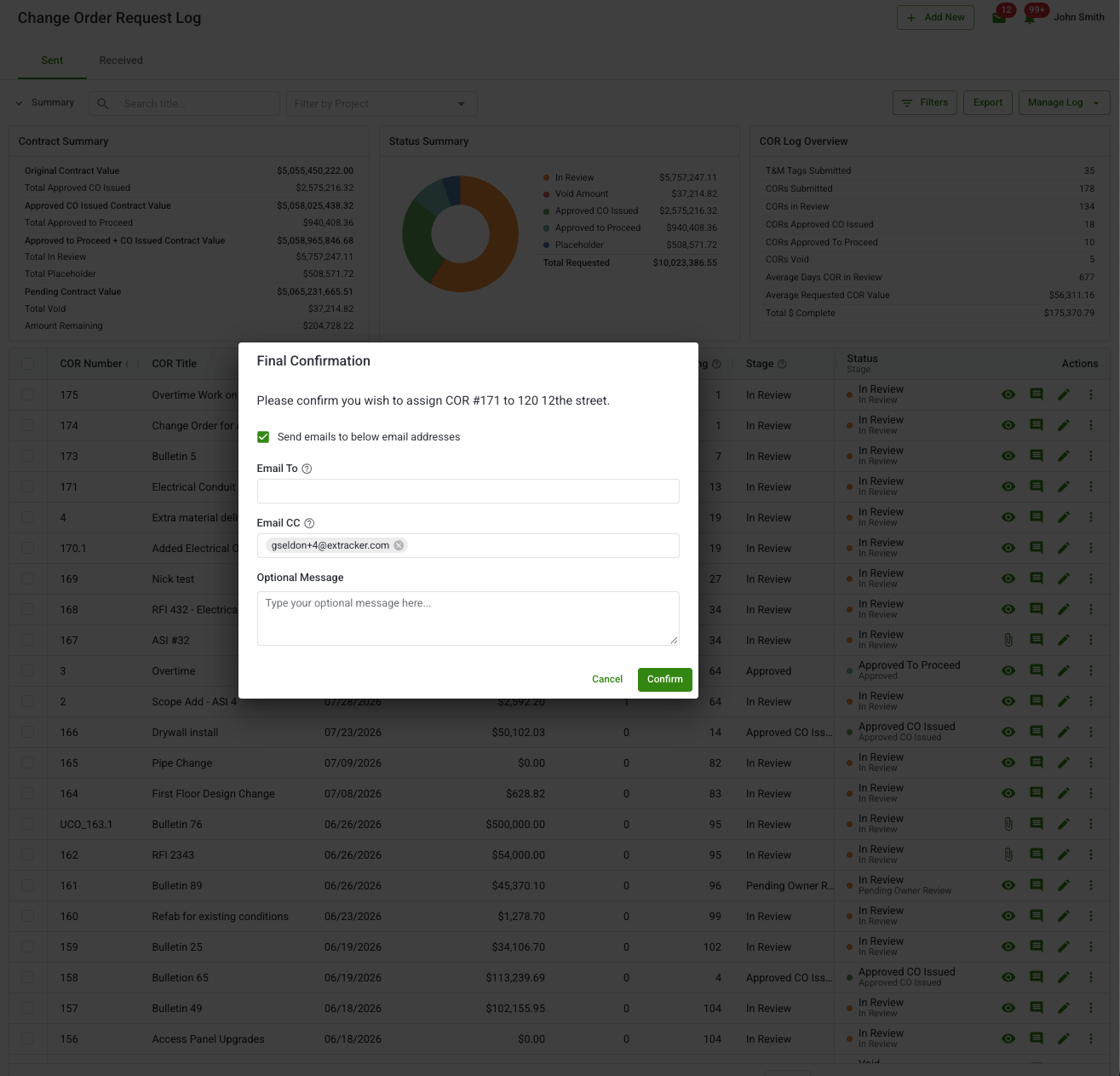
- Confirm the move.
Once confirmed, the COR appears in the destination project’s COR Log under its new number.
What each role can see| Action | Account Owner | Admin | Project Manager | Field User |
|---|---|---|---|---|
| Move a submitted COR to another project | ✅ | ✅ | ✅ | ❌ |
| See the “COR moved” activity entry | ✅ | ✅ | ✅ | ❌ |
Tips and best practices
- Move COR works only on submitted CORs in the Sent log.
- You can’t use Move COR on drafts or on CORs in the Received log.
- If a COR has T&M Tags, subcontractor line items, or is used as a subcontractor COR, resolve that first. Move COR stays disabled until you do.
- Allowances and rate-table links do not move with the COR. The allowances are released back to the source project, while the dollar amounts already entered remain the same.
- Percent complete resets to 0% on a moved COR unless your project uses WIP tracking.
- If your project’s plan doesn’t include Move COR, you’ll see a lock icon and an upgrade prompt instead.
FAQs
Will the COR keep its original COR number?
No. It gets a new number from the destination project’s contract sequence, though revision numbers like .1 or .2 are kept.
Can I move a COR to a project in a different company?
No. Move COR works only between projects within the same company.
Does moving a COR automatically notify anyone?
No. Clearstory doesn’t automatically resend emails when a COR moves. You can choose to notify the destination recipients as an optional step during the move.
What happens to allowances linked to the COR?
They’re removed from the COR and released back to the source project. They don’t move with the COR.
What happens to the COR’s attachments and chat history?
Both move with the COR. Chat messages are kept, and the channel’s members are updated to match the destination project.
Will the COR’s PDF update to show the new project?
The current version PDF is regenerated with the destination project’s details. Older revision PDFs, and any COR uploaded manually as a PDF, stay as they were.
Can I undo a move once it’s confirmed?
No. A COR can be moved back to it's original project in the case of an accidental move as long as all the Move COR criteria is met.
What’s next- Copy a COR to Another Project (confirm URL slug before publishing)
- Understanding the COR Log (confirm URL slug before publishing)