
About AI-generated results
This feature uses AI to generate results such as classifications, summaries, and suggestions. AI-generated results are produced automatically and may be inaccurate or incomplete. They are provided as a starting point, not a guarantee of accuracy, completeness, or fitness for a particular purpose. You should review and validate any AI-generated result before relying on it, and you remain responsible for the final decision to accept, edit, save, or send it.
Table of Contents
- Overview
- How to enable the agent
- How it works
- Staying in control of your T&M Tag
- What the agent can help with
- FAQs
Overview
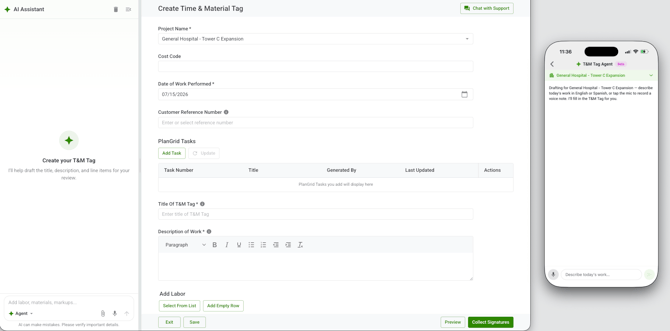
The T&M Tag Agent is an AI agent that helps you create and update T&M Tags by chatting with it on web or mobile. Instead of entering every line item manually, you describe the work performed and the agent recommends the title, description, and line items for you to review and apply.
You can speak or type, in English or in your primary language, with Spanish supported first. The agent populates the T&M Tag details in English so it is ready for review and submission.
When AI is enabled for your company and the project, you can find the agent on the left side of the Create T&M Tag form on web and the option to Create T&M Tag with AI on the mobile app.
How to enable the agent
The agent is available when both of these are true:
- AI is enabled for your company.
- AI is enabled for the project the T&M Tag belongs to.
If AI is turned off at either the company level or the project level, the agent will not appear, and creating T&M Tags works as it normally does. If you expect to see the agent and don't, contact your Account Owner to confirm your company and project AI settings.
How it works
You talk to the agent in a chat panel. You type or speak what you want, and the agent responds with recommended content: a title, a description, and line items. You can continue the conversation to refine what the agent suggests.
How the agent responds depends on the mode you are in. The mode controls how much the agent is allowed to edit your T&M Tag. On web, you can choose between three modes. On mobile, the agent always uses Plan mode.
- Ask mode answers questions but never changes the T&M Tag. Use it when you want information without any edits. You can ask what is currently on the T&M Tag, what a line item covers, or how to complete a section. Ask mode can suggest next steps in plain text, but it will not apply anything. If you ask it to make a change, it lets you know you need to switch to Plan or Agent mode first.
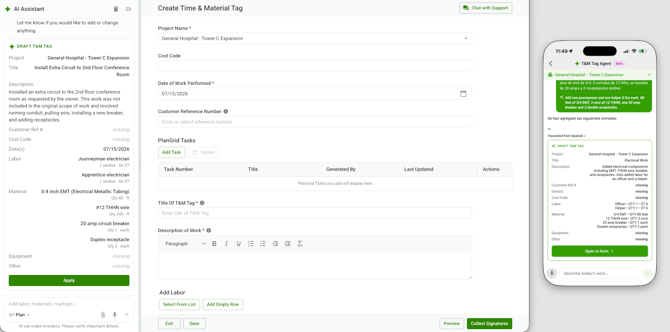
- Plan mode recommends changes and waits for your approval before anything is applied. When you ask for a change, the agent shows you recommendations that spell out exactly what would change. You can accept, reject, or adjust each one. The T&M Tag remains unchanged until you decide to apply a recommendation. On mobile, the agent gives you a recommended draft that you open and apply through the form.
- Agent mode makes changes to the T&M Tag directly based on your instructions, without a separate approval step for each one. It can set the title and description and add or edit line items right away. If the agent is not sure how to complete a request, it asks a follow-up question or tells you what information is missing rather than guessing.
Whichever mode you use, the agent never saves or sends a T&M Tag for you. You always decide when the T&M Tag is ready and take the final action yourself.
Staying in control of your T&M Tag
A few things are always true, however you use the agent:
- The agent never saves or sends a T&M Tag for you. It only helps you create and edit the draft. You decide when the T&M Tag is ready and you take the final action yourself.
- You can always edit the T&M Tag directly. The agent works alongside the form, not instead of it. You can type into any field and change anything the agent added. The form is always the source of truth.
- If a field changed after the agent created a recommendation, the agent will not overwrite your newer edit silently. It flags the difference so you can review it.
- Where a checkpoint is available, you can undo the changes applied by the agent.
What the agent can help with
You can use the agent to create a T&M Tag from scratch or to edit a T&M Tag you have already started. The sections below cover what you can do, with example prompts you can adapt to your own work.
Start a new T&M Tag by describing the work: Open the agent from a T&M Tag and describe what your crew did in plain language. The agent uses your description to recommend a title, description, and line items, reducing manual entry.
Example prompts:
-
Create a T&M Tag for the emergency repair on the north wall. Two laborers for four hours each, one operator on the mini excavator for three hours, hauled off about six yards of spoil, and used a half pallet of flowable fill.
-
Start a T&M Tag for the owner-requested relocation of the electrical conduit around the new footing. Include layout and install labor, conduit and fittings, equipment as needed, and a description explaining why the work was required.
Capture in Spanish and submit in English: If you are more comfortable describing work in Spanish, speak or type in Spanish. The agent talks with you in Spanish, shows your original message with an English translation below it so you can confirm it, and builds the T&M Tag title, description, and line items in English for review and submission.
The translation keeps your meaning, including quantities, location, scope, and the labor, material, and equipment you described. If a term is unclear, the agent asks before continuing.
Example prompt:
-
Reparamos una sección de tubería rota en la esquina noreste. Dos oficiales trabajaron tres horas cada uno y usamos cemento de fraguado rápido.
Add labor, material, equipment, and other costs: Describe the roles, hours, quantities, and items conversationally. The agent uses that information to build the line items. You can describe several roles in one message and the agent lists the hours for each before adding them.
Example prompts:
-
Add 12 hours for a foreman and 24 hours for laborers.
-
Add labor for a foreman, two laborers, and an operator. The foreman worked 6 hours, the laborers worked 8 hours each, and the operator worked 5 hours.
-
Add 2 days of excavator rental and 40 linear feet of 2 inch conduit.
Apply your project rates automatically: When the agent adds labor, material, equipment, or other line items, it uses your project's configured rates where there is a reasonable match, and keeps that rate association so the T&M Tag converts cleanly into a Change Order Request later. If an item has no matching project rate, the agent adds it without inventing one and lets you know. If more than one rate could fit, the agent asks rather than guessing.
Add to or edit a T&M Tag in progress: You can add new items to a Tag you have already started, or change existing line items, by describing them in plain language. You do not need to find each field in the form yourself. If you reference an item that could match more than one line, the agent asks which one you mean.
Example prompts:
-
Add 4 hours of cleanup work by two laborers.
-
Change the foreman hours from 8 to 10.
-
Remove the second labor line.
-
Update the concrete quantity to 6 cubic yards.
Convert a paper T&M Tag: If you have a paper T&M Tag, you can attach it to the agent. The agent reads the title, description, customer reference number, and line items it can find, and can fill out the form for you. If part of the scan is unreadable, the agent shows you what it could read and tells you what is missing instead of filling it in.
Improve a vague description: You can ask the agent to review a Tag and flag descriptions that are too thin to explain the work. When it has enough context, the agent suggests a clearer description that you can accept or edit.
Example prompts:
-
Write a clear description explaining why the added work was required.
-
This description is too vague. Make it specific enough for the GC to understand the scope.
Ask questions about a T&M Tag: You can ask natural questions about a Tag and the agent answers from that T&M Tag's information, including its title, description, line items, notes, attachment details, status, and relevant comments. When you ask about line items, it summarizes the relevant ones so you do not have to scan every row. If the answer is not in the T&M Tag, the agent tells you it does not know rather than guessing.
Example prompts:
-
What is the total equipment time on this Tag?
-
Are any line items missing a rate?
Answer follow-up questions when information is missing: If the agent needs more detail to build an accurate T&M Tag, it asks before continuing. This helps avoid incomplete or inaccurate content. The agent may ask for:
- A labor role
- Number of hours
- A quantity or unit
- Which line item you mean
- A clearer scope description
- Supporting detail or backup
FAQs
Does the agent submit or save my T&M Tag for me?
-
No, it does not save drafts or send T&M Tags on your behalf.
What languages does it support?
-
You can converse in English or in your primary language, with Spanish supported first. The T&M Tag content is always populated in English for review and submission, with the original meaning preserved. Additional languages may follow.
Can I use it on my phone?
-
Yes. Conversational T&M Tag creation and editing work on web and mobile. You can access it by choosing the “Create T&M Tag with AI” option from the T&M Log on the mobile app as long as your company has AI enabled.
What happens if voice or translation does not work?
-
The agent tells you what went wrong and lets you retry or type the information instead. Your existing T&M Tag content is not changed.
Why don't I see the agent on one of my projects?
-
The agent only appears where it is enabled. If your company or that project has AI turned off, you will not see it there. Contact your Account Owner if you think it should be available.