
About AI-generated results
This feature uses AI to generate results such as classifications, summaries, and suggestions. AI-generated results are produced automatically and may be inaccurate or incomplete. They are provided as a starting point, not a guarantee of accuracy, completeness, or fitness for a particular purpose. You should review and validate any AI-generated result before relying on it, and you remain responsible for the final decision to accept, edit, save, or send it.
The Change Notification Agent is built into the Change Notification forms. It reads the documents you upload (ASIs, bulletins, RFIs, sketches, photos) and a short description of the change, then drafts the title, description, due date, and selects contractors likely to have cost impact, so you start from a draft instead of a blank form.
Table of Contents
- Why it matters
- How it works
- Step-by-step instructions
- What each role can see
- What the agent can help with
- Tips and best practices
- FAQs
Why it matters
Turning a bulletin, ASI, or an RFI into a clear Change Notification usually means re-reading the documents, rewriting the scope in your own words, figuring out which trades are affected, and setting a response due date, every time. The Change Notification Agent does that first pass for you, pulling the key details out of your documents and drafts the CN. You get a complete starting point to review and edit before saving or sending.
How it works
Open the agent from the Change Notification you're creating or editing, tell it about the change (in writing and/or by uploading documents), and it fills in and edits your draft. Here are the main parts:
The Change Notification Agent panel
The agent lives in a side panel on the Change Notification create and edit screens, marked with a sparkle icon. Open it and you'll see a chat where you can describe the change or ask questions.
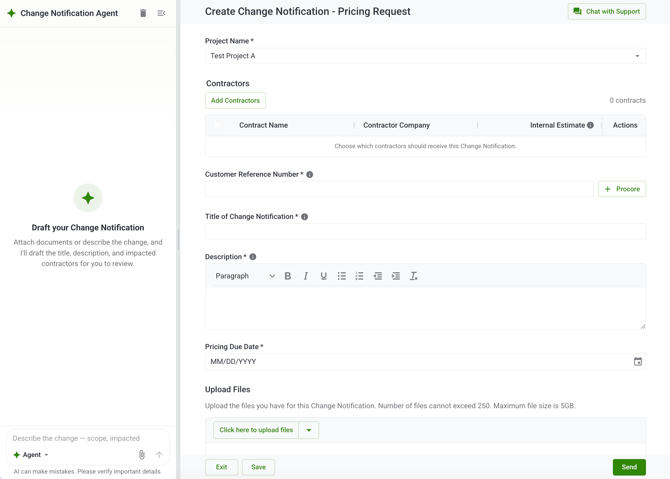
Documents and descriptions
You can attach up to 5 files per conversation (PDFs, JPG, PNG, or HEIC images, up to 10 MB each) such as an ASI, bulletin, RFI, sketch, or site photo. The agent reads what you attach and extracts the impacted scope directly from the document. You can also just type a plain-language description of the change; attachments are optional.
What it drafts for you
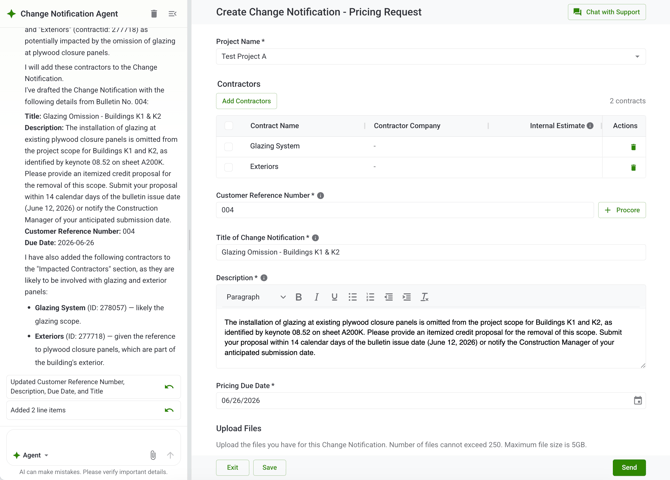
From your documents and description, the agent drafts and fills in:
- Title: a concise summary of the change.
- Description: a contractor-facing narrative
- Customer reference number: pulled from the source document when one is stated (for example, an ASI or bulletin number).
- Response due date: read from a date in the document or from relative language like "back in two weeks."
- Impacted contractors: chosen only from the actual contractors on your project, with the agent's reasoning for why each one is likely affected.
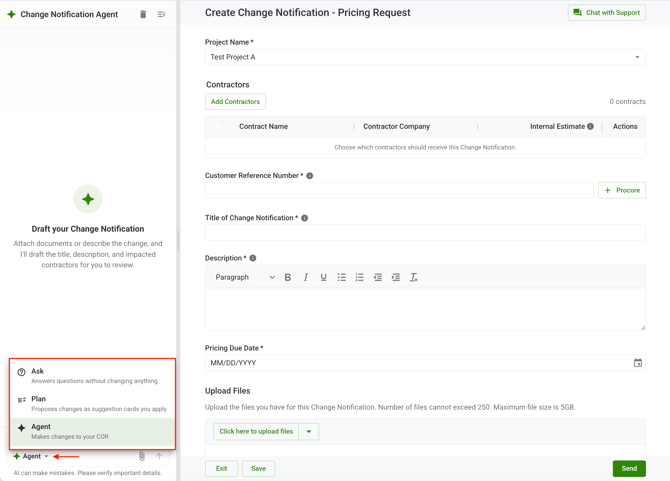
Agent, Plan, and Ask modes
The agent runs in one of three modes you can switch between:
- Agent: suggestions are applied to your draft automatically as the agent works; you remain the final decision make to save or send the Change Notification.
- Plan: each suggestion appears as a card you approve before it's applied, so you review changes and decide whether to approve or dismiss the edits.
- Ask: a read-only mode for asking questions about the current draft; nothing on the form changes.
Step-by-step instructions
Start a Change Notification and open the agent
- Create a new Change Notification (or open an existing draft to edit).
- Select the project for the notification.
- Open the Change Notification Agent panel.
Describe the change
- Type a short description of the change in the chat, and/or click the attachment control to upload your ASI, bulletin, RFI, sketch, or photos (up to 5 files).
- Send your message.
- Wait for the agent to confirm it has read the documents and propose a draft.
Review and apply the suggestions
- In Plan mode, review each suggestion card and approve the ones you want; in Agent mode, review the changes the agent has already applied.
- Check the drafted title, description, customer reference number, and due date, and edit any field directly on the form.
- Confirm the impacted contractors are correct, adding or removing any as needed.
Finish and send
- Make any final edits to the notification.
- Use Save Draft to keep working, or Send to issue the Change Notification to the impacted contractors, the same buttons you always use.
What each role can see
Available to any user who can create or edit a Change Notification, on a Standard or Professional plan with AI features enabled.
What the agent can help with
Draft a CN from an attached document
You can attach the document that drove the change and let the agent read it. The agent can recommend a title, a description, and the impacted contractors from the attachment.
Example prompts:
-
Draft a CN from the attached ASI.
-
Here is the revised sheet A2.1. Create a CN for what changed.
-
Use the attached sketch and photos to create a CN for the added curb at the loading dock.
Identify the impacted contractors
You can ask the agent which specialty contractors the change affects. The agent can recommend the impacted contractors for the CN based on the attachments and your description.
If the agent cannot confidently determine which trades are affected, it will tell you and leave the field blank rather than guessing.
Example prompts:
-
Which trades does this change affect?
-
Add the drywall and framing subs to this CN.
-
Remove the plumber. That scope is already covered under COR 42.
Start a CN from plain language
You can start a CN by describing the change the way. The agent can use your description to fill out the CN details, including the title, description, customer reference number, and response due date.
Example prompts:
-
Create a CN for the relocated electrical panel in the second floor east corridor. The panel is moving from the corridor wall to the adjacent storage room, and framing and drywall need to be adjusted to match.
-
Start a CN for the added floor drains in the kitchen. Pricing back in two weeks.
Write a clearer scope description
You can ask the agent to write or improve the description of the change so the contractors pricing it know exactly what is being asked for.
Example prompts:
-
Rewrite the description to separate the ceiling work from the ductwork.
-
Add a line noting that the work is in an occupied area and needs to happen after hours.
Correct CN fields through chat
If something in the CN is wrong, you can reply in the chat and ask the agent to fix it. You do not need to find the field in the form yourself.
Example prompts:
-
Change the title to Second Floor Panel Relocation.
-
The customer reference number is ASI-014, not ASI-041.
-
Update the description to note this came from an owner request.
Tips and best practices
- Attach the source document (ASI, bulletin, RFI) when you have one. The agent extracts details straight from the file, which is more accurate than a typed summary alone.
- Always review before sending. The agent leaves a field blank rather than guessing, and it will tell you when it's unsure which contractor a scope belongs to. Treat those as prompts to confirm.
- Use Plan mode when you want to approve each change individually; use Agent mode when you want a fast first draft to refine.
FAQs
Does the agent send the Change Notification for me?
No. The agent fills in and edits the draft form for you, but saving the draft and sending the notification are always your actions, using the existing Save Draft and Send buttons.
Can it estimate cost or price the change?
Not today. The agent doesn't produce cost estimates or pricing right now, though this may become available in a future update.
What file types can I upload, and how many?
Up to 5 files per conversation (PDF, JPG, PNG, or HEIC) at 10 MB or less each.
Can I use it in Spanish?
Yes. The agent replies in the language you write in (English or Spanish). The notification fields it fills in are always written in professional English.
Why don't I see the Change Notification Agent panel?
It may not be enabled for your plan, your company, or the specific project. It requires a Standard or Professional plan with AI features turned on, and it's hidden on projects where AI has been turned off. If you expect access and don't have it, contact your account administrator.
Is my draft saved automatically when the agent makes changes?
No. The agent's edits change only the on-screen draft. Nothing is persisted until you Save Draft or Send.