
What this solves
Previously, users needed someone already on a project to grant them access. This created delays, especially for teams moving between job sites.
Now, users with the feature enabled for their role can search for projects within their company and office and join them on their own, without needing someone else to add them.
How it works
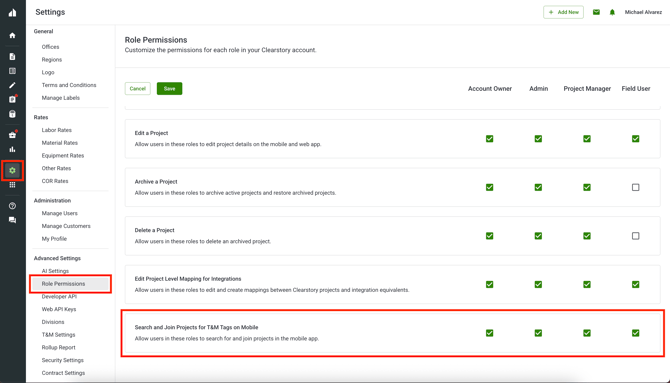
Step 1: Enable the "Search and Join Projects for T&M Tags on Mobile" role permission
-
An Account Owner must enable Search and Join Projects for T&M Tags on Mobile for your role.
- Navigate to Settings > Role Permissions
- Enable the feature for the user role types that need it
-
Once enabled, the Join tab will be available on the Projects screen in the Clearstory Mobile App.
Step 2: Join a project in the Clearstory Mobile App
-
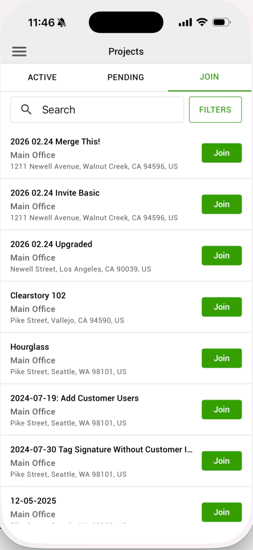
Go to Projects
-
Tap the Join tab
-
Search for your project
-
Tap Join. Note, the Join tab will only display projects that:
-
Belong to your company and office
-
You have not already joined
-
Are active (not archived or deleted)
-
Step 3: Take action immediately
-
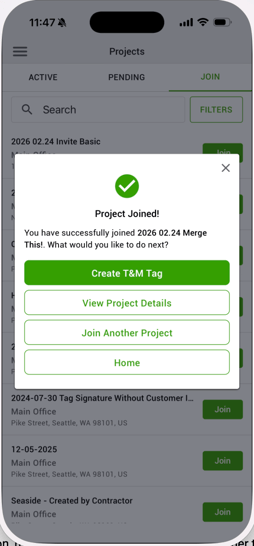
After joining, you can immediately:
-
Create T&M Tag
-
Access HCSS Timecards (if enabled)
-
View Project Details
-
Join another project
-
If you need access but don’t see the Join option, reach out to your company Account Owner to enable it for your role.