
This guide explains how to enable, disable, and manage AI features in Clearstory, and how company-wide controls affect individual projects.
What You Can Control
AI settings in Clearstory work at two levels:
- Company level: Controls whether AI can be used anywhere in your account. This setting is available to Account Owners.
- Project level: Lets you turn AI off for individual projects. This setting is available to Account Owners, Admins, and Project Managers with project access.
Company settings define what is allowed. Project settings let you opt out where needed.
Enable or Disable AI for Your Company
Use this when you want to allow or block AI features across all projects.
-
Go to Account Settings, then AI Settings
-
Turn AI Features on or off
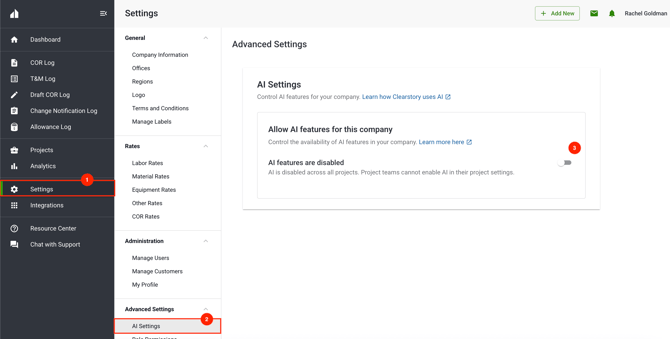
What happens next:
• When AI is on, projects may use AI unless they have been turned off individually
• When AI is off, AI is unavailable across all projects
Company AI settings act as the master control for your account.
Turn AI Off for a Specific Project
Use this when a project should not use AI, even if AI is allowed elsewhere.
-
Open the project
-
Go to Project Settings, then AI Settings
-
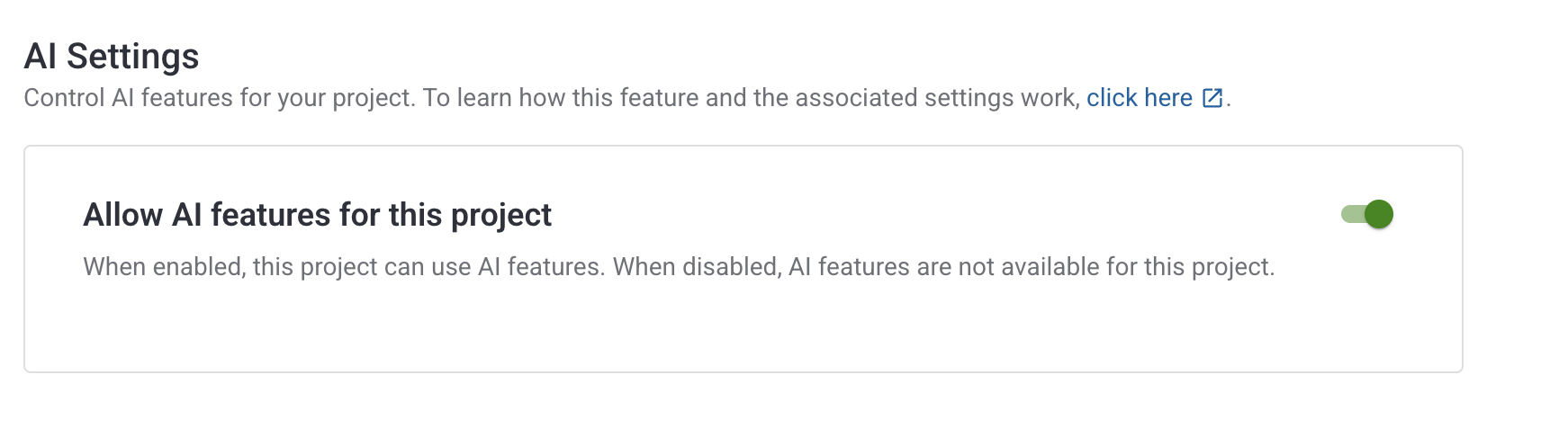
Turn AI Features off
-
Confirm when prompted
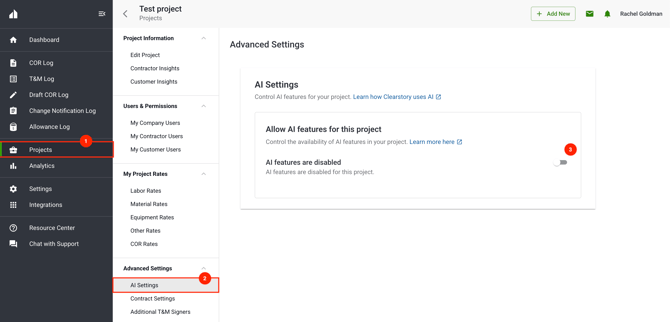
What happens next:
• AI is disabled only for that project
• Other projects are not affected
• Future company AI changes will not re-enable AI for this project
Let a Project Follow Company AI Settings
Use this when you want a project to automatically follow company AI decisions. This is the default behavior for all projects.
What this means:
• If the company enables AI, the project may use AI
• If the company disables AI, the project stops using AI
• No project-level management is required
You do not need to take any action unless you want to turn AI off for a specific project.
When AI Is Disabled by Company Settings
If AI is turned off at the company level and a project follows company settings:
• The project AI toggle appears on but grayed out and cannot be changed
• An informational message explains that AI is controlled at the company level
• The project will automatically regain AI access if company AI is turned back on
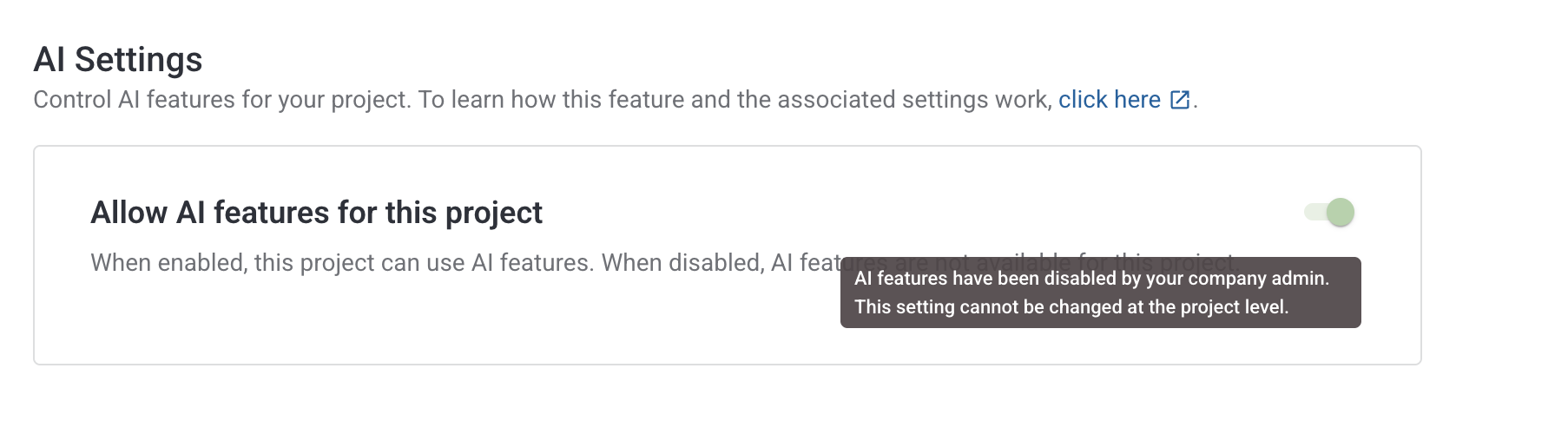
This ensures AI usage stays aligned with company policy.
How Clearstory Uses Your Data in AI Features
Clearstory customers always own their data.
• Your data is not used to train AI models
• Your data is only used to provide AI features within your account
• AI features follow the same access controls as the rest of Clearstory
How Governance Is Enforced
Clearstory enforces AI governance automatically:
• AI cannot be enabled for a project if it is disabled at the company level
• Project settings can only restrict AI, not expand access
• Projects that follow company settings update automatically when company settings change
Learn More
- Learn about Clearstory's AI features: