
| Article Update | What Changed? |
| 9/30/2026 | Added information on Procore existing project on demand importing. |
Project Import lets you create Clearstory projects directly from Procore, so you don't have to re-enter the same project details in both systems. Once you turn it on for an office, new projects created in Procore show up in Clearstory ready for you to accept. This article covers how to enable Project Import and how to accept or reject the projects that come in.
Note: Before you start, your office must already be connected to Procore, and the Clearstory app in Procore must have the permissions Project Import needs. See the Procore Integration Overview to connect an office, and How to Update Your Clearstory App in Procore if you connected before Project Import was available.
Enable Project Import
Project Import can be enabled directly from your Procore integration settings. The setting applies to the offices selected under Enabled Offices in the Procore configuration.
Note: Only Account Owners and Admins can manage the Procore integration settings available to them.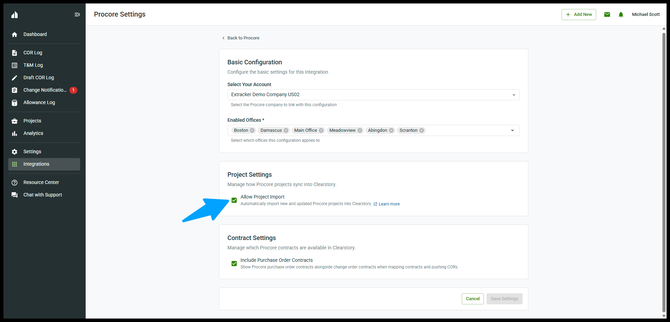
- Select Integrations.
- Open your Procore integration.
- Under Basic Configuration, confirm the appropriate offices are selected under Enabled Offices.
- In the Project Settings section, check Allow Project Import.
- Select Save Settings.
Once Allow Project Import is enabled, Clearstory will automatically import new and updated Procore projects for the enabled offices.
Imported projects
After Project Import is enabled, any project created in Procore appears in a dedicated Procore Projects tab, where you decide whether to bring it into Clearstory.
- Select Projects in the left-hand navigation.
- Open the Procore Projects tab. This tab appears only when Project Import is enabled for at least one Procore office.
- Find the project you want & Select the office to pull it into.
- Review the project, then choose an action:
- Accept to add it to your Active Projects.
- Reject to remove it from the tab without importing it.
Note: A project's Accept action stays disabled until it has both a street address and a city. If it's missing either, add the address in Procore first — Clearstory uses the Procore address to create the project.
Import an existing project on demand
If a project already existed in Procore before you enabled Project Import — or you just don't want to wait for it to flow into the [Procore Projects/Pending Procore] tab — you can pull it into Clearstory directly.
- Select Add New, then Project.
- Select Import from Procore.
- Select the office to import into. This scopes the Procore project list to that office's connected Procore company.
- Select the Procore project you want to import.
- Complete the optional contracts step, or skip it.
- Review the project details, then select Complete.
Note: Nothing is saved until you select Complete on the Review step. You can leave the wizard at any point before then without creating anything in Clearstory.
Accepted projects move to your Active Projects list and leave the Procore Projects tab. Rejected projects leave the tab as well. Projects you don't act on stay in the tab until you accept or reject them.
Tips and best practices
- Enable Project Import only for offices that create projects in Procore. Leaving it off elsewhere keeps the Procore Projects tab focused on the projects you actually want.
- Add a street address and city to your Procore projects before you import them. Clearstory needs both to create the project, and adding them in Procore first avoids a blocked import.
- Reject projects you don't intend to run in Clearstory so the tab stays clean and easy to scan.
FAQs
Why don't I see the Procore Projects tab? The tab appears only when Project Import is enabled for at least one Procore-connected office. If you don't see it, confirm Project Import is turned on in that office's Procore settings.
Why is the Accept button grayed out on a project? The project is missing a street address or city. Add the full address to the project in Procore, and the Accept action will become available.
Does importing a project sync changes between Procore and Clearstory? No. Project Import creates the Clearstory project from the Procore project's details at the time you accept it. It does not keep the two projects in sync afterward.
Can I turn Project Import off later? Yes. Uncheck Allow Project Import in that office's Procore configuration. New Procore projects will stop flowing into the tab for that office.