
Table of Contents
How it works
Checklists are set up at the company level and applied to projects. Reviewers then complete the checklist on each received COR, with or without AI.
Company checklists
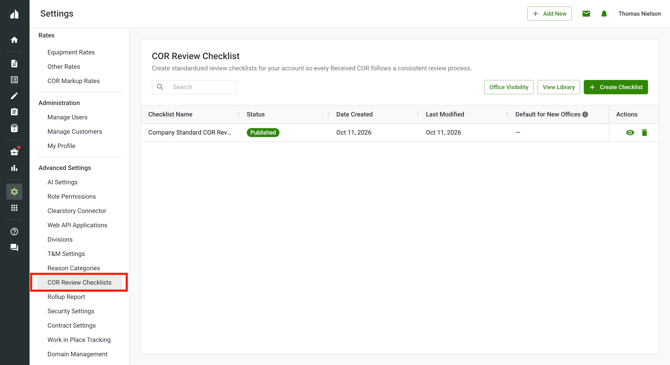
Company checklists are managed in Settings > Advanced Settings > COR Review Checklists. From here you can create checklists, control which offices can use them, and set a default for new offices.
Project checklists
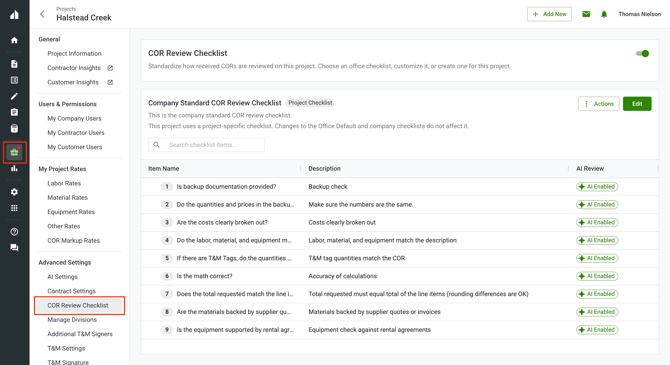
Each project's checklist is managed in that project's settings under Advanced Settings > COR Review Checklist. Projects use their office's default checklist unless someone changes it. You can switch to another checklist available in the office, customize the checklist, create a new one, or turn checklists off.
Changes to a project's checklist don't affect the office default or company checklists.
The Review tab
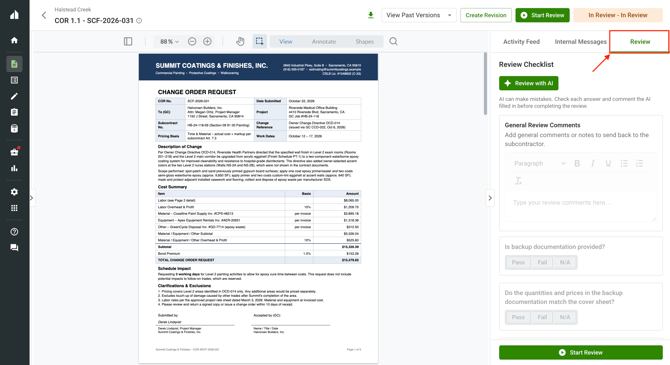
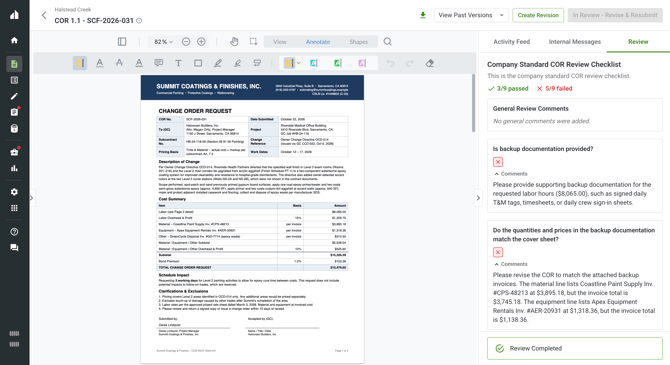
Open a received COR and select the Review tab to see a preview of the project's checklist. Once you start a review, the checklist is saved with that review, so later changes to the project's checklist won't affect a review in progress.
You mark each item Pass, Fail, or N/A. Each item has an optional comment, and there's a General Review Comments field for the review as a whole. You can also link markups you draw on the COR PDF to a checklist item or to the general comment.
AI review
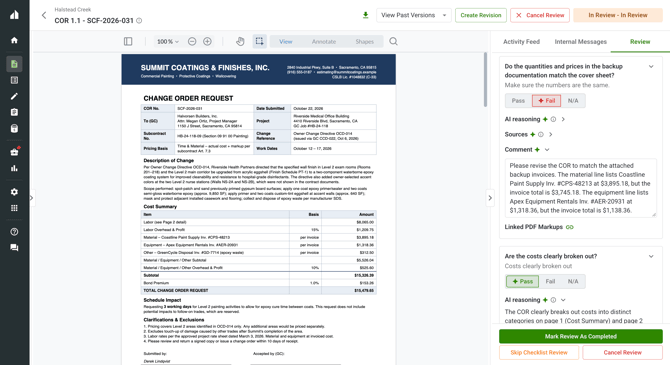
AI runs only when you click Review with AI. It checks each checklist item that has AI instructions and fills in results on items you haven't already changed. You can change any result the AI fills in.
Each AI result shows AI reasoning and Sources. Clicking a source opens the COR PDF to the cited page and highlights the quoted text. If AI can't find enough evidence for an item, it says so rather than guessing.
AI can make mistakes, so check each result and comment before completing the review.
What the contractor sees
- Before you complete the review: only that the review is in progress or awaiting completion.
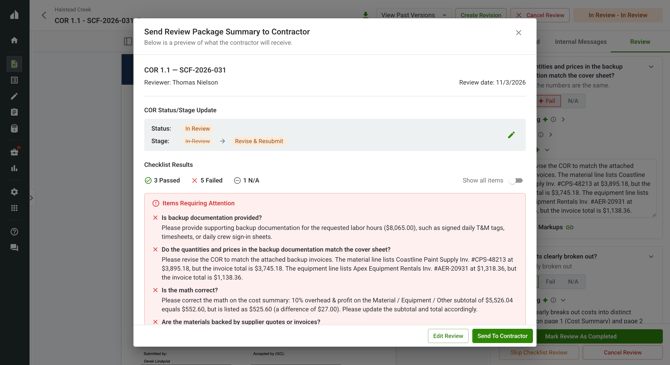
- After you complete the review: a read-only summary with item results, comments, the general comment, and linked markups.
- Never shared: AI reasoning, sources, suggestions, or the COR AI Assistant chat. Only results and comments that a reviewer set or applied are shared.
Step-by-step instructions
Create a company checklist
- Go to Settings > Advanced Settings > COR Review Checklists.
- Click Create Checklist.
- Build the checklist and then publish it.
Set up a project’s checklist
- Open the project and go to its settings.
- Under Advanced Settings, select COR Review Checklist.
- Make sure the COR Review Checklist toggle is on. Turn it off if the project won’t use checklists.
- To customize this project’s checklist, click Edit.
Start a review
- Open the received COR.
- Select the Review tab.
- Click Start Review.
If the project has no checklist, or checklists are turned off, the review uses general comments only.
Run an AI review
- Open the received COR and select the Review tab.
- Click Review with AI. This also starts the review if it hasn't started yet.
- Wait for AI to finish filling in results.
- Check each result, its reasoning, and its sources.
- Change any result or comment as needed.
- To run AI again, click Run AI review again.
If the AI review fails, you'll see an error and a retry option.
Review items manually
- For each checklist item, select Pass, Fail, or N/A.
- Add a comment to the item if needed.
- Add any overall feedback in General Review Comments.
Link a markup
- Toggle linking PDF markups to a checklist item.
- Markup the PDF as you normally would.
Complete a review
- Click Mark Review As Completed.
- In the completion dialog, choose the COR's new status and stage.
- If any item failed, the status defaults to In Review / Revise & Resubmit. You can choose a different status.
- Choose whether to email the contractor a summary of the results, and add an optional message.
- Confirm to complete the review.
Any items still marked Not Reviewed become Not Applicable, and the review is locked once it is marked "complete".
What each role can see
| Action | Account Owner | Admin | Project Manager | Field User |
|---|---|---|---|---|
| Manage company checklists | ✅ | ❌ | ❌ | ❌ |
| Manage a project's checklist | ✅ | ✅ | ✅ | ❌ |
| Start, edit, cancel, and complete a review | ✅ | ✅ | ✅ | ❌ |
| Run an AI review | ✅ | ✅ | ✅ | ❌ |
| View completed review results | ✅ | ✅ | ✅ | ❌ |
Tips and best practices
- Treat the AI review as a first pass. Check the reasoning and click through the sources before you complete the review, especially on items marked Fail.
- Write comments for the contractor. Item comments and the general comment are what your subcontractor sees, so say what needs to change and where.
- Link markups to failed items. Pointing to the exact spot on the PDF can help the contractor fix the issue on the first revision.
FAQs
Who can review a COR?
Anyone who can edit a received COR can start, edit, cancel, and complete its review.
Does the review work on CORs I send?
No. The review is for CORs you receive.
Do I have to complete a review before changing a COR's status?
No. Completing a review isn't required to change a COR's status.
If I edit the project's checklist, does it change reviews already in progress?
No. The checklist is saved with the review when you start it.
Will AI overwrite results I've already entered?
No. AI only fills in results on items you haven't changed.
Can the contractor see the AI's reasoning?
No. AI reasoning, sources, suggestions, and the COR AI Assistant chat are never shared. The contractor only sees results and comments that a reviewer set or applied.
Can I edit a review after completing it?
No. Completed reviews are locked. Reviews on past COR versions are read-only for both parties.
What if AI is turned off for my company or project?
Checklists and manual review still work. The AI review is unavailable.
Which checklist items does AI review?
AI reviews items that have AI instructions.