
Table of Contents
- Why it matters
- How it works
- Step-by-step instructions
- What each role can do
- Tips and best practices
- FAQs
Overview
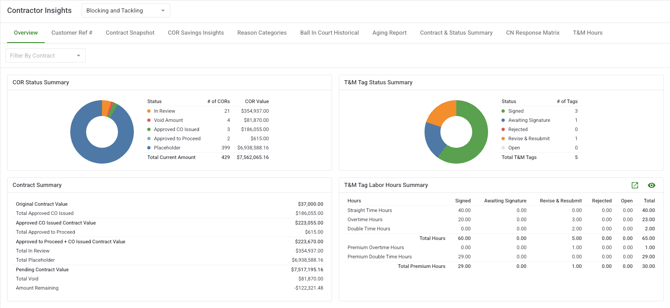
The Contractor Insights Overview Tab gives you a consolidated view of all Change Order Request (COR), Time & Materials (T&M) Tag, and contract data for every contractor on a specific project in one place.
Unlike the company-level Analytics Overview Dashboard, which shows COR and T&M data rolled up across all your projects, the Contractor Insights Overview is scoped to a single project at a time. It is the right tool when you want to understand contractor performance, financial exposure, and aging risk within one project broken down by contract.
Instead of navigating between the COR Log, T&M Log, and contract records, the Overview gives you a real-time snapshot of each contractor's activity. You can see how COR values have trended over time, where aging risk is accumulating, and how each contract compares from a single view.
What you see depends on your role. Account Owners and Admins see all contracts on the project. Project Managers see only contracts for projects they are assigned to. Contractors see only their own contracts. Field Users do not have access.
Why it matters
Without the Contractor Insights Overview, understanding contractor health on a project means navigating individually into the COR Log, T&M Log, and contract records — and piecing together aging, status, and financial exposure manually. The Overview does that aggregation for you in one page, with drill-down access to every underlying record.
How it works
The Overview Tab is made up of seven reporting sections. Each section pulls from your project's COR, T&M, and contract data and updates automatically when you apply filters. Additionally, each of these cards are clickable so you can open the underlying report and dive deeper on your data
COR Status Summary
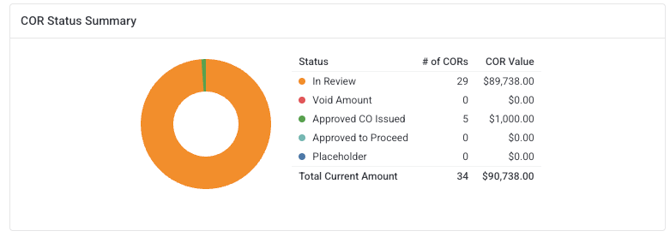
Shows the number and total dollar value of CORs grouped by status In Review, Approved to Proceed, Approved CO Issued, Void, and Placeholder for the selected contract(s). A grand total row appears at the bottom.
|
Field |
What it shows |
|---|---|
|
Status |
COR status: In Review, Approved to Proceed, Approved CO Issued, Void/Rejected, Placeholder. |
|
Count |
Number of Sent CORs in that status. |
|
Total Amount |
Sum of requested amounts for Sent CORs in that status. |
|
Grand Total |
Total count and amount across all statuses. |
Contract Summary
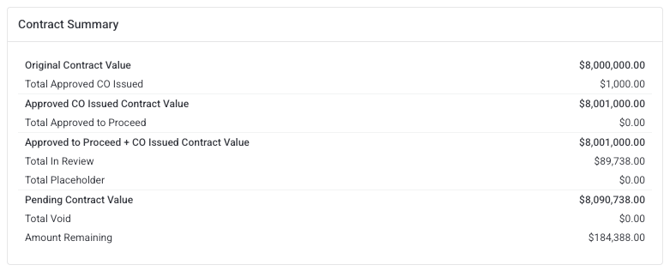
Shows how your Received CORs are impacting the original contract value, with an itemized progressive financial breakdown of CORs in each status and stage.
|
Field |
What it shows |
|---|---|
|
Original Contract Value |
The baseline contract value before any change orders. |
|
Approved CO Issued |
Total dollar value of Sent CORs formally executed as change orders. Confirmed, locked-in contract growth. |
|
Approved CO Issued Contract Value |
Original Contract Value + Approved CO Issued. The current confirmed contract total. |
|
Approved to Proceed |
Total dollar value of Sent CORs approved to proceed but not yet formally executed. |
|
In Review |
Total dollar value of Sent CORs currently pending the owner's approval. Your outstanding, unresolved exposure. |
|
Void/Rejected |
Total dollar value of Sent CORs that were voided or rejected. |
|
Placeholder |
Total dollar value of Sent CORs in Placeholder status. |
|
Pending Contract Value |
Approved CO Issued + Approved to Proceed + In Review + Placeholder. The full potential contract value if all open items are resolved. |
|
Updated Contract Total |
Original Contract Value + Approved CO Issued. Same as the Approved CO Issued Contract Value — the current confirmed total. |
T&M Tag Status Summary
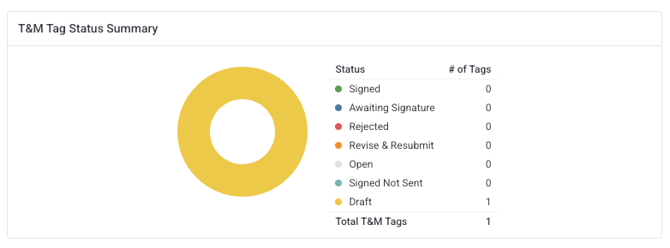
Shows the count of received T&M Tags by status (Signed, Awaiting Signature, Revise & Resubmit, Rejected, and Open) for the selected contract(s). A grand total row appears at the bottom.
|
Field |
What it shows |
|---|---|
|
Status |
T&M Tag status: Signed, Awaiting Signature, Revise & Resubmit, Rejected, Open. |
|
Count |
Number of Sent T&M Tags in that status. |
|
Grand Total |
Total count across all statuses. |
T&M Tag Labor Hours Summary
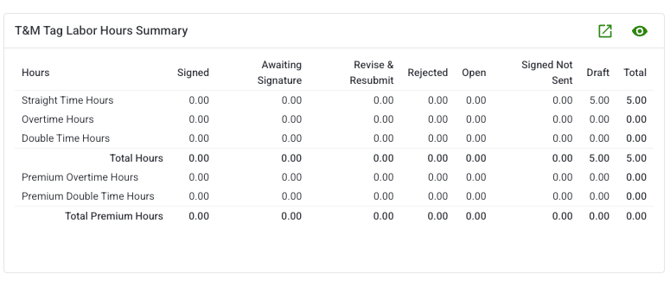
Shows total labor hours broken down by type; Straight Time, Overtime, and Double Time for each T&M Tag status.
|
Field |
What it shows |
|---|---|
|
Status |
T&M Tag status (same set as the Status Summary above). |
|
Straight Time Hours |
Total ST hours for Sent T&M Tags in that status. |
|
Overtime Hours |
Total OT hours for Sent T&M Tags in that status. |
|
Double Time Hours |
Total DT hours for Sent T&M Tags in that status. |
|
Total Hours |
Sum of all hour types for Sent T&M Tags in that status. |
COR Savings Insights
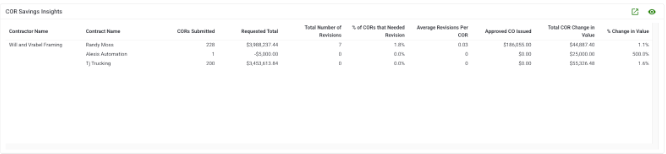
Tracks the full lifecycle of your change orders, including voided, rejected, and revised CORs, to show how much value was negotiated down through the revision process and what was ultimately recovered or given back. The Revision Summary tab provides topline summary cards for COR value and count, a contractor-level breakdown table, and clickthrough links to filtered views of the underlying records. Use this report to answer "how much have my change orders been reduced through revisions and what did we ultimately approve?"
COR Aging by Contractor

Shows how long open CORs have been outstanding per contractor, grouped into aging bands: 0–30, 31–60, 61–90, 91–120, and 120+ days. Both count and total dollar value are shown per band.
Status and Contract Summary by Contract
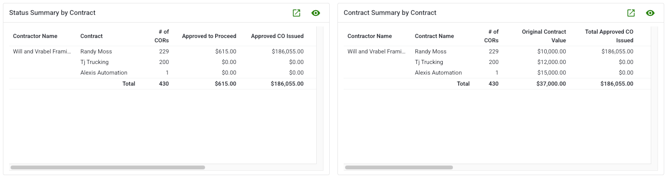
Shows key financial metrics and status per contractor: original contract value, total Approved COs issued, Approved to Proceed amount, pending contract value, and updated contract total.
Step-by-step instructions
Navigate to the Overview Tab
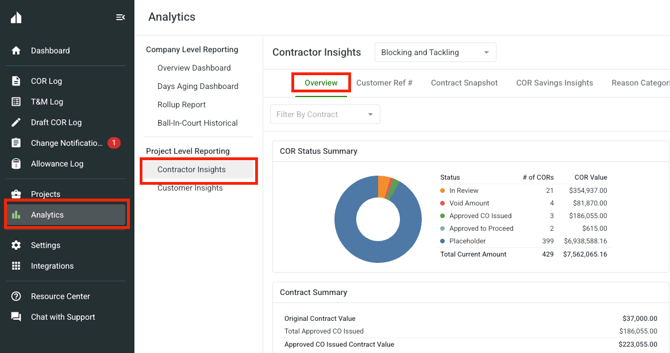
-
Open Clearstory and go to the Analytics section in the side panel.
-
Select Contractor Insights from the Analytics navigation.
-
Click the Overview tab — this is the default landing tab within Contractor Insights.
-
The page loads automatically for the project you have selected.
Apply filters
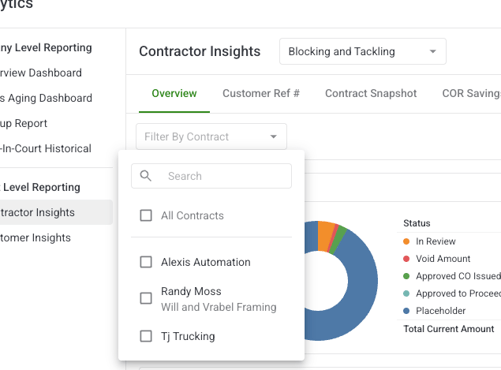
You can narrow the data shown across all sections using the filter bar at the top of the page.
-
Open the Contractor Insights Overview.
-
Use the filter bar to apply one or more of the following:
-
Contract — select one or more specific contracts. If left blank, all contracts you have access to are shown.
-
-
All six sections update in real time as you apply filters.
-
To remove a filter, clear it individually or clear all at once.
Note: Filter options are scoped to your role. Contractors can only filter within their own contracts.
What each role can do
|
Action |
Account Owner |
Admin |
Project Manager |
Contractor |
Field User |
|---|---|---|---|---|---|
|
View Contractor Insights Overview |
✅ |
✅ |
✅ |
✅ |
❌ |
|
View all contracts on the project |
✅ |
✅ |
✅ |
❌ |
❌ |
|
View own contracts only |
✅ |
✅ |
✅ |
✅ |
❌ |
|
Apply filters |
✅ |
✅ |
✅ |
✅ |
❌ |
|
Drill down into records |
✅ |
✅ |
✅ |
✅ |
❌ |
Note: Contractor Insights is available on Standard and Professional license plans at both the office and project level. If you see a lock icon next to a project or office, your current plan does not include access. Contact your admin to upgrade.
Tips and best practices
Start with the Contract Summary to understand financial exposure. The pending contract value (the sum of CORs that are In Review or Approved to Proceed) is a useful early indicator of risk on a project.
Use the COR Aging by Contractor section to prioritize follow-up. CORs aging past 60 days are worth reviewing. The aging bands make it easy to identify which contractors have the oldest unresolved change orders and how much value is at stake.
Combine the contract filter with the time range for targeted analysis. Filtering to a single contract and a shorter time range gives you a focused view that's easy to share or act on in a project meeting.
FAQs
How is this different from the Analytics Overview Dashboard?
The Analytics Overview Dashboard shows COR and T&M data rolled up across all projects you have access to it's a company-level view. The Contractor Insights Overview is scoped to a single project at a time and breaks data down by contractor and contract. Use the company-level dashboard to spot which projects need attention; use Contractor Insights to dig into the detail within a specific project.
Who can access Contractor Insights?
Account Owners, Admins, Project Managers, and Contractors can access the Overview Tab. Field Users do not have access. Access is also subject to your license level; Standard or Professional is required.
Why do I see different contracts than a colleague?
What you see depends on your role. Account Owners and Admins see all contracts on the project. Project Managers see contracts for their assigned projects. Contractors see only their own contracts.
What does Pending Contract Value mean?
Pending Contract Value is the sum of all COR values currently In Review or Approved to Proceed; change orders that have been submitted but not yet formally executed as a Change Order. It represents outstanding financial exposure on the contract.
Why are some contractors missing from the Contract Summary?
The Contract Summary only shows contractors who have at least one COR or T&M Tag on the project. Contractors with no recorded activity will not appear.
What does the COR Aging section include?
The COR Aging section only includes open CORs (those In Review or Approved to Proceed). Resolved CORs (Approved CO Issued or Void) are excluded. Days aging is calculated from the COR submission date to the current date.
Can I export data from the Overview Tab?
Export functionality for individual COR and T&M records is available through the COR Log and T&M Log. For a project-level export of aging data, use the Days Aging Report in the Analytics section.
How often does the data refresh?
All metrics update in real time as COR, T&M, and contract records are created or updated.
Do filters apply to all sections?
Yes. When you apply a contract or time range filter, all six sections on the Overview update simultaneously to reflect your selection.