
Table of Contents
Overview
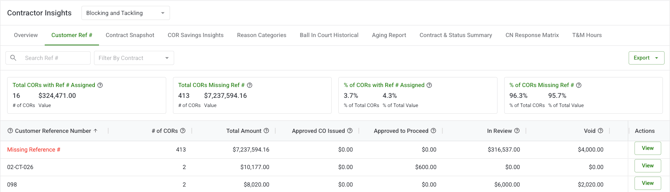
The Customer Ref # Report is a tab within Contractor Insights that groups all Change Order Requests (CORs) on a project by their customer reference number. It shows you the count and total dollar value of CORs per reference number, broken down by status so you can confirm that all your CORs are properly reconciled against your owner's system of record.
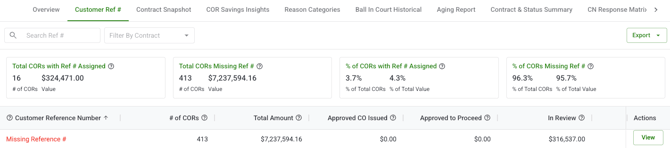
The report also surfaces a "Missing Reference #" row at the top whenever any CORs on the project haven't been assigned a reference number yet. You can click into that row, assign reference numbers to the unlinked CORs directly, and save.
What you see depends on your role. Account Owners and Admins see all contracts on the project. Project Managers see contracts for their assigned projects. Contractors see only their own contracts. Field Users do not have access.
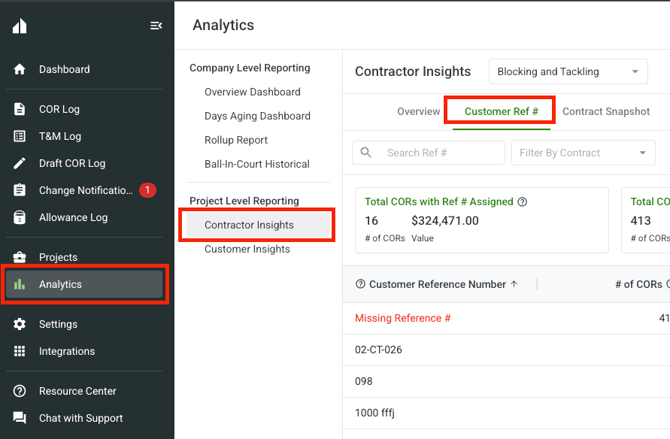
You can access the Customer Ref # Report from Analytics II Contractor Insights II Overview in the Clearstory side panel.
Why it matters
Customer reference numbers link your Clearstory CORs to your owner's financial system, ERP, or job cost tracking tool. If a COR is missing a reference number, it can't be matched to an invoice or budget line on the other side — creating reconciliation gaps, delayed payments, or disputed billings.
The Customer Ref # Report makes it easy to catch those gaps before they become a problem and fix them in one place.
How it works
The report displays a table where each row represents a unique customer reference number. For each reference number, you can see:
-
# of CORs — how many CORs are linked to that reference number
-
Total Amount — the combined dollar value across all statuses
-
Approved CO Issued — dollar value of formally executed CORs
-
Approved to Proceed — dollar value of CORs approved to proceed but not yet formally executed
-
In Review — dollar value of CORs currently pending approval
-
Void — dollar value of voided CORs
The "Missing Reference #" row always appears at the top of the table when any CORs on the project are missing a reference number. When all CORs have been assigned a reference number, this row disappears automatically.
The table updates in real time when you apply the contract filter.
Step-by-step instructions
Navigate to the Customer Ref # Report
-
Open Clearstory and go to the Analytics section in the side panel.
-
Select Contractor Insights from the Analytics navigation.
-
Click the Customer Ref # tab.
-
The report loads automatically for the selected project.
Apply the contract filter
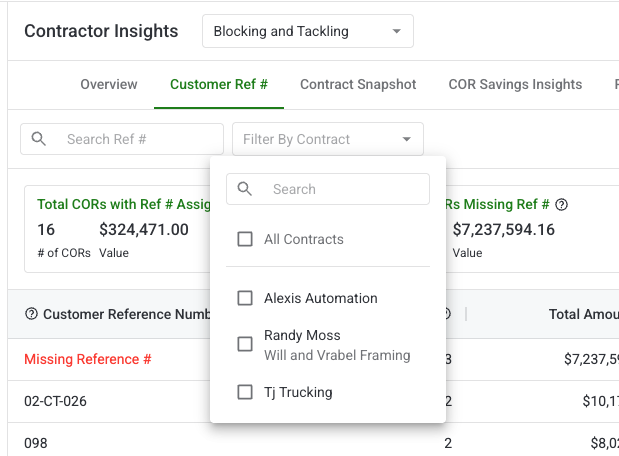
You can narrow the report to a specific contract or set of contracts.
-
Open the Customer Ref # Report.
-
Use the Contract filter at the top of the page to select one or more contracts.
-
The table updates in real time to show only CORs for the selected contract(s).
-
To remove the filter, clear it individually or clear all filters at once.
Note: If no contract is selected, the report shows all accessible contracts on the project.
Identify and assign missing reference numbers
-
Open the Customer Ref # Report.
-
If any CORs are missing a reference number, a "Missing Reference #" row appears at the top of the table.
-
Click View on the "Missing Reference #" row (or click the row itself).
-
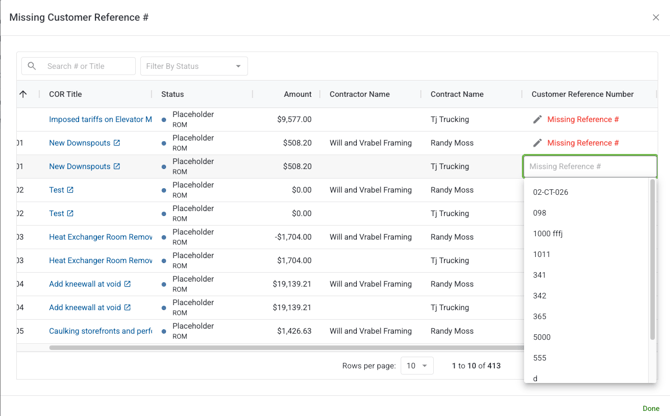
A pop-up panel opens listing all CORs that don't have a reference number assigned.
-
In the Customer Reference Number column, type the correct reference number for each COR.
-
Click Save to apply your changes.
The CORs you updated will move out of the "Missing Reference #" row and into their correct reference number row in the table.
Note: If you have unsaved changes and try to close the panel, Clearstory will ask whether you want to save or discard your changes before closing.
Edit an existing reference number
-
In the report table, click View on any reference number row (or click the row itself).
-
The pop-up panel opens listing all CORs for that reference number.
-
Edit the Customer Reference Number field for the COR you want to update.
-
Click Save.
The COR will move to the updated reference number row in the table. Every reference number change is logged as an activity on the COR record.
Export the report
-
Open the Customer Ref # Report.
-
Apply any contract filter you want reflected in the export.
-
Click the Export button.
-
Clearstory processes the export in the background. You will receive a bell notification when your Excel file is ready to download.
Note: If an export fails, Clearstory will notify you so you can try again. The export includes all table columns and reflects your active filter.
What each role can do
|
Action |
Account Owner |
Admin |
Project Manager |
Contractor |
Field User |
|---|---|---|---|---|---|
|
View Customer Ref # Report |
✅ |
✅ |
✅ |
✅ |
❌ |
|
View all contracts on the project |
✅ |
✅ |
✅ |
❌ |
❌ |
|
View own contracts only |
✅ |
✅ |
✅ |
✅ |
❌ |
|
Edit customer reference numbers |
✅ |
✅ |
✅ |
✅ |
❌ |
|
Apply contract filter |
✅ |
✅ |
✅ |
✅ |
❌ |
|
Export to Excel |
✅ |
✅ |
✅ |
✅ |
❌ |
Note: The Customer Ref # Report is available on Standard and Professional license plans as part of Contractor Insights. If you see a lock icon or an upgrade prompt, contact your admin about your plan.
Tips and best practices
Check the "Missing Reference #" row before invoicing. Any COR without a reference number is likely to create a reconciliation issue on the owner's side. Clearing that row before sending an invoice reduces back-and-forth.
Use the contract filter when working on reconciliation. If you're reconciling a specific contract against an external system, filtering to that contract first gives you a clean, focused view that's easier to work through.
Export after resolving missing references. Once you've assigned reference numbers to all outstanding CORs, export the updated report as a record or to share with your financial team.
Reference number changes are always logged. Every edit you make in the modal is recorded as an activity on the COR, so there's a full audit trail of what changed and when.
FAQs
What is a customer reference number?
A customer reference number is a code or identifier assigned by the project owner that links a COR to their financial system, ERP, job cost tracking tool, or budget line. Keeping these up to date in Clearstory ensures your CORs can be matched and reconciled on the owner's side.
Who can edit reference numbers?
Account Owners, Admins, Project Managers, and Contractors can edit reference numbers directly in the report. Field Users cannot access the report.
What happens to the "Missing Reference #" row when I assign all missing references?
The row disappears automatically once all CORs on the project (for the active contract filter) have been assigned a reference number. It reappears if a new unlinked COR is added.
Can I remove a reference number from a COR?
Yes. Clearing the reference number field in the modal and saving will move the COR back to the "Missing Reference #" row.
Does editing a reference number change anything else on the COR?
No. Editing the customer reference number only updates that field. The COR status, amount, and all other data remain unchanged. The change is logged as an activity on the COR record.
Why are some of my CORs not appearing in the report?
The report only shows the latest version of each COR. Earlier revisions of revised CORs are not counted. If a COR was deleted, it will also not appear. Contractors see only CORs from their own contracts.
Can I filter by more than one contract at a time?
Yes. The contract filter supports multi-select. Selecting multiple contracts shows data from all of them combined.
Do active filters apply to the edit modal?
Yes. When you open the modal from a filtered view, it shows only the CORs from the selected contract(s).
What export format is available?
The Customer Ref # Report exports to Excel. The export reflects your active contract filter and includes all table columns.
How do I know my export is ready?
You will receive a bell notification in Clearstory when your export file is ready to download.