
| Article Update | What Changed? |
| 4/30/2026 | Added a new Summary tab to the COR Savings Insight report providing a complete view of the COR lifecycle including voided, rejected, and revised CORs. The tab includes top-line value and count summary cards, a contractor level breakdown table, and clickthrough links to filtered COR views. |
Table of Contents
- Why it matters
- How it works
- Step-by-step instructions
- What each role can do
- Tips and best practices
- FAQs
Overview
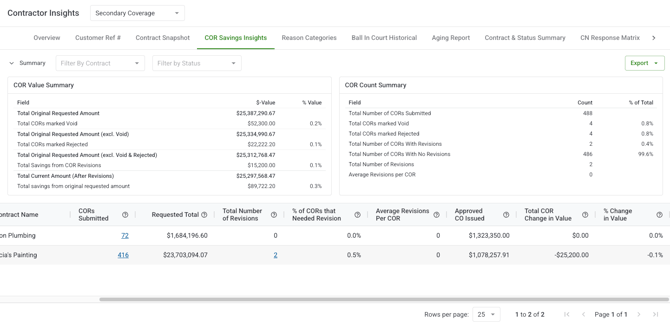
The COR Savings Insights Report is the Revision Insights tab within Contractor Insights. It gives you automated visibility into COR revision volume, voided and rejected CORs, and the financial savings generated through the revision process at both the project level and per contractor/contract.
Instead of manually reconciling COR logs to understand revision behavior and savings, this report computes everything automatically from your existing COR data. It's designed for executive reporting, QBRs, and proving ROI from streamlined change order reviews.
What you see depends on your role. Account Owners, Admins, and Project Managers can access the report. Contractors and Field Users do not have access this is an internal GC reporting surface.
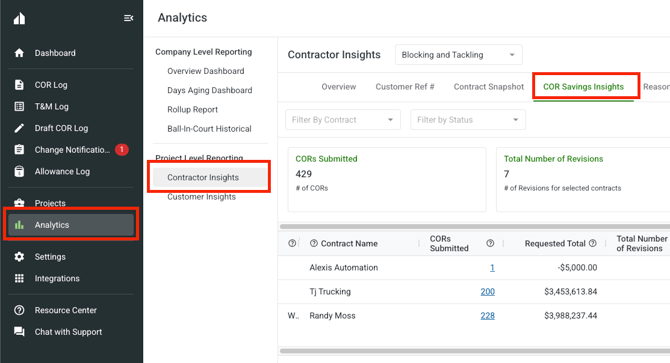
You can access the COR Savings Insights Report from Analytics II Contractor Insights II COR Savings Insights in the Clearstory side panel.
Why it matters
Every time a change order goes through multiple revisions, gets rejected, or gets voided, there's a measurable impact on project cost and effort. Without a report, that impact is invisible it exists in the logs but requires manual work to surface.
The COR Savings Insights Report makes that impact visible automatically. Use it to answer questions like: how much did we negotiate down through revisions? How many CORs were rejected outright? Which contractors have the most back-and-forth? These are numbers that matter in a QBR and in owner conversations about value.
How it works
The report has two main sections: summary cards at the top and a contractor/contract breakdown table below. Both update when you apply filters.
COR Value Summary

|
Metric |
What it shows |
|---|---|
|
Total Original Requested Amount |
The sum of every COR's original requested amount before any revisions, rejections, or voids. This is your starting point. |
|
Total CORs Marked Void ($ and %) |
The original dollar value of CORs that were formally voided. The % shows what share of the total this represents. |
|
Total Original Requested Amount (excl. Void) |
The total original amount with voided CORs removed. |
|
Total CORs Marked Rejected ($ and %) |
The original dollar value of CORs that were rejected. The % shows this as a share of the amount after removing voids. |
|
Total Original Requested Amount (excl. Void & Rejected) |
The original amount with both voided and rejected CORs removed — the CORs that actually went through the revision process. |
|
Savings from COR Revisions |
The difference between the original requested amount and the current (latest version) amount for non-void, non-rejected CORs. This is value negotiated down through the revision process. |
|
Total Current Amount (After Revisions) |
The sum of the latest version amounts for all non-void, non-rejected CORs. What you actually ended up with after revisions. |
|
Total Savings from Original Requested Amount |
Savings from Revisions + Rejected amount + Void amount. The full dollar reduction from what was originally requested. Displayed in green. |
COR Count Summary
|
Metric |
What it shows |
|---|---|
|
Count of CORs Submitted |
Total number of CORs submitted for the selected project or contract. |
|
Count of CORs Marked Void (count and %) |
How many CORs were voided, and what percentage of total submitted CORs that represents. |
|
Count of CORs Marked Rejected (count and %) |
How many CORs were rejected, and what percentage of total submitted CORs that represents. |
|
Total CORs With Revisions (count and %) |
How many CORs went through at least one revision, and what percentage of total submitted CORs that is. |
|
Total CORs With No Revisions (count and %) |
How many CORs were approved without any revision — first-pass approvals. |
|
Total Number of Revisions |
The total count of all revision events across all CORs. |
|
Average Revisions per COR |
Total revisions divided by total CORs submitted. A higher number means more back-and-forth per change order. |
Contractor / Contract Breakdown Table
The table below the cards shows the same metrics broken down per contractor and contract. Each row represents one contract. The columns mirror the card metrics — giving you the same savings and revision data at the contract level so you can see which contractors drive the most revision activity or savings.
Step-by-step instructions
Navigate to the COR Savings Insights Report
-
Open Clearstory and go to the Analytics section in the side panel.
-
Select Contractor Insights from the Analytics navigation.
-
Click the Revision Insights tab.
-
The Summary tab loads automatically with project-level data.
Apply filters
You can narrow the data to a specific contract or set of COR statuses.
-
Use the Filter by Contract multi-select to narrow to one or more specific contracts.
-
Use the Filter by Status multi-select to include or exclude CORs in specific statuses.
-
All summary cards and the contractor table update in real time.
-
Filters can be cleared individually or all at once.
Note: Active filters carry through to any exports and drill-down modals.
Drill into the CORs behind a metric
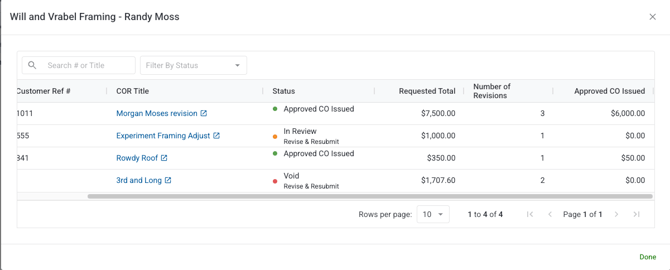
Most summary cards and table cells are clickable. Clicking opens a pop-up panel showing the individual CORs behind that number.
-
Click any clickable card or table cell (look for a pointer cursor on hover).
-
A pop-up opens listing the specific CORs contributing to that metric, with columns for COR #, Title, Status, Original Amount, Revision Count, and Current Amount.
-
Click any COR row to navigate directly to the COR detail record.
-
Close the pop-up to return to the report with your filters intact.
Export the report
-
Apply your desired filters.
-
Click the Export button.
-
Select PDF (visual layout preserved) or Excel (standardized data template).
-
Clearstory processes the export in the background. You will receive a bell notification when the file is ready.
What each role can do
The COR Savings Insights Report is available on Standard and Professional license plans. Contractors do not have access to this report — it is designed as an internal GC reporting surface.
|
Action |
Account Owner |
Admin |
Project Manager |
Contractor |
Field User |
|---|---|---|---|---|---|
|
View COR Savings Insights Report |
✅ |
✅ |
✅ |
❌ |
❌ |
|
Apply filters |
✅ |
✅ |
✅ |
❌ |
❌ |
|
Drill into modals |
✅ |
✅ |
✅ |
❌ |
❌ |
|
Export (PDF / Excel) |
✅ |
✅ |
✅ |
❌ |
❌ |
Tips and best practices
Use the Total Savings from Original Requested Amount in QBRs. This number displayed in green represents the full dollar reduction from what was originally requested across all CORs: revisions, rejections, and voids combined. It's the clearest single number for demonstrating negotiation value to owners.
Check Average Revisions per COR to identify high-friction contractors. A significantly higher average for one contractor compared to others on the same project may indicate unclear scope, pricing disputes, or documentation issues worth addressing.
Use "Savings from COR Revisions" to isolate negotiation savings. This metric strips out voids and rejections to show only the value negotiated down through the revision process the savings that resulted from actual back-and-forth.
Filter by contract before exporting. A filtered export scoped to a single contract is easier to include in a contractor-specific progress report or owner package.
Use the contractor table to compare performance across contracts. The table mirrors the summary card metrics per contract, making it easy to spot which contracts are driving the most revision activity or the most savings.
FAQs
What is the difference between "Void" and "Rejected" in this report?
Both appear as Void status in Clearstory, but they represent different outcomes. A Voided COR was withdrawn by the contractor; work that was formally pulled back. A Rejected COR was declined by the owner. The report separates these two categories because they represent different types of risk and negotiation outcomes.
What does "Savings from COR Revisions" measure?
It measures how much the requested COR amounts were reduced through the revision process specifically, the difference between what was originally requested on each COR and what the latest revised version requests, for CORs that are not voided or rejected. It represents value negotiated down through back-and-forth.
What is the "Total Original Requested Amount"?
This is the sum of the very first version of every COR's requested amount before any revisions changed the number. It's your starting baseline for understanding how much was originally requested vs. what ultimately moved forward.
How is "Average Revisions per COR" calculated?
It's the total number of revision events across all CORs divided by the total number of CORs submitted. A revision is counted each time a new version of a COR is created. For example, if 10 CORs have 25 total revisions, the average is 2.5.
Why don't contractors have access to this report?
The COR Savings Insights Report surfaces GC-side savings data including how much value was negotiated down from contractor submissions. This is internal reporting data not intended for contractor visibility.
What does clicking a summary card show me?
Clicking opens a pop-up with the individual CORs behind that metric. For example, clicking "CORs With Revisions" shows every COR that has at least one revision, with the original amount, revision count, and current amount for each.
Do the card metrics and table metrics use the same calculations?
Yes. The contractor/contract table mirrors the summary card calculations, scoped per contract rather than for the whole project.
Does the report update in real time?
Yes. Metrics are computed from live COR lifecycle data and update as CORs are created, revised, approved, or voided. Filters also apply in real time.
What export formats are available?
PDF (which preserves the visual layout of the summary cards) and Excel (a standardized data template). Both reflect your active filter selections.