
Table of Content
Overview
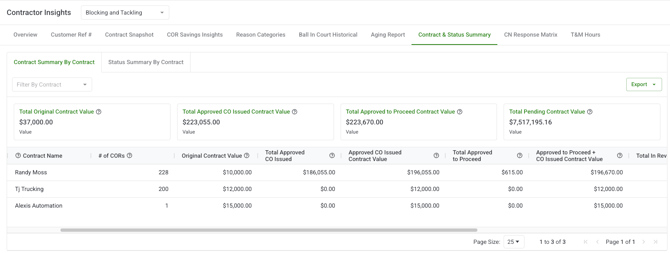
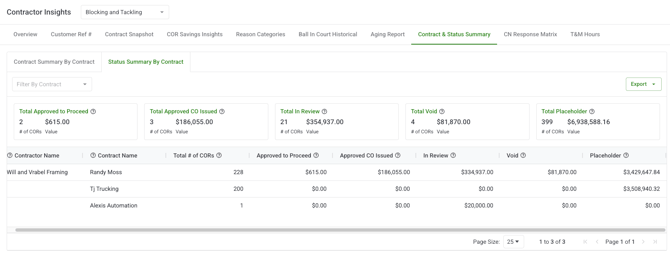 The Contract & Status Summary is a tab within Contractor Insights that centralizes key financial data for every contract on a project. It presents two sets of summary cards at the top of the page a Contract Summary and a Status Summary followed by a detailed per-contract table showing COR counts and value metrics for every contract on the project.
Instead of navigating into individual contracts or the COR Log to piece together a financial picture, this report gives you everything in one view with the ability to filter by contract and export to Excel.
What you see depends on your role. Account Owners, Admins, and Project Managers can access the report. Contractors and Field Users do not have access.
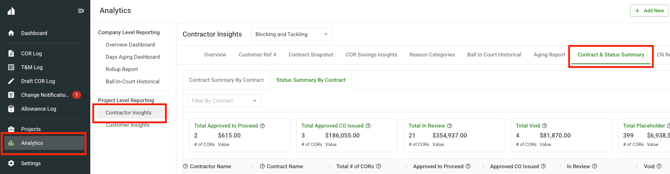
You can access the Contract & Status Summary from Analytics II Contractor Insights II Contract & Status Summary in the Clearstory side panel.
Why it matters
On projects with multiple contractors, understanding the full financial picture means tracking original contract values, how much has been formally executed, how much is still pending approval, and how CORs are distributed by status across all contracts simultaneously. Without this report, getting that picture requires navigating contract by contract in the COR Log.
The Contract & Status Summary aggregates all of that into one view, making it easy to compare contracts, identify exposure, and share a clean summary with stakeholders.
How it works
The page has three main components: the Contract Summary cards, the Status Summary cards, and the Contract Summary table. All three update when you apply the contract filter.
Contract Summary cards — what each metric is calculating

|
Metric |
What it shows |
|---|---|
|
Total Original Contract Value |
The sum of all original contract values across the selected contracts — the baseline before any change orders were applied. |
|
Total Approved CO Issued Contract Value |
Original Contract Value + all Approved CO Issued COR amounts. This is the current confirmed contract total — what has been formally executed and locked in. |
|
Total Approved to Proceed Contract Value |
The total dollar value of CORs in Approved to Proceed status. The owner has authorized work to proceed, but the formal Change Order has not yet been issued. |
|
Total Pending Contract Value |
Approved CO Issued + Approved to Proceed + In Review + Placeholder. The full potential contract exposure if all open items are resolved in the contractor's favor. |
Status Summary cards — what each metric is calculating

|
Metric |
What it shows |
|---|---|
|
Approved to Proceed — count and $ |
How many CORs are in Approved to Proceed status and their total dollar value. |
|
Approved CO Issued — count and $ |
How many CORs have been formally executed as change orders and their total value. |
|
In Review — count and $ |
How many CORs are currently pending the owner's decision and their total value. This is your outstanding, unresolved exposure. |
|
Void — count and $ |
How many CORs have been voided and their total original value. |
|
Placeholder — count and $ |
How many CORs are in Placeholder status (reserved for expected but not-yet-submitted changes) and their total value. |
Contract/Status Summary table — what each column is calculating

|
Column |
What it shows |
|---|---|
|
Contractor Name |
The contractor's business name. |
|
Contract Name |
The name of the contract. |
|
of CORs |
Total number of CORs submitted on this contract. |
|
Original Contract Value |
The original value of this contract before any change orders. |
|
Approved CO Issued |
Total dollar value of Approved CO Issued CORs on this contract — formally executed change orders. |
|
Approved CO Issued Contract Value |
Original Contract Value + Approved CO Issued — the current confirmed contract total for this contract. |
|
Approved to Proceed |
Total dollar value of Approved to Proceed CORs — approved but not yet formally executed. |
|
Total In Review |
Total dollar value of CORs In Review — pending the owner's approval decision. |
|
Total Placeholder |
Total dollar value of Placeholder CORs on this contract. |
|
Pending Contract Value |
Approved CO Issued + Approved to Proceed + In Review + Placeholder — the full potential value of this contract if all open items are approved. |
|
Total Void |
Total dollar value of voided CORs on this contract. |
|
Amount Remaining |
The difference between each COR's original requested amount and its current (latest version) amount — reflecting value adjusted through revisions. |
Step-by-step instructions
Navigate to the Contract & Status Summary
-
Open Clearstory and go to the Analytics section in the side panel.
-
Select Contractor Insights from the Analytics navigation.
-
Click the Contract & Status Summary tab.
-
The page loads automatically showing data across all contracts on the project.
Apply the contract filter
-
Use the Contract filter at the top of the page to select one or more contracts.
-
All summary cards and the table update in real time to show only the selected contract(s).
-
To remove the filter, clear it individually or clear all at once.
Note: If no contract is selected, the report defaults to showing all accessible contracts on the project.
Export the report
-
Apply any contract filter you want reflected in the export.
-
Click the Export button.
-
Select Excel.
-
Clearstory processes the export in the background. You will receive a bell notification when your file is ready to download.
Note: The export includes all table columns and reflects your active filter.
What each role can do
The Contract & Status Summary is available on Standard and Professional license plans as part of Contractor Insights. Users must also have COR Log permissions on the project to access contract data.
Use the Total Pending Contract Value to understand your worst-case exposure. This number adds up everything that could still become a formal change order; Approved CO Issued, Approved to Proceed, In Review, and Placeholder. It's useful when forecasting the upper bound of project cost.
Watch the Total In Review card for unresolved risk. The In Review count and value shows how much is still awaiting the owner's decision the higher this number, the more financial uncertainty remains on the project.
Compare the Approved CO Issued Contract Value to the Original Contract Value per contract row. The gap between these two tells you how much each contract has grown from the baseline, giving you a quick read on which contractors are driving the most change order activity.
Use the Amount Remaining column to spot revision activity. A gap between a COR's original and current requested amount indicates the COR was revised this column surfaces those deltas at the contract level.
Filter before exporting. Scoping to a specific contract or set of contracts before exporting gives you a cleaner file to share in a meeting or with a specific stakeholder.
FAQs
What is the difference between "Approved CO Issued Contract Value" and "Pending Contract Value"?
Approved CO Issued Contract Value is the confirmed, locked-in total — the original contract plus all formally executed change orders. Pending Contract Value is broader and includes everything that could still be approved: Approved CO Issued, Approved to Proceed, In Review, and Placeholder amounts combined. Think of it as the maximum potential contract value if every open item is approved.
What does "Approved to Proceed" mean in this report?
Approved to Proceed means the owner has authorized the contractor to proceed with the work, but hasn't yet issued the formal Change Order document. The value is approved but not yet locked in — it hasn't been formally executed.
What does "Amount Remaining" show?
Amount Remaining shows the delta between a COR's original requested amount and its current (latest version) amount for each contract. If a COR was revised down from $50,000 to $40,000, the Amount Remaining reflects that $10,000 difference. It gives you a contract-level view of how much value has been adjusted through the revision process.
Why don't contractors have access to this report?
The Contract & Status Summary shows aggregated financial data across all contracts on a project including other contractors' contract values and COR data. This is GC-side reporting not intended for contractor visibility.
What is a Placeholder COR?
A Placeholder is a reserved COR entry for a change that is expected but not yet formally submitted. It lets teams account for anticipated cost impacts in the financial picture before the formal COR is ready.
Do the summary cards update when I apply a contract filter?
Yes. Both the Contract Summary cards and the Status Summary cards update in real time when you apply or clear the contract filter. The table also updates simultaneously.
What does clicking a status card show me?
Clicking a status card opens a pop-up listing the individual CORs in that status for the selected contract(s). Each row shows the COR number, title, status, requested amount, contractor name, and submitted date, and links directly to the COR record.
What export format is available?
The Contract & Status Summary exports to Excel. The export includes all table columns and reflects your active contract filter.
How do I know my export is ready?
You will receive a bell notification in Clearstory when your export file is ready to download.