
| Article Update | What Changed? |
| 6/12/2026 | Added functionality to select all contractors to see the full breakdown of contractors on a given project. |
Table of Contents
- Why it matter
- How it works
- Step-by-step instructions
- What each role can do
- Tips and best practices
- FAQs
Overview
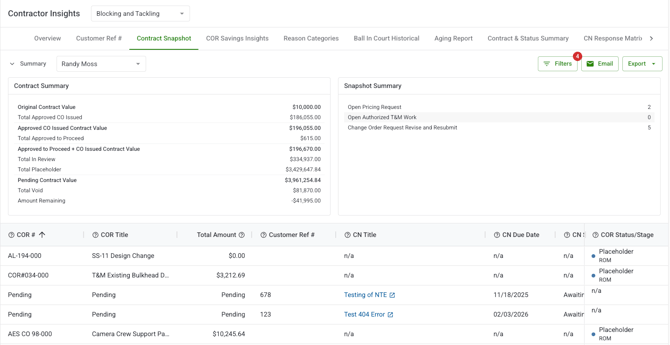
The Contract Snapshot is a tab within Contractor Insights that merges Change Order Request (COR) and Change Notification (CN) data into one unified view per contract. Instead of cross-referencing the COR Log and CN Log separately, you get a single page that shows outstanding pricing requests, pending CN responses, and the full financial picture of each contract — all at once.
At the top of the page, two summary sections give you a quick read on contract health. Below them, a data table merges COR and CN records into a single list, with each COR linked to the CN that originated it where applicable.
What you see depends on your role. Account Owners and Admins see all contracts on the project. Project Managers see contracts for their assigned projects. Contractors see only their own contracts. Field Users do not have access.
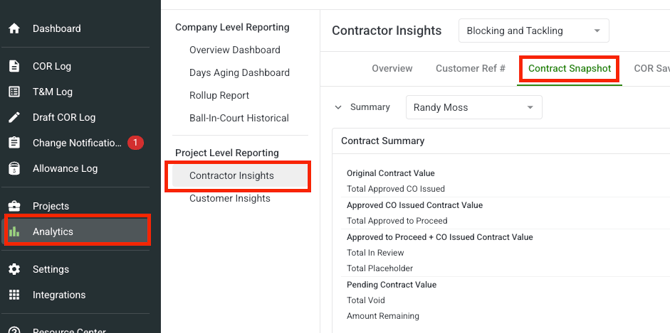
You can access the Contract Snapshot from Analytics II Contractor Insights II Contract Snapshot in the Clearstory side panel.
Why it matters
Change Notifications are often the starting point for a change order — an owner sends a CN requesting pricing, and the contractor responds with a COR. Tracking these separately means you can easily lose sight of which CNs are still waiting on a response, which CORs are linked to which notifications, and where the overall contract stands financially.
The Contract Snapshot connects those dots in one place, making it easy to identify unaddressed items before they create delays or disputes.
How it works
The Contract Snapshot has three main sections, all of which update when you change your filter or toggle selections.
Contract Summary
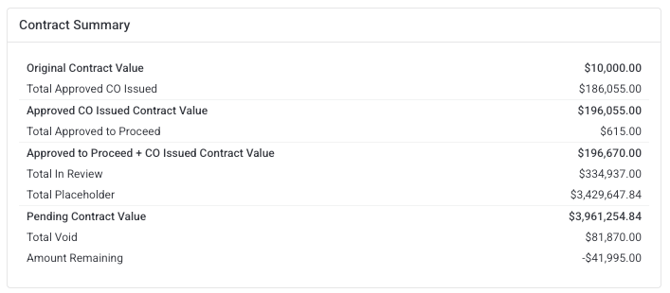
The Contract Summary shows the financial picture of the selected contract(s). When multiple contracts are selected, the values represent the combined total across all of them. Here is what each field is calculating:
|
Field |
What it shows |
|---|---|
|
Original Contract Value |
The baseline contract value before any change orders. |
|
Approved CO Issued |
The total dollar value of CORs that have been formally executed as a change order. This is confirmed, locked-in contract growth. |
|
Approved to Proceed |
The total dollar value of CORs where the owner has approved work to proceed, but the formal Change Order has not yet been issued. Approved but not yet locked in. |
|
In Review |
The total dollar value of CORs currently pending the owner's approval. This is your outstanding, unresolved financial exposure. |
|
Void |
The total dollar value of CORs that were rejected or withdrawn. |
|
Updated Contract Value |
Original Contract Value + Approved CO Issued. This is the current confirmed contract total. |
Snapshot Summary
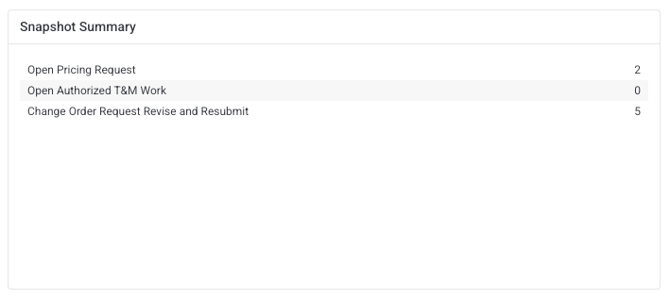
The Snapshot Summary gives you a quick operational read on unresolved items. Here is what each count represents:
|
Field |
What it shows |
|---|---|
|
Open Pricing Requests |
The number of Pricing Request CNs that have not yet received a COR response — CNs the contractor still needs to respond to with a change order submission. |
|
Authorize T&M Work |
The number of Authorize T&M Work CNs that have not yet been responded to. |
|
CORs in Revise & Resubmit |
The number of CORs that have been returned to the contractor for corrections and have not yet been resubmitted. |
Data Table
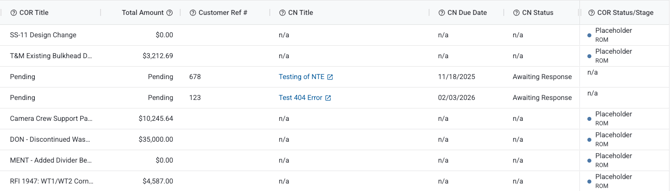
The data table merges COR and CN records into a single list. Each row represents either a COR, a CN awaiting a response, or a CN that received a No Cost Impact response. Here is what each column shows:
|
Column |
What it shows |
|---|---|
|
COR # |
The COR number. Shows "Pending" if the CN has not yet received a COR response, or "N/A" for No Cost Impact responses. |
|
COR Title |
The title of the COR. Clickable — takes you directly to the COR detail record. |
|
Total Amount |
The dollar value of the COR. Shows "Pending" or "N/A" for unresponded and No Cost Impact CN rows. |
|
COR Status / Stage |
The current status and stage of the COR (e.g., In Review, Approved CO Issued, Revise & Resubmit). |
|
Customer Ref # |
The customer reference number assigned to the COR, if one has been set. |
|
CN # |
The Change Notification linked to this COR, or N/A if the COR was not originated from a CN. |
|
CN Title |
The title of the associated CN. |
|
CN Due Date |
The pricing response due date set on the CN. |
|
CN Status |
The current status of the CN. |
|
CN Responded By |
The user who submitted the CN response. |
Step-by-step instructions
Navigate to the Contract Snapshot
-
Open Clearstory and go to the Analytics section in the side panel.
-
Select Contractor Insights from the Analytics navigation.
-
Click the Contract Snapshot tab.
-
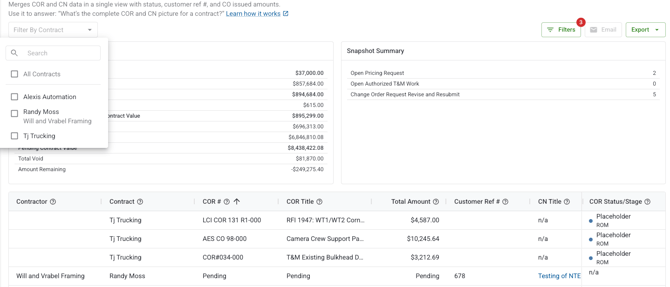
Select a contract from the contract filter — the page requires at least one contract to be selected before data loads.
Select a contract and apply display options
-
Use the Contract filter at the top of the page to select one or more contracts. To review every contract you have access to at once, use Select All. When more than one contract is selected, the data table adds Contractor Name and Contract Name columns so you can tell which contractor and contract each row belongs to.
-
Use the display toggles to control what appears in the data table:
-
Display CORs: show or hide COR rows.
-
Display Pending Change Notifications: show or hide CNs that haven't received a response yet.
-
Display No Cost Impact Responses: show or hide CN rows where the contractor responded with No Cost Impact.
-
-
All three sections update in real time as you adjust the toggles.
Note: The page will prompt you to select a contract if none is chosen. Data does not load until at least one contract is selected.
Drill into a CN record
CN titles in the data table are clickable. Click any CN title to navigate directly to the CN detail record where you can review, edit, or take action.
Rows showing "Pending" or "N/A" do not have a clickable link.
Export the snapshot
-
Apply your desired contract filter and display toggles.
-
Click the Export button.
-
Select PDF or Excel.
-
Clearstory processes the export in the background. You will receive a bell notification when the file is ready to download.
Exports include all three sections; Contract Summary, Snapshot Summary, and data table. Export also reflects your active filter and toggle selections.
Email the snapshot

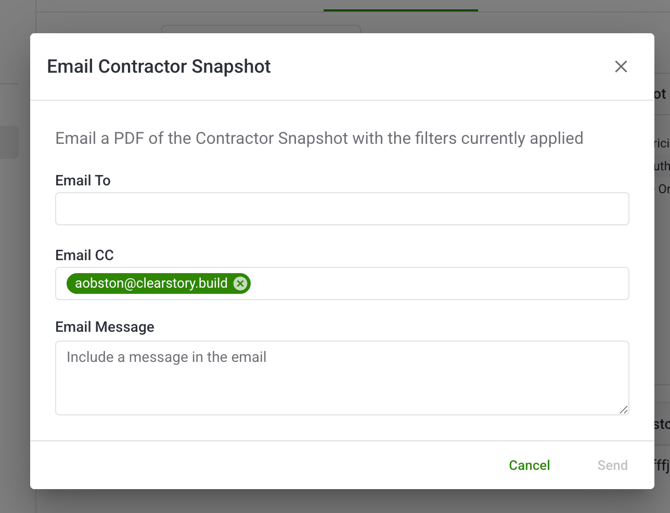
You can email the Contract Snapshot PDF directly to project stakeholders from within Clearstory — no need to download and re-send the file.
-
Select one contract from the contract filter. The email button is only available when a single contract is selected.
-
Click the Email button.
-
Review and edit the auto-populated recipient list (populated from project roles).
-
Send.
Note: If multiple contracts are selected, the email button is disabled. Hover over it to see a tooltip explaining why.
What each role can do
The Contract Snapshot is available on Standard and Professional license plans as part of Contractor Insights. If you see a lock icon or an upgrade prompt, contact your admin about your plan.
Check the Snapshot Summary first. The three counts at the top — Open Pricing Requests, Authorize T&M Work, and CORs in Revise & Resubmit — give you an immediate read on what's unresolved. If any of these are non-zero, those items need follow-up.
Use "Display Pending Change Notifications" to find unanswered CNs. Toggling this on surfaces every CN that hasn't received a COR response yet — useful for identifying pricing requests that are overdue or approaching their due date.
Watch the CN Due Date column. CNs with a past due date in this column haven't received a response on time and may need escalation.
Email from a single-contract view. The email feature only works for a single contract at a time, so if you want to send snapshots to multiple contractors, filter to each one individually and email separately.
Use In Review as your exposure indicator. The In Review amount in the Contract Summary tells you exactly how much dollar value is still pending the owner's approval for the selected contract — a useful number to track heading into a project meeting.
FAQs
What is the difference between the Contract Summary and the Snapshot Summary?
The Contract Summary shows the financial picture — how contract value has changed as a result of CORs at each status. The Snapshot Summary shows the operational picture — how many items are currently unresolved and need action.
What does "Pending" mean in the COR # column?
"Pending" means a Change Notification has been sent to the contractor requesting pricing, but the contractor has not yet responded with a COR. The CN is waiting for a response.
How do I see all my contracts at once?
Use the Select All option in the contract filter to load every contract you have access to on the project. When more than one contract is selected, the data table adds Contractor Name and Contract Name columns so each row is clearly attributed.
What does "N/A" mean in the COR # column?
"N/A" means the contractor responded to the CN with No Cost Impact — indicating the work doesn't result in a change order. No COR was created.
Why do I need to select a contract before data loads?
The Contract Snapshot is designed to give you a focused view of one or more specific contracts. Without a contract selection, the data would be too broad to be useful as a contract health tool.
Why is the email button disabled?
The email button is only available when exactly one contract is selected. If you have multiple contracts selected, narrow it to one to enable email.
Who are the email recipients auto-populated from?
Recipients are pre-filled based on project roles — typically the project owner and relevant project team members. You can edit the list before sending.
Can I export when multiple contracts are selected?
Yes. Export (PDF and Excel) works with any number of selected contracts. Email is the only feature limited to a single contract selection.
What does Updated Contract Value represent?
Updated Contract Value is the Original Contract Value plus all COR amounts in Approved CO Issued status. It reflects the current confirmed contract total — the amount that has been formally executed and is no longer pending.
Do display toggles affect the export?
Yes. Exports reflect your active display toggle selections. If you toggle off COR rows, they will not appear in the export.
How do I navigate from the snapshot to a COR record?
Click any COR title in the data table. Rows showing "Pending" or "N/A" are not clickable since there is no COR record to navigate to.