
Table of Contents
- Why it matters
- How it works
- Step-by-step instructions
- What each role can do
- Tips and best practices
- FAQs
Overview
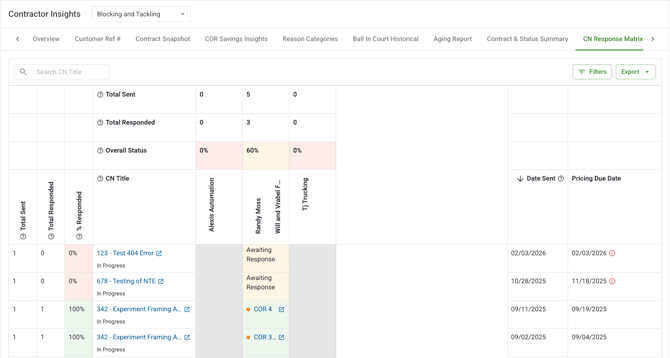
The CN Response Matrix is a tab within Contractor Insights that gives you a cross-tabulated view of CN response status across all contractors on a project. Each row is a Change Notification, and each column is a contract. The cell at the intersection shows whether that contractor responded with a COR, responded with No Cost Impact, or is still awaiting a response.
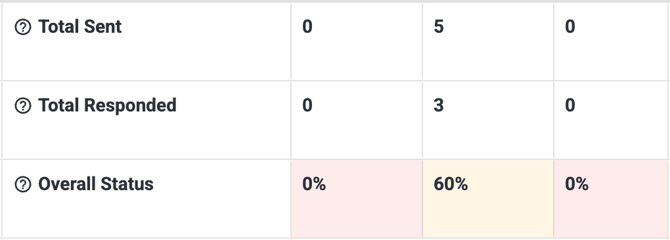
At the top of the matrix, three summary rows show you the total CNs sent, total responses received, and response rate (%) per contractor — so you can assess overall response completeness before diving into the rows.
What you see depends on your role. Account Owners, Admins, and Project Managers see all contract columns. Contractors see only their own contract column. Field Users do not have access.
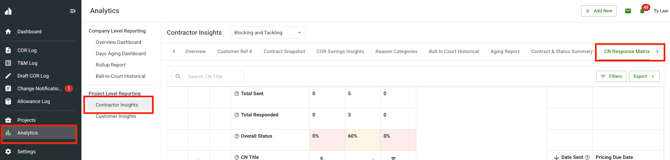
You can access the CN Response Matrix from Analytics II Contractor Insights II CN Response Matrix in the Clearstory side panel.
Why it matters
On projects with many contractors and CNs, tracking who has and hasn't responded to each notification requires checking each CN individually in the CN Log — a slow, error-prone process. Missed responses delay pricing, create schedule risk, and lead to disputes.
The CN Response Matrix surfaces all of this in one view. You can see response completeness across every contractor at a glance, spot past-due items before they escalate, and drill directly into the CN or COR record to take action.
How it works
The matrix has two main parts: the summary rows at the top and the CN rows below.
Summary rows — what each row is calculating
|
Row |
What it shows |
|---|---|
|
Total Sent |
The total number of CNs sent to each contract on the project. This count bypasses pagination and always reflects the full total, not just what's visible on screen. |
|
Total Responded |
The total number of CNs that have received any response (COR or No Cost Impact) from each contract. |
|
% Responded |
Total Responded ÷ Total Sent for each contract, expressed as a percentage. Color-coded: red = 0% (no responses), yellow = partial response, green = 100% (fully responded). |
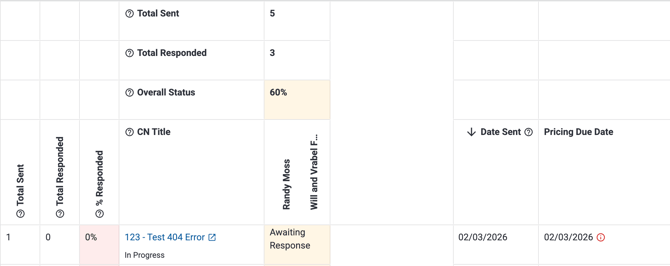
CN row columns — what each column shows
|
Column |
What it shows |
|---|---|
|
CN Title |
The CN's reference number, title, and current status. Clickable — opens the CN detail record in a new tab. |
|
Date Sent |
The date the CN was issued to contractors. |
|
Pricing Due Date |
The deadline for contractors to respond with pricing. Past due dates are visually flagged when the contractor still hasn't responded. |
|
Total Sent |
How many contracts this CN was sent to. |
|
Total Responded |
How many contracts have responded to this CN. |
|
% Responded |
Response rate for this specific CN. Color-coded the same way as the summary row. |
|
[Contract Name columns] |
One column per contract. Shows the response type for that contract on this CN. |
Response cell values
A cell shows as past due when the Pricing Due Date has passed AND the contractor still shows "Awaiting Response." Only cells where a response is still missing are flagged — responded cells are never marked past due regardless of date.
|
Value |
What it means |
|---|---|
|
COR [number] |
The contractor responded with a Change Order Request. The COR number is shown and is clickable — opens the COR detail record in a new tab. |
|
No Cost Impact |
The contractor responded indicating this CN has no cost impact. |
|
Awaiting Response |
The contractor has not yet responded to this CN. |
Step-by-step instructions
Navigate to the CN Response Matrix
-
Open Clearstory and go to the Analytics section in the side panel.
-
Select Contractor Insights from the Analytics navigation.
-
Click the CN Response Matrix tab.
-
The matrix loads automatically showing all CNs and contracts on the project.
Search for a specific CN
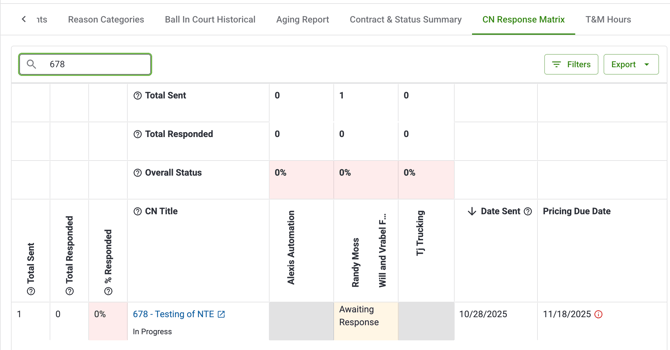
Use the search bar to find a CN by title.
-
Click the search bar at the top of the matrix.
-
Type part or all of the CN title.
-
The matrix hides rows that don't match your search in real time.
-
Clear the search to restore all rows.
Apply filters
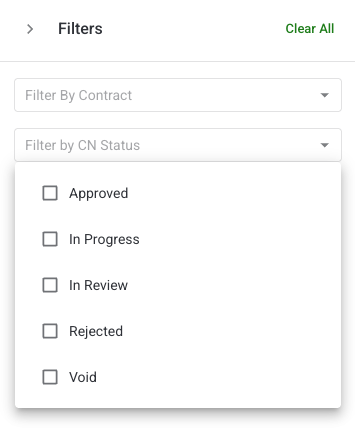
Use the filter panel to narrow the contracts and CN statuses shown.
-
Open the filter panel (side panel).
-
Use Filter by Contract to select one or more specific contracts — this narrows the visible contract columns.
-
Use Filter by CN Status to show only CNs in specific statuses (Approved, In Progress, In Review, Rejected, Void) — this hides CN rows not matching your selection.
-
The matrix and summary rows update in real time.
-
Filters can be cleared individually or all at once.
Note: If no contract is selected, all contracts on the project are shown by default.
Identify past-due CNs
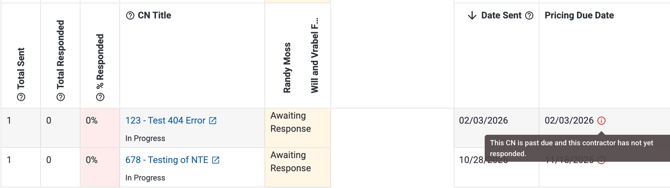
Past-due items are visually flagged in the matrix. Look for:
-
A flag on the Pricing Due Date column for that CN row.
-
A flag on any contract response cell showing "Awaiting Response" where the due date has passed.
Click the CN title to open the CN detail record and confirm the due date, then follow up directly with the contractor.
Drill into a CN or COR record
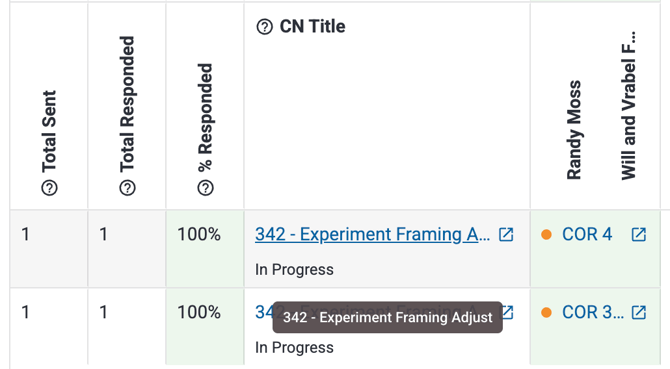
-
CN titles in the leftmost column are clickable — click any CN title to open that CN's detail record in a new tab.
-
COR numbers in response cells are clickable — click any COR number to open that COR's detail record in a new tab.
-
"No Cost Impact" and "Awaiting Response" cells are not clickable.
Export the matrix
-
Apply any search terms or filters you want reflected in the export.
-
Click the Export button.
-
Select PDF or Excel.
-
Clearstory processes the export in the background. You will receive a bell notification and email when the file is ready to download.
Note: If an export fails, Clearstory will notify you so you can retry.
What each role can do
|
Action |
Account Owner |
Admin |
Project Manager |
Contractor |
Field User |
|---|---|---|---|---|---|
|
View CN Response Matrix |
✅ |
✅ |
✅ |
✅ |
❌ |
|
View all contract columns |
✅ |
✅ |
✅ |
❌ |
❌ |
|
View own contract column only |
✅ |
✅ |
✅ |
✅ |
❌ |
|
Search and filter |
✅ |
✅ |
✅ |
✅ |
❌ |
|
Drill through to CN / COR records |
✅ |
✅ |
✅ |
✅ |
❌ |
|
Export (PDF / Excel) |
✅ |
✅ |
✅ |
✅ |
❌ |
Tips and best practices
Check the % Responded summary row first. Red cells immediately tell you which contractors haven't responded to any CNs. Yellow tells you response is partial. Focus follow-up effort on the red and yellow columns before the pricing due dates pass.
Use the CN Status filter to focus on active CNs. Filtering to "In Progress" removes approved and closed CNs from the view, leaving only the CNs where response activity is still relevant.
Sort by Pricing Due Date to prioritize urgency. CNs with approaching or past-due dates that still show "Awaiting Response" need the most immediate attention.
Export to PDF for project meetings. The PDF export preserves the matrix layout, making it easy to share in a meeting or attach to a status report.
Use the contract filter when meeting with a specific contractor. Filtering to a single contract gives you a focused view of just that contractor's response history — useful for a direct follow-up conversation.
FAQs
What does "Awaiting Response" mean?
It means the contractor has not yet submitted a response to that CN — no COR and no No Cost Impact response has been recorded. If the pricing due date has also passed, the cell will be flagged as past due.
What is the difference between a COR response and a No Cost Impact response?
A COR response means the contractor submitted a Change Order Request in response to the CN — there is a cost impact. A No Cost Impact response means the contractor confirmed the CN has no cost implication for their contract. Both count as a "responded" status for the purposes of the % Responded calculation.
How is % Responded calculated?
It's Total Responded ÷ Total Sent for that contract column or CN row. Total Responded counts any CN where the contractor has submitted either a COR or a No Cost Impact response. Total Sent counts all CNs sent to that contract, regardless of response status.
What does the color coding on % Responded mean?
Red means 0% — no responses received at all. Yellow means partial — some CNs have been responded to but not all. Green means 100% — the contractor has responded to every CN sent to them.
Why does Total Sent in the summary row sometimes differ from the number of visible rows?
The Total Sent summary row always shows the complete count of CNs sent to each contract, even when search or filters are hiding some rows. It bypasses pagination and display filtering to give you the true total.
How do I know if a CN is past due?
A CN is considered past due for a specific contractor when the Pricing Due Date has passed AND that contractor still shows "Awaiting Response." Cells in this state are visually flagged in the matrix. CNs with no Pricing Due Date set are never flagged.
Can I click through to the CN or COR record from the matrix?
Yes. CN titles in the leftmost column link to the CN detail record. COR numbers in response cells link to the COR detail record. Both open in a new tab. "No Cost Impact" and "Awaiting Response" cells don't have clickable links.
Can contractors see other contractors' responses?
No. Contractors only see their own contract column in the matrix. Other contracts' response data is not visible to them.
Do my search and filters carry through to the export?
Yes. Both the search term and any active filter selections are reflected in the exported file.
What export formats are available?
PDF and Excel. PDF preserves the visual matrix layout. Excel provides the data in a structured spreadsheet format. Both reflect your active search and filter selections.