
Overview
A COR can contain a lot of repeated line items. If you pull in several T&M Tags that each bill the same labor class across different days, or if you’re pricing a COR from scratch and adding multiple rows for the same rate, you’ll end up with the same entry listed over and over. A detailed COR can easily stretch to hundreds of rows.
Consolidation gives you control over how those line items are displayed. Each cost type table has its own view mode selector, letting you consolidate or group rows independently.
Choosing a View Mode
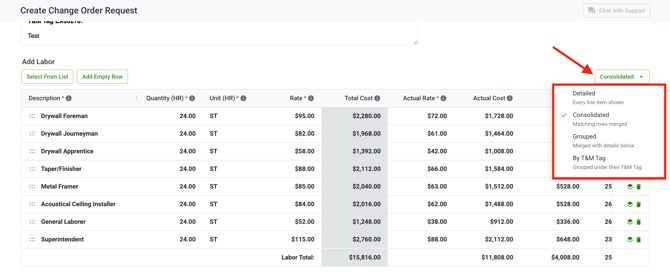 Each LMEO table has a view mode selector. Switch between four options at any time — you won’t lose any data when you switch.
- Detailed: The default. Every line item appears individually, exactly as entered. Nothing is combined.
- Consolidated: Matching line items are merged into a single row. Quantities are summed and the shared description, unit, and rate are shown once.
- Grouped: The same merged rows as Consolidated, plus the individual source rows shown directly beneath each group. Useful when you want the summary and the breakdown visible together.
- By T&M Tag: Line items are organized by their originating T&M Tag. Each T&M Tag appears as a header row showing its number, title, and total, with the individual line items listed beneath it. Only useful when the COR includes T&M Tags — line items added directly pass through individually.
Which Line Items Get Consolidated?
Two line items merge in the Consolidated and Grouped views only when they match on all of the following:
- Rate: Both rows reference the same rate from your project’s rates.
- Unit: Both rows share the same unit of measure. For labor, this means ST, OT, DT, and premium rates always stay separate, even for the same labor class.
- Rate value: The effective rate is identical. If you’ve overridden the rate on one row, it won’t consolidate with rows at the original rate.
If your company has Actual Cost enabled, the actual rate must also match for rows to consolidate. The same override logic applies: an overridden actual rate on one row will keep it separate from rows at the original actual rate.
Editing in Each View
Detailed view: All fields are editable as usual.
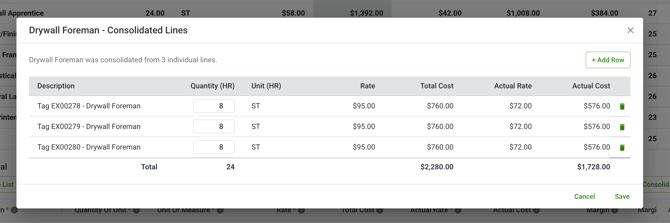
Consolidated view: To adjust quantities, click on a consolidated row to open the Edit Consolidated Rows window. This shows each original line item within the group so you can update quantities individually. The consolidated total updates automatically.
Grouped and T&M Tag views: You can edit quantities directly on the individual rows beneath each group header. The group total updates automatically.
- Rate Type on labor rows: If you change the rate type (ST, OT, DT, etc.) on a consolidated parent row, the change applies to every child row within that group.
-
In all non-Detailed views, only quantities can be changed on individual rows. The description, unit, and rate are locked to preserve the grouping. To change any of those, switch to the Detailed view.
What happens to the COR PDF?
The PDF output matches exactly what you see on screen. If your Labor table is in Consolidated mode and your Materials table is in Grouped mode, the PDF reflects both of those views. Previewing the COR before sending is the best way to confirm the output looks the way you want.