
About AI-generated results
This feature uses AI to generate results such as classifications, summaries, and suggestions. AI-generated results are produced automatically and may be inaccurate or incomplete. They are provided as a starting point, not a guarantee of accuracy, completeness, or fitness for a particular purpose. You should review and validate any AI-generated result before relying on it, and you remain responsible for the final decision to accept, edit, save, or send it.
| Article Update | What Changed? |
| 9/29/2026 | Added filtering functionality for Division filters and ability to see archived projects in project filters. Included functionality for exporting report |
Table of Contents
- How it works
- Step-by-step instructions
- Manage categories in Settings
- Create a category group
- Create a category
- Re-order category groups or categories
- Delete a category
- Bulk categorize existing CORs
- Assigning a reason to a COR
- Update a category after the COR is created
- Update categories from the COR Log
- View Reason Category reports
- What the reports show
- Filter the report
- Export the Reason Categories Report
- Drill Down Into CORs by Reason Category
- Re-assign CORs from analytics
- Tips and best practices
- FAQs
Overview
Reason Categories help you classify why a Change Order Request (COR) happened. Clearstory can suggest a category for you using AI, or you can choose one manually. Once a category is assigned, Clearstory also applies the related Category Group automatically. This helps your team keep COR data consistent across projects and makes reporting easier to use.
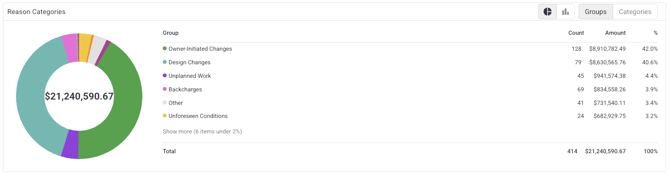
You can work with Reason Categories in several places in Clearstory, including COR creation, COR details, the COR Log, Settings, and analytics.
Why it matters
Reason Categories allow you to understand the underlying cause behind CORs for specific projects or across your portfolio, answering questions you may have around issues that are driving changes across your work.
How it works
Each COR can have one active Reason Category for each company’s view of that COR. The selected Category determines the Category Group automatically. A category can be assigned by a user or by Clearstory’s AI. Clearstory also keeps track of whether the category came from AI or from a manual update.
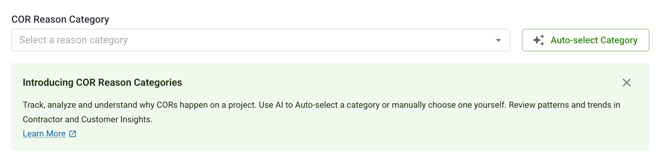
When you create a COR, you can use Auto-Select Category after you add enough context. Minimum context includes the project plus either a title and description or an attached file. You can override it at any time by choosing a different category yourself.
If you submit a COR without choosing a category, Clearstory can categorize it automatically on submission when AI categorization is enabled for that company and project. If AI is turned off, the COR can remain uncategorized unless a user assigns a category manually.
You can also update categories later from the COR detail page, edit page, or COR Log. In the COR Log, category and category group columns are available, and eligible CORs can be updated in bulk. Clearstory records category changes in activity history where supported.
Reason Categories are company-specific. That means the sender and receiver can classify the same COR differently based on their own company taxonomy. Each company sees the category that applies to its own reporting setup.
Step-by-step instructions
Manage categories in Settings
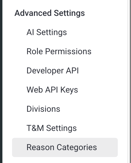
Account Owners can manage the company taxonomy in Settings. This includes creating custom categories and category groups, archiving eligible categories, and retiring categories with reassignment when needed. Archived categories cannot be assigned to new CORs. Pre-seeded categories are protected and cannot be edited or deleted.
Create a category group

-
Go to Settings and open your company’s Reason Categories setup.
-
Review the list of existing category groups, including active and archived groups.
-
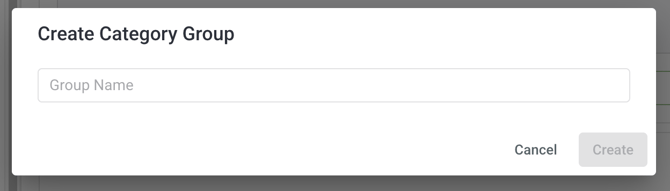
Select the option to create a new category group.
-
Enter the category group name.
-
Save the new group. Clearstory assigns a custom color to new category groups based on the order they are created.
-
Confirm the new group appears in your category group list.
Create a category
-
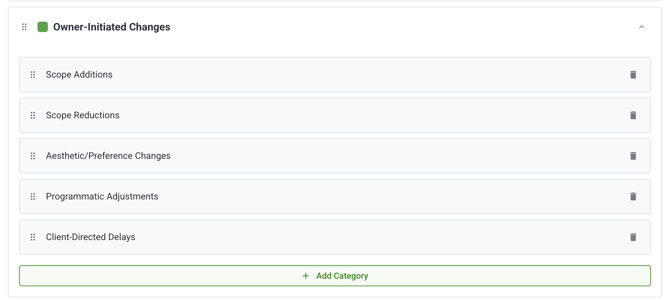
Find the category group where you want the new category to live.
-
Select the option to create a new category.
-
Enter the category name.
-
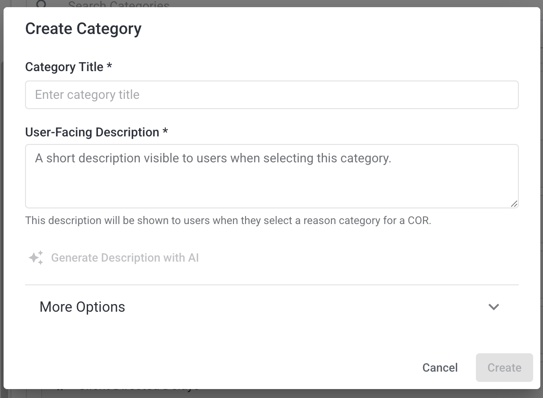
Enter a Category Title, User-Facing Description, and Generate a Description with AI
-
Save the category.
Re-order category groups or categories
You can re-order your category groups and categories to adjust the order of the list in your COR reason category dropdown
-
Drag or move the category groups into the order you want.
-
Check that the new order appears in COR dropdown menus.
Note: You cannot move categories into other category groups.
Delete a category

-
In Settings, find the category you want to retire.
-
Select the delete option for that category.
-
If existing CORs use that category, choose a replacement category when prompted.
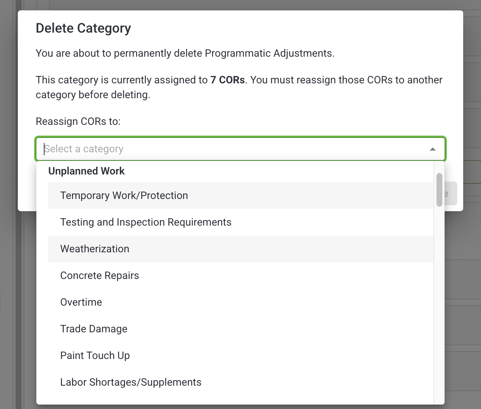
Note: After deleting, the retired category cannot be assigned to new CORs.
Bulk categorize existing CORs
After you setup your categories, an Account Owner can run a one-time bulk categorization job for eligible uncategorized CORs. We will show progress in Settings, displays an in-progress banner in analytics, and updates category-based views after the job finishes.
Note: If you have a large backlog of CORs then bulk categorization may take several hours
Assigning a reason to a COR
-
Open or create a COR.
-
Add enough context for categorization. Include the project and either:
-
a title and description, or
- an attached file.
-
-
In the COR Reason Category field, choose one of these options:
-
select a category manually, or
- click Auto-Select Category to get an AI suggestion.
-
- Review the suggested or selected category.
- If needed, change the category manually. Manual selection overrides the AI suggestion.
- Submit the COR.
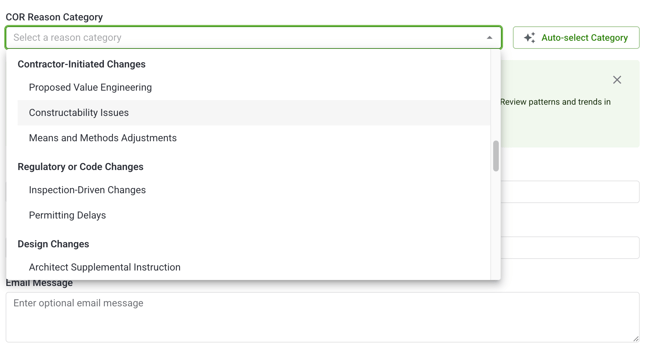
Note:If you leave the category blank and AI categorization is enabled, Clearstory can assign a category automatically during submission.
Update a category after the COR is created
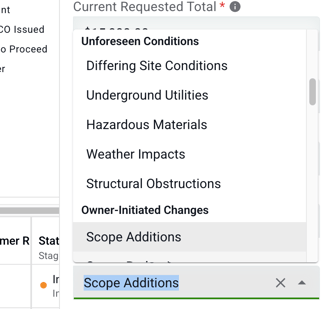
-
Open the COR detail page or edit page.
-
Find the current Reason Category and Category Group.
-
Select a new category from the list of active categories.
-
Save your changes. Clearstory updates the Category Group automatically and records the change in activity history where supported.
Update categories from the COR Log
-
Open the COR Log.
-
View the Reason Category and Reason Category Group columns.
-
Select one or more eligible CORs.
-
Choose a replacement category.
-
Apply the update. Clearstory recalculates the Category Group for the selected CORs.
View Reason Category reports
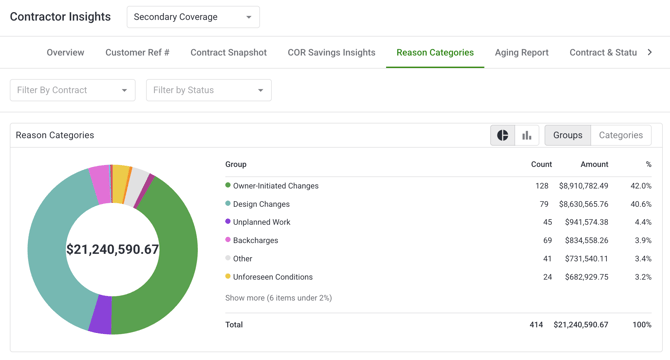
Reason Category reporting is available in Company-Level Reporting, Contractor Insights, and Customer Insights. In these reports, Clearstory uses the analytics context you are in. Contractor Insights uses received COR context, and Customer Insights uses sent COR context.
-
Open Analytics.
-
Go to the reporting area you want to use:
-
Company-Level Reporting
-
Contractor Insights
-
Customer Insights
-
-
Open the Reason Categories report.
-
Review the report modules available for that analytics context. Clearstory loads the supported modules automatically for the page you are on.
What the reports show
The Reason Categories report includes four modules that help you move from a high-level summary to record-level detail.
-
Project Total shows summarized reason category or category group data for the selected scope.
-
Timeline View shows how reason categories change over time for the selected scope.
-
Contract Breakdown by Category or Customer Breakdown by Category groups category data by contract or customer, depending on the report context.
-
COR Reason Category Details shows record-level COR detail.
Filter the report
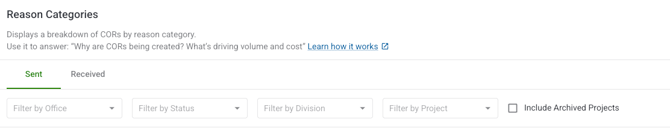
All Reason Category report modules use the active analytics filters. Summary views and detail views reconcile to the same filtered dataset.
- Filter by Office: limits the report to CORs from projects in the selected office or offices.
- Filter by Status: limits the report to CORs in the selected status or statuses.
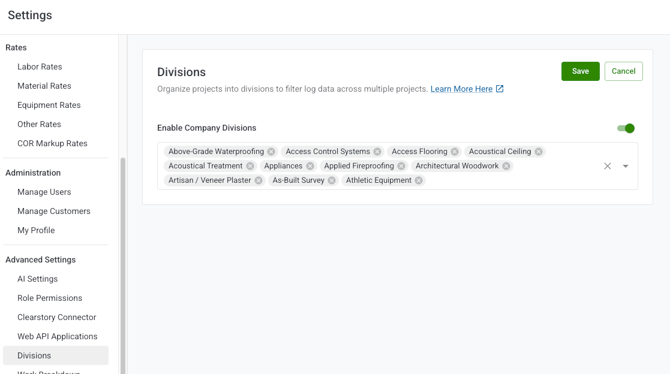
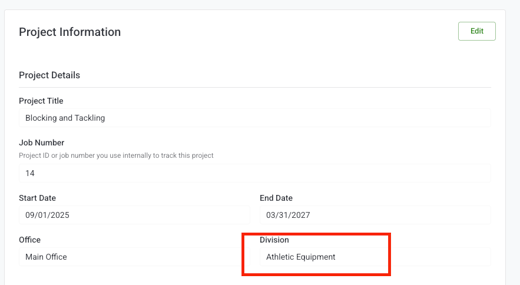
- Filter by Division: limits the report to CORs on projects assigned to the selected division or divisions. This filter only appears if your company has Company Divisions enabled in Settings.
-
Filter by Project: limits the report to the selected project or projects. Each project in the dropdown shows its job number and the customer name from its associated contract, if available.
- Include Archived Projects shows a list of archived projects and let's you filter by specific archived projects.
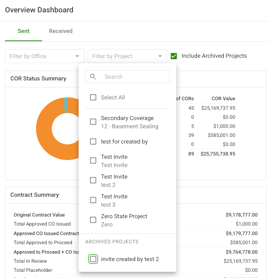
- Include Archived Projects shows a list of archived projects and let's you filter by specific archived projects.
-
Review the updated charts and tables across the Reason Categories report.
-
Confirm that the same filter set is reflected across summary and detail modules.
-
Continue refining your filters until the report shows the project, contractor, customer, or time period you want to analyze.
Note: Divisions must be enabled and added at the company level and then included at the project's Division section of project information to be filterable. You can learn more about your division configuration at: https://knowledge.clearstory.build/how-to-create-divisions
Export the Reason Categories Report
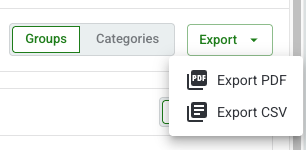
You can export the Reason Categories report to PDF, Excel (.xlsx), or CSV. This is available on both the Contractor Insights and Customer Insights versions of the report.
Note: Exports reflect the filters and view you had open at the time of export — including whether you were viewing Total or Timeline. If you want a Timeline export, switch to Timeline view before exporting.
- Apply the filters you want reflected in the export (Project, Status, Category or Category Group, Timeline range, Contract, or Detail category/group selections).
- Select the Total or Timeline view, depending on which you want the export to reflect.
- Select Export in the top-right corner of the report.
- Choose a format: PDF, Excel (.xlsx), or CSV.
What each format includes
PDF: A single document with a branded header (Clearstory logo, report title, project or scope name, export date, and active filters), followed by the summary tables for your selected view (Total or Timeline), and a detail section listing the underlying CORs with their Reason Category and Category Group.
Excel (.xlsx): A two-sheet workbook.
- Sheet 1: Report Summary: mirrors the on-screen report for your selected view (Total or Timeline).
- Sheet 2: COR Detail: one row per COR, including COR ID, COR Title/Reference Number, Project Name, Contract Name, Status, Requested Amount, Date Submitted, Reason Category, and Category Group.
Drill Down Into CORs by Reason Category
You can click supported chart elements or detail values to drill into the filtered CORs behind the report. This helps you investigate the records driving a category trend or root-cause pattern.
-
Start from a chart, breakdown row, or detail value in the Reason Categories report.
-
Click the chart segment or value you want to investigate.
-
Review the filtered set of CORs related to the reporting module you are viewing.
-
Use that detailed view to identify the specific CORs contributing to the trend or category result.
Re-assign CORs from analytics
If you identify a misclassified COR while investigating analytics results, Clearstory can present reassignment options in the analytics workflow. Reassignment follows the same validation rules used in the COR Log, updates the derived Category Group automatically, and refreshes downstream analytics after refresh. Reassignment is still permission-based.
-
Drill into the filtered CORs from a Reason Categories chart or detail value.
-
Find the COR or CORs you want to correct.
-
Choose a new Reason Category from the eligible reassignment options.
Tips and best practices
- Review your company’s categories before rolling out reporting. Since categories are company-specific, a well-organized taxonomy will make downstream analytics more useful.
- Archive categories you no longer want to use, but reassign existing CORs when prompted so your reporting stays consistent.
-
Use manual selection when you know the exact reason category you want. Manual choices always take priority over AI suggestions.
-
Add a clear title, a detailed description, or a relevant attachment before using Auto-Select Category. Better context helps Clearstory return a more useful prediction.
FAQs
Do I have to choose a category manually?
No. You can choose one manually, ask Clearstory to suggest one with Auto-Select Category, or let Clearstory categorize the COR on submission if AI categorization is enabled.
What happens if I disagree with the AI suggestion?
You can select a different category yourself. Manual selection overrides the AI suggestion.
Can the sender and receiver use different categories for the same COR?
Yes. Reason Categories are company-specific, so the sender and receiver can classify the same COR differently.
Can I update a category after submitting a COR?
Yes. You can update categories from all analytics reporting pages, supported COR detail pages, edit pages, and the COR Log, based on your permissions.
Can archived categories still be used?
No. Archived categories are excluded from future assignment and cannot be applied to new CORs.