Table of Contents
- Video: A Step by Step Guide to Creating & Managing T&M Signature Workflows
- Creating Signature Workflows for Received T&M Tags
- Reviewing T&M Tags with Signature Workflows Enabled
- Creating Signature Workflows for Sent T&M Tags
- Sending T&M Tags with Signature Workflows Enabled
Video: A Step by Step Guide to Creating & Managing T&M Signature Workflows
Creating Signature Workflows for Received T&M Tags
Use Received T&M Signature Workflows to define how T&M Tags submitted by contractors are reviewed and signed by your team.
Access the Received Signature Workflow page
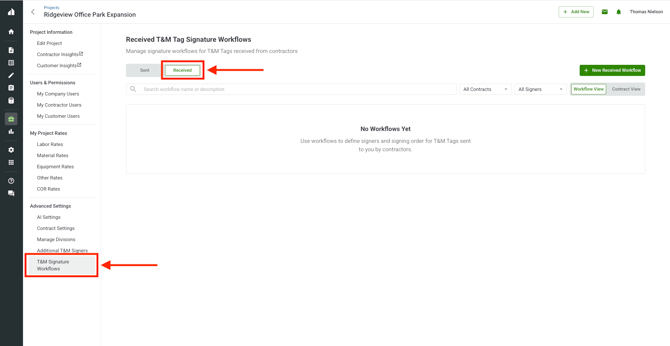
- Open the project
- Navigate to T&M Signature Workflows
- Select the Received tab
Create a New Received Workflow
- Click "+ New Received Workflow"
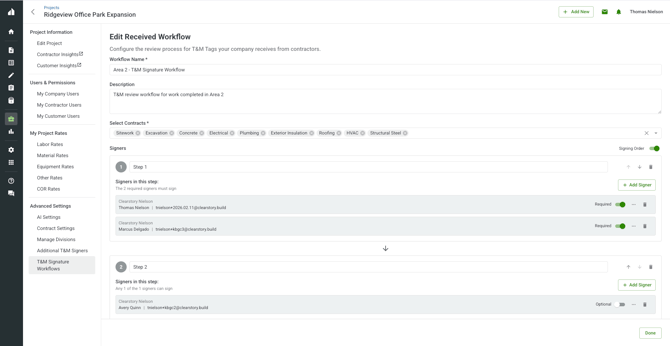
- Enter a Workflow Name
- Add a Description to clarify when this workflow should be used
- Select the Contracts that should use this workflow
- Contractors on these contracts will be able to select this workflow when creating T&M Tags
- Configure Signers and Signing Order
- (Optional) Enable Signing Order
- Add signature steps and assign signers to each step
- When Signing Order is enabled:
- Signature requests are sent step-by-step, not all at once
- Signers in later steps will receive a signature request email only after earlier steps are completed
- Step completion rules:
- If a step has only Optional Signers, then the step completes when any one signer signs.
- If a step has Required Signers, then the step completes only when all Required Signers sign.
- Set Recipients of the Signed T&M Tag
- Configure who should receive an email of the Signed copy of the T&M Tag once it has been signed by all necessary signers.
Assign Multiple Workflows to Contracts
-
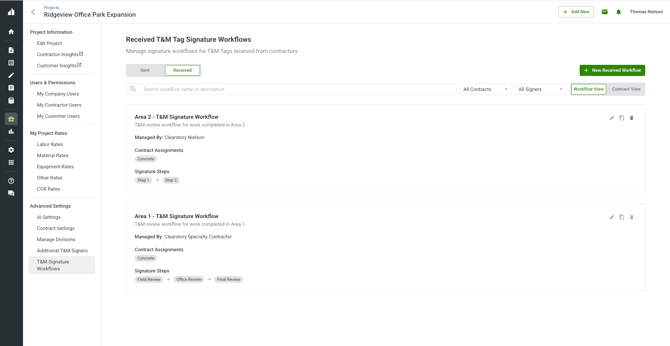
You can create multiple workflows per project
- Contracts assigned to more than one workflow will be able to choose a workflow when creating a T&M Tag
View Workflow Assignment by Contract and Assign a Default Workflow
-
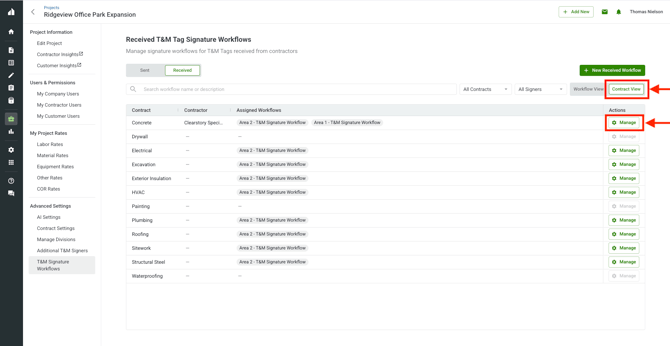
Open the Contract View tab to see all downstream contracts and which workflows are assigned to each.
Set a Default Workflow per Contract
-
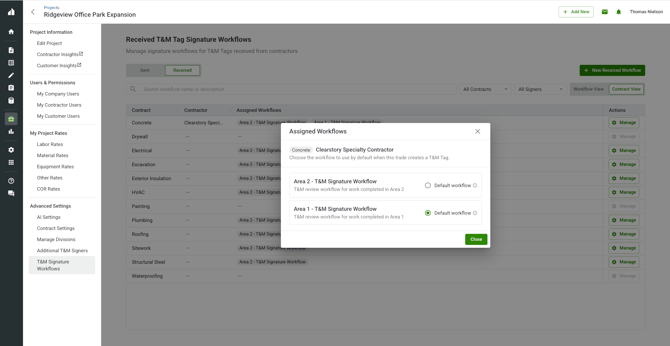
For each contract, you can assign a Default Workflow by clicking Manage
- The Default Workflow will be automatically selected when the contractor creates a T&M Tag for this Project (the contractor can still change the workflow when creating the T&M Tag if needed)
Reviewing T&M Tags with Signature Workflows Enabled
When a T&M Tag is sent to you using a signature workflow, the review experience includes step-based visibility into the review process.
Track Progress through the Signature Workflow
-
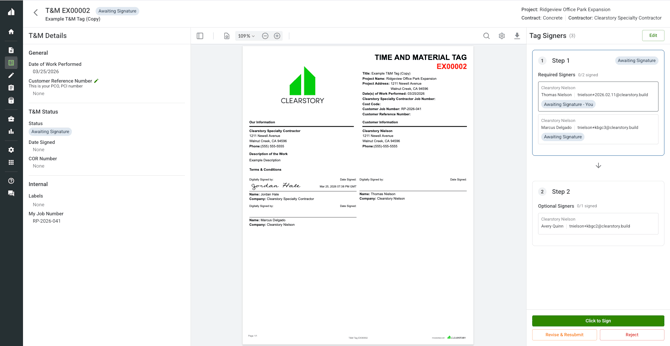
On the Received T&M Tag Details page, signers are grouped by workflow steps
- For each step, you can see:
- Status (e.g. Signed, Awaiting Signature, Revise & Resubmit, Rejected)
- Which signers are assigned
- Which signers have completed their review
Update Workflow (if needed)
-
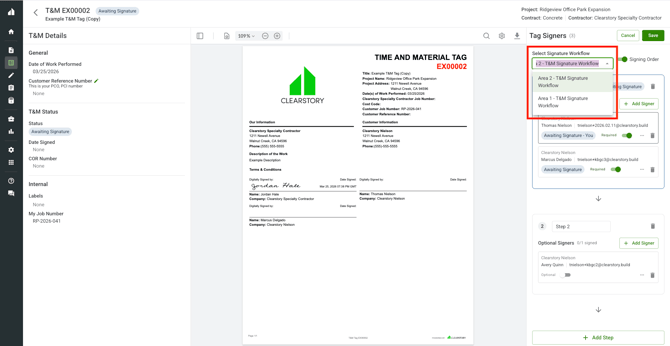
If the workflow was set up incorrectly for this T&M Tag, you can correct mistakes by:
- Changing the selected workflow
- Adding or removing signers manually
Creating Signature Workflows for Sent T&M Tags
Use Sent workflows to define how T&M Tags created and sent by your team are reviewed and signed.
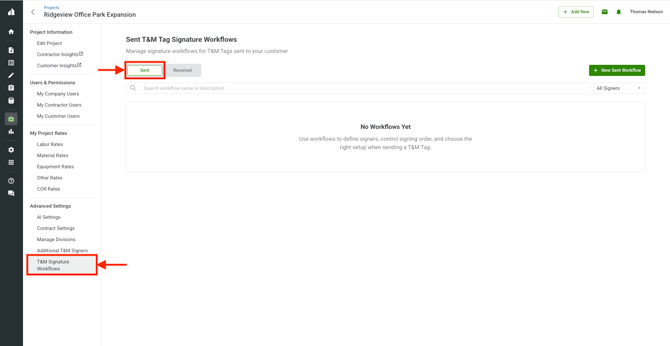
Access the Sent Signature Workflow Page
-
Open the project
-
Navigate to T&M Signature Workflows
-
Select the Sent tab
Create a New Sent Signature Workflow
-
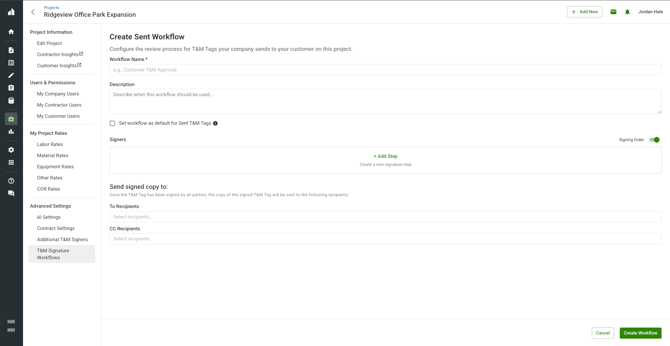
Click "+ New Sent Workflow"
-
Enter a Workflow Name
-
Add a Description to clarify when this workflow should be used
-
Configure Signers and Signing Order
- (Optional) Enable Signing Order
- Add signature steps and assign signers to each step
- Signature requests are sent step-by-step, not all at once
- Signers in later steps will receive a signature request email only after earlier steps are completed
- Step completion rules:
- If a step has only Optional Signers, then the step completes when any one signer signs.
- If a step has Required Signers, then the step completes only when all Required Signers sign.When Signing Order is enabled:
-
Set Recipients of the Signed T&M Tag
- Configure who should receive an email of the Signed copy of the T&M Tag once it has been signed by all necessary signers.
- Multiple workflows can be created for a project. When there is more than one T&M Signature Workflow, users creating the T&M Tag will be able to choose which workflow the T&M Tag should go through.
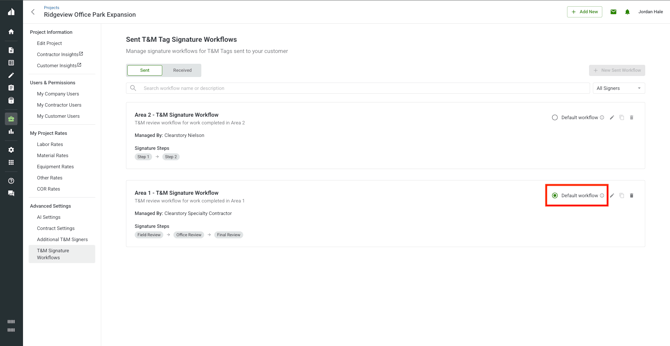
Set a Default Sent Workflow
- Navigate to the Sent tab in T&M Signature Workflows
- From the list of workflows, select the one you want to set as default
- The default workflow will be automatically selected when creating new T&M Tags for this project (users can still change the workflow when creating the T&M Tag if needed)
Sending T&M Tags with Signature Workflows Enabled
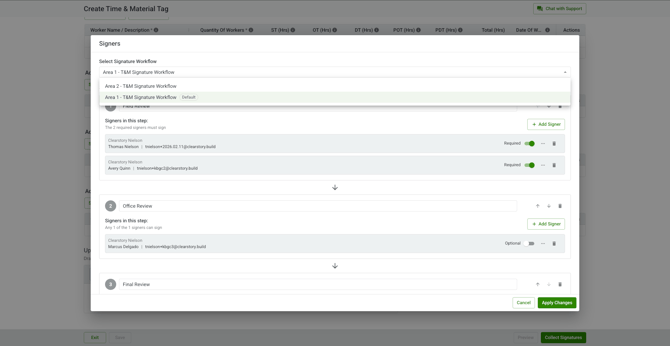
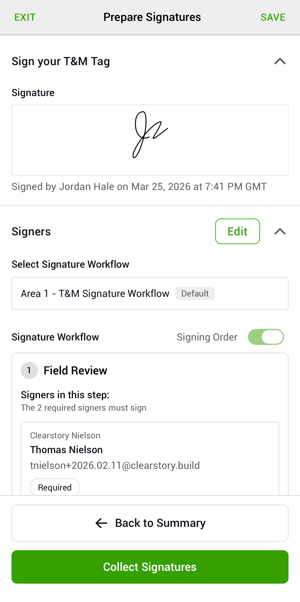
- When creating T&M Tags, the list of signers will be automatically added based on the Default Workflow.
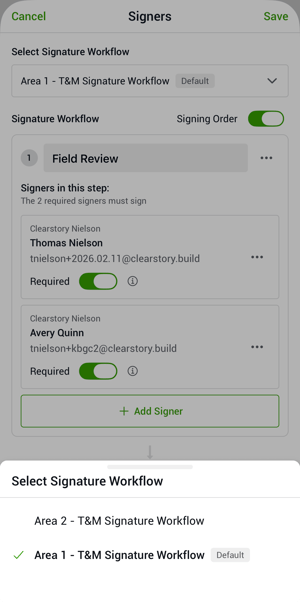
- If the workflow needs to be edited, you can click Edit in the Signers section and:
- Select a different workflow (if multiple are available)
- Add or remove signers
- Adjust signer requirements (required vs optional)
- One confirmed, click Send (web) or Collect Signatures (mobile)
- Signature requests are sent based on the configured workflow and signing order