
Want to allow Project Managers and Admins add any company user to a project, even if that person belongs to a different office? If the person isn't already part of the project's office, Clearstory adds them to that office as well when adding them to the project, so they have the access they need to work on the whichever project they need without needing permissions from other roles. Account Owners control which roles can use this capability, and can allow Admins and Project Managers to add users to projects across different offices.
How it works
Adding someone from another office involves a few pieces working together.
When you open 'Add Team Members' from the 'My Company Users' page, you can search your entire company's roster, not only the people already in your project's office. The list only shows roles you're allowed to add: Project Managers see Project Managers and Field Users, and Admins see Admins, Project Managers, and Field Users. Account Owners never appear as an option to add.
Searching the company roster
When you open Add Team Members, you can search your entire company's roster, not only the people already in your project's office. The list only shows roles you're allowed to add: Project Managers see Project Managers and Field Users, and Admins see Admins, Project Managers, and Field Users. Account Owners never appear as an option to add.
Users from another office are marked
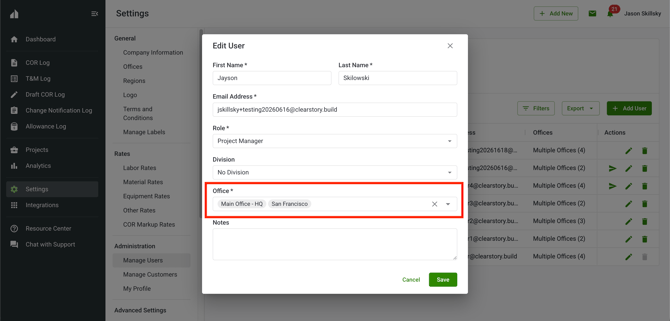
If someone you select doesn't belong to the project's office, Clearstory marks them with an icon and explains what adding them means: they'll be added to that office as well as the project.
Confirming the office addition
Before the add goes through, Clearstory shows an Add User to Office dialog describing the office side effect. If you cancel, nothing is added. If you confirm, Clearstory adds the person to the office and the project together, as a single action. If the project add fails for any reason, Clearstory automatically removes the office membership it just created, so no unintended access is left behind.
Controlling who can add across offices
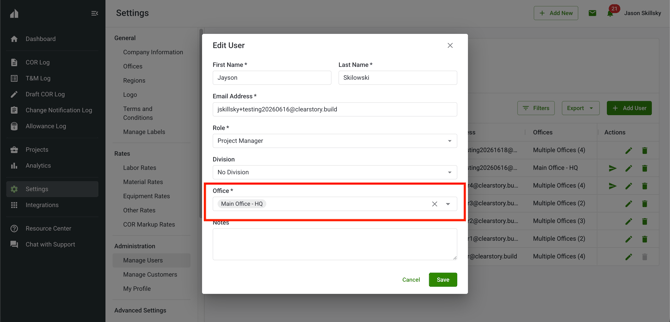
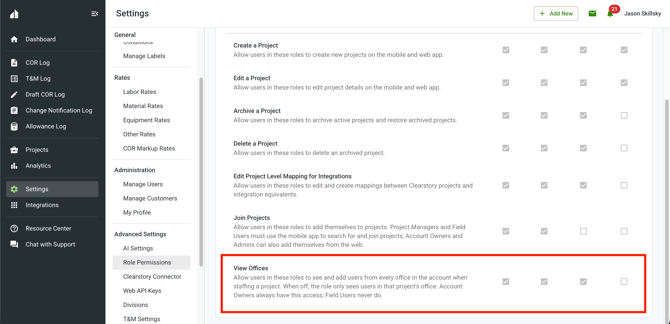
Account Owners decide which roles can add users across offices, using the View Offices permission in Role Permissions. Account Owners always have this permission, and Field Users never do. Admin and Project Manager access is on by default, and Account Owners can turn it off for either role independently. When a role doesn't have View Offices, Add Team Members only shows people already in the project's office, with no cross-office marking or confirmation step.
Add a team member from another office
Note: This task requires the View Offices permission for your role. If your role doesn't have it, Add Team Members only shows people already in the project's office.
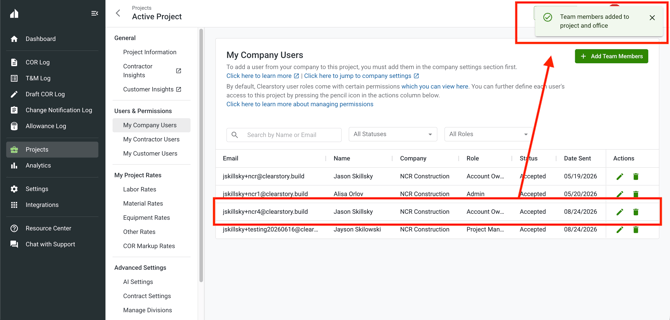
- Open the project you want to staff.
- Select Team, then select + Add Team Members.
- Search for the person you want to add. You can search your whole company, including people outside the project's office.
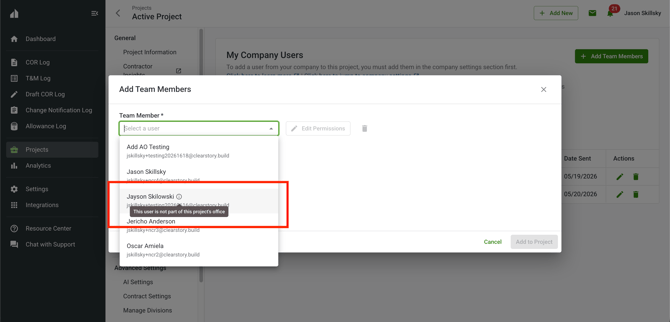
- Select the person's name.
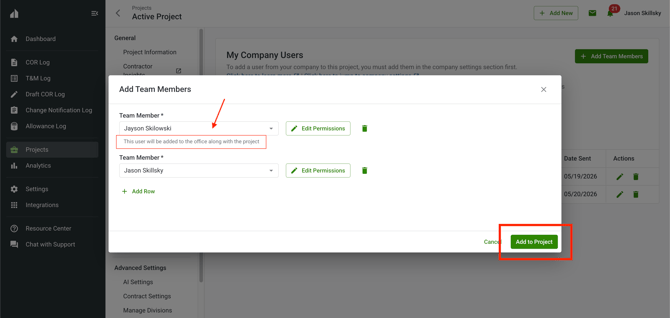
- Select Add to Project.
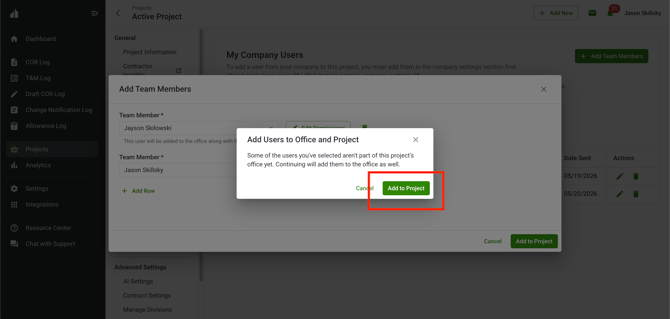
- In the Add User to Office dialog, review the office side effect, then select Confirm to complete the add or Cancel to stop.
Turn cross-office adds on or off for a role
Note: Only Account Owners can change this setting.
- Open Settings.
- Select Advanced Settings, then Role Permissions.
- Find the View Offices row.
- Select the toggle for Admin or Project Manager to turn cross-office adds on or off for that role.
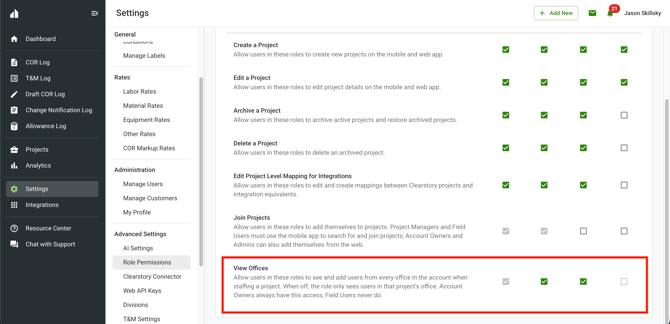
Note: Account Owner and Field User can't be changed. Account Owner is always on, and Field User is always off.
What each role can see
| Action | Account Owner | Admin | Project Manager | Field User |
|---|---|---|---|---|
| Add a user from another office to a project | ✅ | Depends on View Offices | Depends on View Offices | ❌ |
| Turn cross-office adds on or off for a role | ✅ | ❌ | ❌ | ❌ |
Whether an Admin or Project Manager can add users from another office depends on the View Offices permission for their role, which Account Owners control in Role Permissions. When it's on (the default), Admins can add Admins, Project Managers, and Field Users, and Project Managers can add Project Managers and Field Users. Neither role can add an Account Owner.
Tips and best practices
- Turning off View Offices for a role only restricts that role. It doesn't turn off cross-office adds for everyone.
- Adding someone from another office adds them to that office, not only the project, so they'll be able to see that office's other projects too.
- If the person you're adding already belongs to the project's office, Clearstory won't create a duplicate office membership.
- The roster refreshes every time you open Add Team Members, so recent removals elsewhere show up right away.
- Review the office side effect in the Add User to Office dialog before confirming, since the office access it grants is separate from project access.
FAQs
Will adding someone from another office change what they can see in that office? Yes. Adding someone to a project outside their current offices adds them to that office as well, so they'll gain the same access to that office's projects and data as anyone else with their role.
What happens if the project add fails after the office add succeeds? Clearstory automatically removes the office membership it just created, so the person isn't left with access they didn't end up needing.
Can I add anyone, regardless of their role? No. You can only add users with a role at or below yours. Project Managers can add Project Managers and Field Users. Admins can add Admins, Project Managers, and Field Users. Neither can add Account Owners.
Why don't I see people from other offices when I search Add Team Members? Your role may not have the View Offices permission turned on. Account Owners control this permission for Admins and Project Managers in Role Permissions.
Will the person I add be notified? Not in this release. You'll see the office side effect and confirm it before the add happens, but the person being added doesn't currently receive a separate notification.
Can I add multiple people from other offices at once? Not yet. Add Team Members currently adds cross-office users one at a time.