![281e4339-eae2-4410-b634-e79d02ca089d.png]](https://knowledge.clearstory.build/hs-fs/hubfs/281e4339-eae2-4410-b634-e79d02ca089d.png?height=40&name=281e4339-eae2-4410-b634-e79d02ca089d.png)
Table of Contents
Overview
Clearstory’s Viewpoint Vista integration allows you to seamlessly sync Change Order Requests (CORs) and Pending Change Orders (PCOs) between Clearstory and Vista using Trimble App Xchange (formerly Ryvit).
This integration eliminates manual data entry, keeps job cost structures aligned, and ensures financial accuracy across systems.
The integration supports two workflows:
-
General Contractors (GCs): Push received subcontractor CORs into Vista as lump-sum PCO Items.
-
Specialty Contractors (SCs): Push created CORs into Vista as either lump-sum or a cost-breakdown format.
Demo Videos
🎥 Specialty Contractor Demo
🎥 General Contractor Demo
Key Benefits
For General Contractors
-
Instantly sync subcontractor CORs into Vista
-
Reduce manual administrative work
-
Maintain accurate forecasting and PCO visibility
For Specialty Contractors
-
Push CORs you create inside Clearstory into Vista
-
Choose between lump-sum or detailed cost-breakdown formats
-
Maintain accurate job cost coding
Shared Benefits
-
Reduce double entry and costly errors
-
Keep Vista and Clearstory in sync
-
Improve transparency across teams and systems
Requirements
Clearstory
-
Clearstory Professional license
-
Integration enabled at account and office level
Viewpoint Vista
-
Active Project Management module (PCOs)
-
Vista Company Number
Trimble App Xchange
-
Installed Xchange Agent
-
Technical contact
-
SQL and API credentials provided to Trimble
Setting Up the Integration
-
Open Project Settings → Viewpoint Vista
-
Select the appropriate Vista job
-
Click Save
After mapping, you will see:
-
Vista PCOs inside Clearstory
-
Synced Vista cost codes and cost types
-
The Push to Vista button in the COR Log
How to Push CORs Into Vista
The push workflow contains two major steps:
STEP 1 — Select or Create a Vista PCO (Same for GCs & SCs)
1A — Select COR(s)
-
Navigate to the COR Log (Sent or Received tab)
-
Select one or more CORs
-
Click + VISTA
1B — Choose an Existing PCO
A modal displays Vista PCOs, including:
-
PCO Type
-
PCO Number
-
Description
-
Status
You may filter by:
-
PCO Type
-
PCO Status
-
Description
1C — Create a New PCO (If Needed)
Enter:
-
Job
-
Description
-
PCO Number (auto-generated)
-
Order Date
-
Submitted Date
-
Status
After selecting a PCO, proceed to Step 2.
STEP 2 — Workflow by Role
General Contractor Workflow
(Received CORs → Lump-Sum Items)
GCs typically receive CORs from subcontractors. These are pushed into Vista as lump-sum PCO Items.
2A — Assign Cost Code & Cost Type
Select, per COR:
-
Subcontract
-
SL Item
-
Cost Code
-
Cost Type
-
Phase Code
2B — Push to Vista
Clearstory creates:
-
One PCO Item per COR
-
Lump-sum estimate detail = COR Total
-
Coding based on your selections
2C — After the Push
-
Vista column shows the assigned PCO number
-
COR status updates to Assigned
Specialty Contractor Workflow
(Created CORs → Lump Sum or Breakdown)
SCs create CORs directly inside Clearstory and may choose the push format.
2A — Choose Push Format
Option 1 — Lump Sum
-
One PCO Item
-
One estimate detail for the COR Total
Option 2 — Sub Total Breakdown
Creates detail lines for:
-
Labor
-
Materials
-
Equipment
-
Other
-
Markups (if applicable)
2B — Assign Cost Code & Cost Type
Selections apply to all estimate detail lines.
2C — Push to Vista
Clearstory sends:
-
Lump sum → 1 detail line
-
Breakdown → multiple detail lines
2D — After the Push
-
Vista column shows the PCO number
-
COR becomes fully synced and cannot be pushed again unless edited
How the Sync Works
Vista → Clearstory (Inbound Sync)
Clearstory polls Vista every 15 minutes to pull:
-
PCOs
-
PCO statuses
-
Cost codes & cost types
-
Vista job metadata
Expected behavior:
Changes in Vista may take up to 15 minutes to appear in Clearstory.
Clearstory → Vista (Outbound Sync)
When you push a COR:
-
Expected completion: 2–3 minutes
-
COR shows Syncing during processing
-
Once confirmed, status becomes Assigned
If Vista or Trimble does not respond, the sync will show Failed.
Vista Sync Statuses
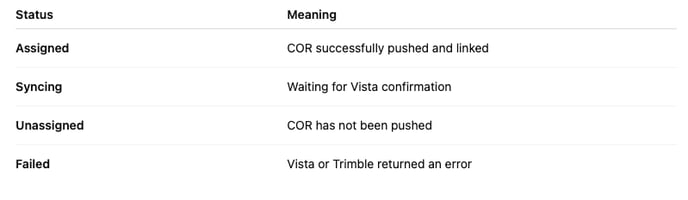 You can filter CORs in the COR Log by these statuses.
How Clearstory Maps Data Into Vista (Simplified)
Lump-Sum CORs
-
COR Title + COR Number → PCO Item Description
-
COR Total → Estimate Amount
-
Selected Cost Code & Type → Vista coding
Breakdown CORs
Each subtotal becomes its own Vista Estimate Detail line:
-
Labor
-
Materials
-
Equipment
-
Other
-
Markups
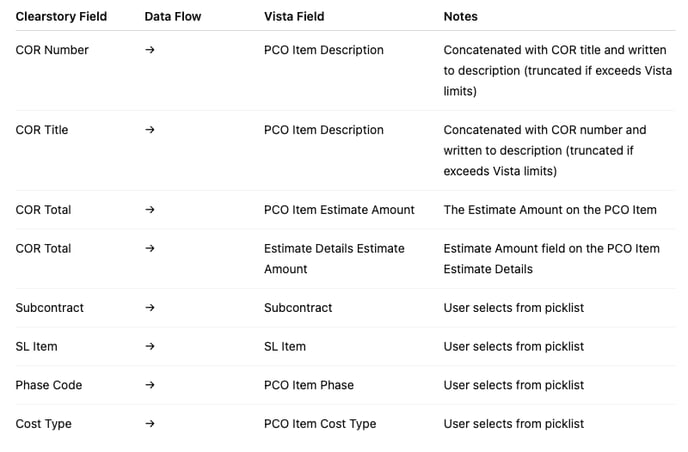
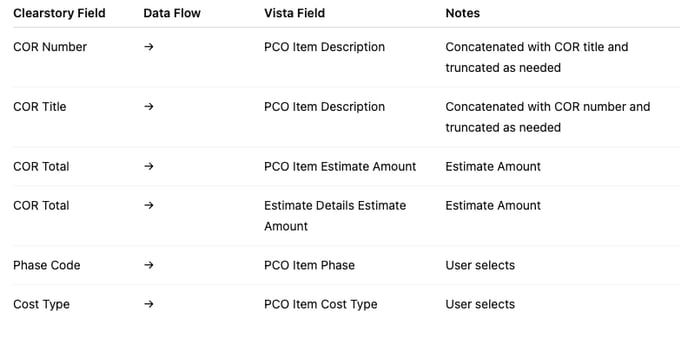
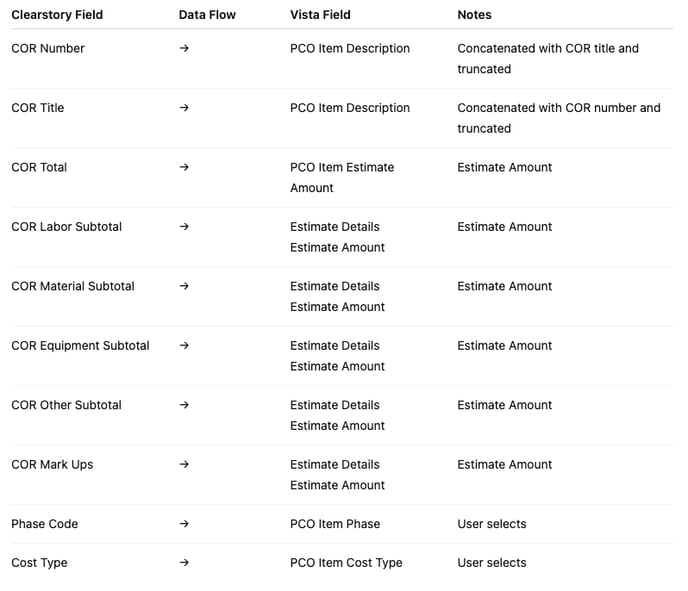
Detailed Field Mapping Tables
Below are the complete field mappings exactly as defined in the feature specification.
📘 GC Workflow — Received Lump-Sum COR Mapping
Pushing a Received Lump Sum COR
📘 SC Workflow — Sent Lump-Sum COR Mapping
Pushing a Sent Lump Sum COR
📘 SC Workflow — Sent Subtotal Breakdown COR Mapping
Pushing a Sent Sub Total COR
Troubleshooting
My PCO isn't showing in Clearstory
-
Only PCOs with Pending Status = 0 are shown
-
Wait for the 15-minute sync interval
Why did my push fail?
Possible reasons:
-
Invalid Vista credentials
-
Missing cost codes or cost types
-
Trimble/Xchange connection issues
-
Unmapped project
After fixing the issue, click Retry.
The COR is stuck on Syncing
-
Processing delays are possible
-
If it stays in Syncing for more than ~7 minutes, check project mapping or cost coding
Can I repush a COR?
Yes — if a push fails or after editing a COR.
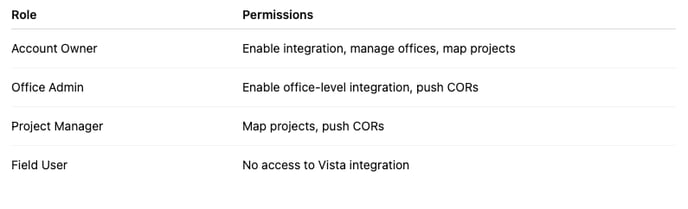
Permissions
Glossary
-
COR — Change Order Request
-
PCO — Pending Change Order
-
SL Item — Subcontract Ledger Item
-
Cost Code / Cost Type — Vista’s job cost coding structure
-
Estimate Detail — Line items inside Vista PCO Items
-
Trimble Xchange Agent — Connector between Clearstory and Vista